
 15
15presentation
Flying Saucer History Lesson Deck
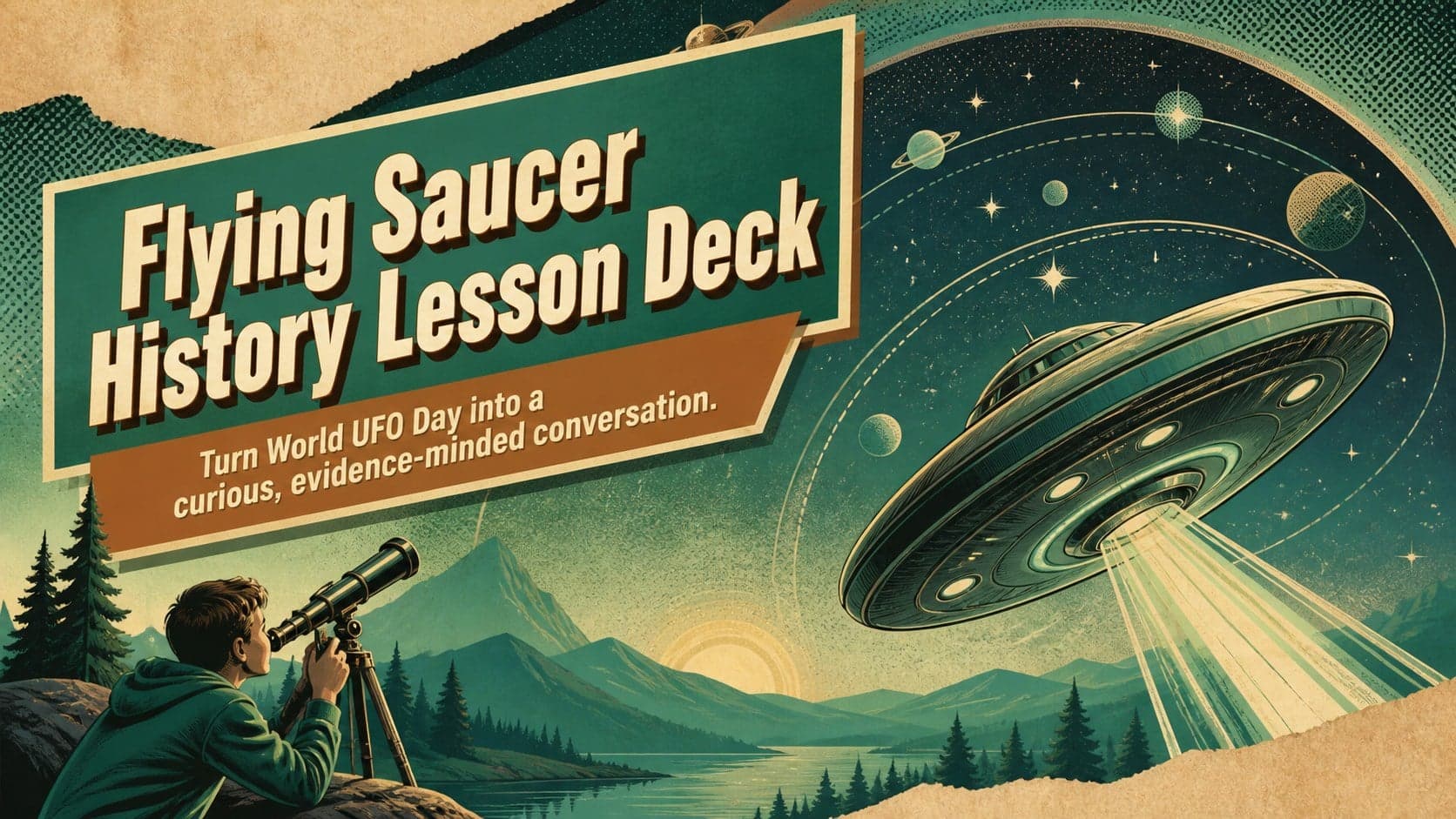
Build an engaging World UFO Day session with this flying saucer history lesson deck, featuring retro green-and-brown slides for PowerPoint and Google Slides.
Google SlidesPowerPoint
presentation · English
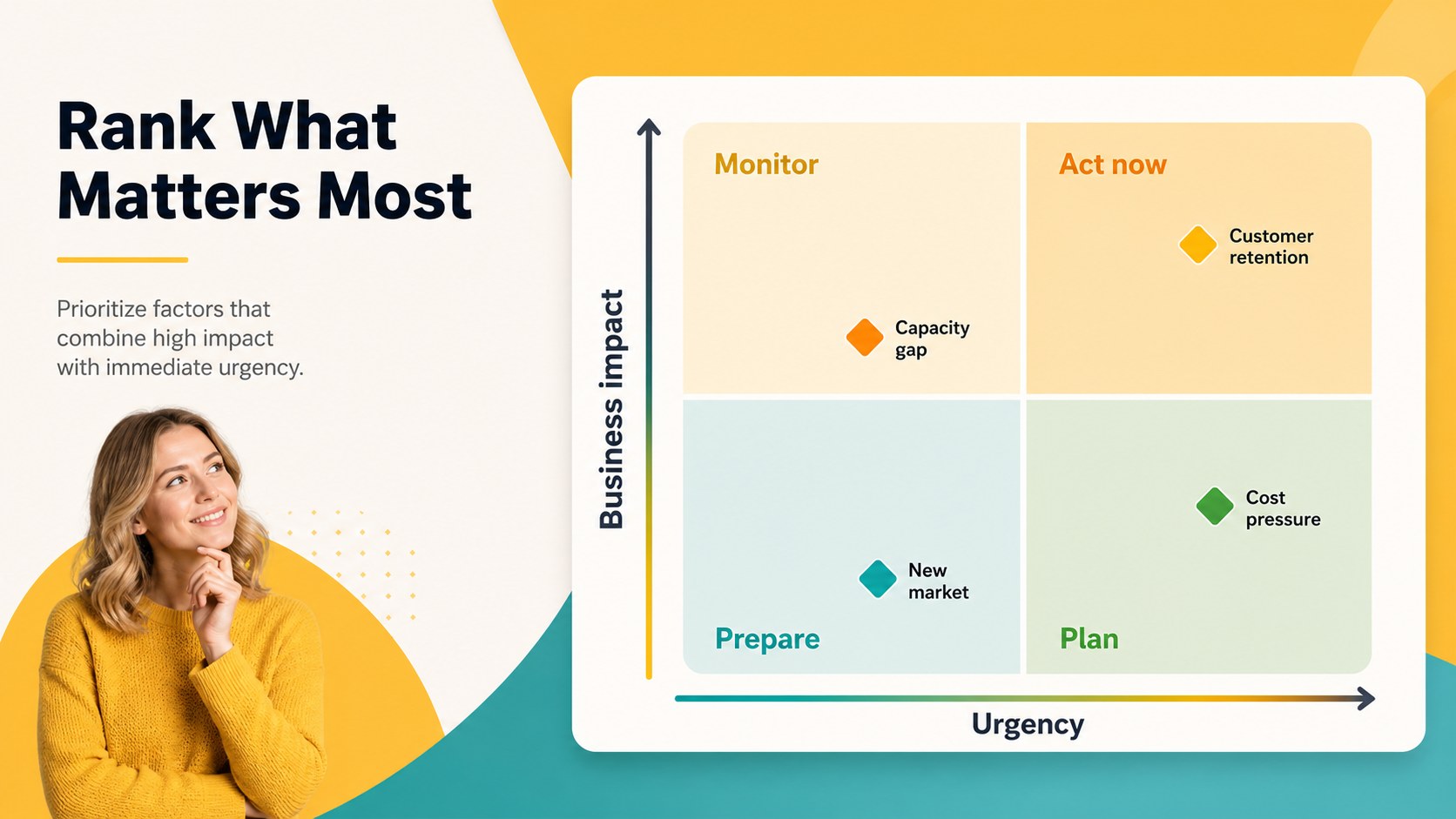
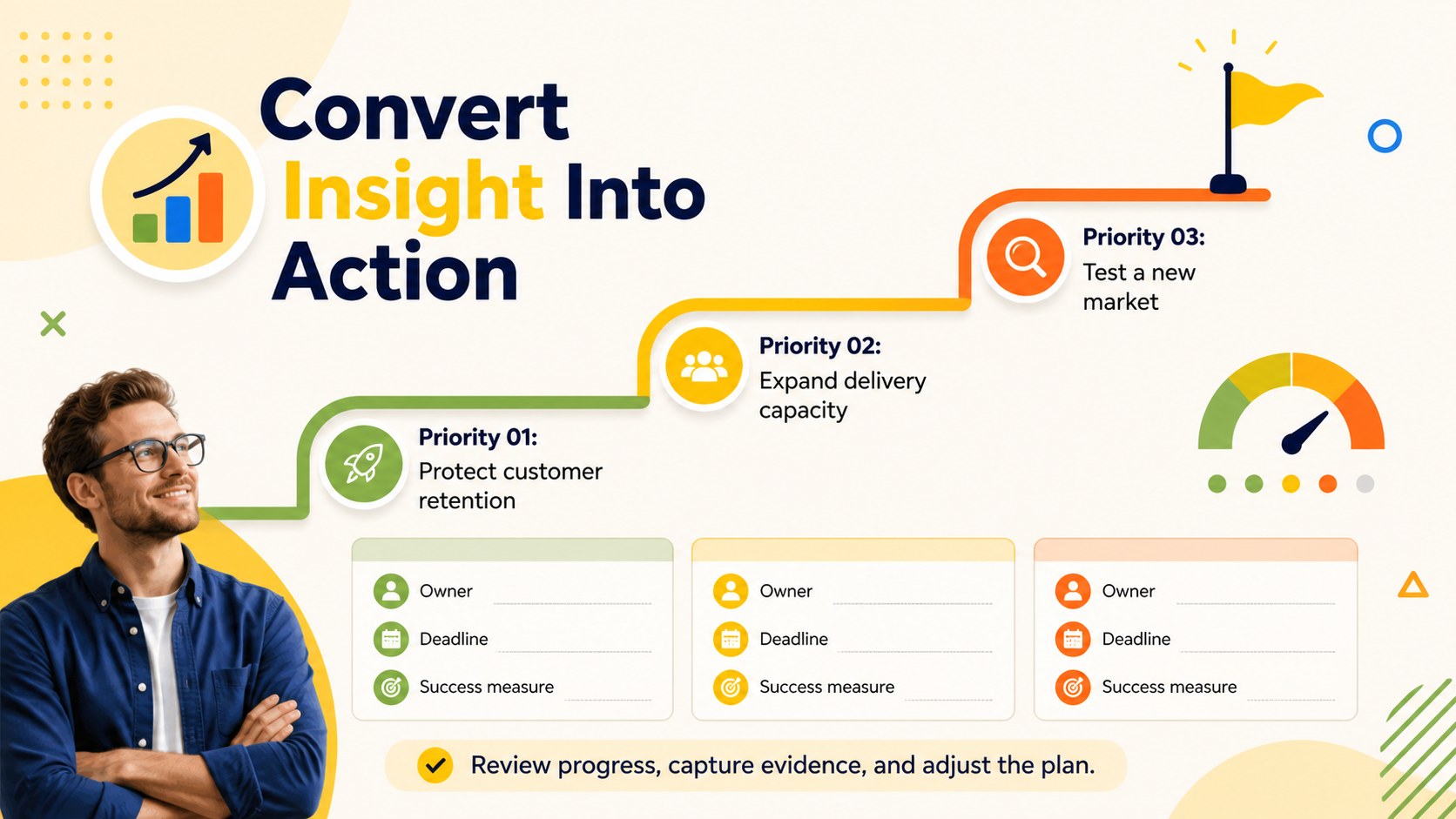
Run sharper planning sessions with a vibrant SWOT strategy workshop deck for mapping key priorities in PowerPoint or Google Slides.


Design notes
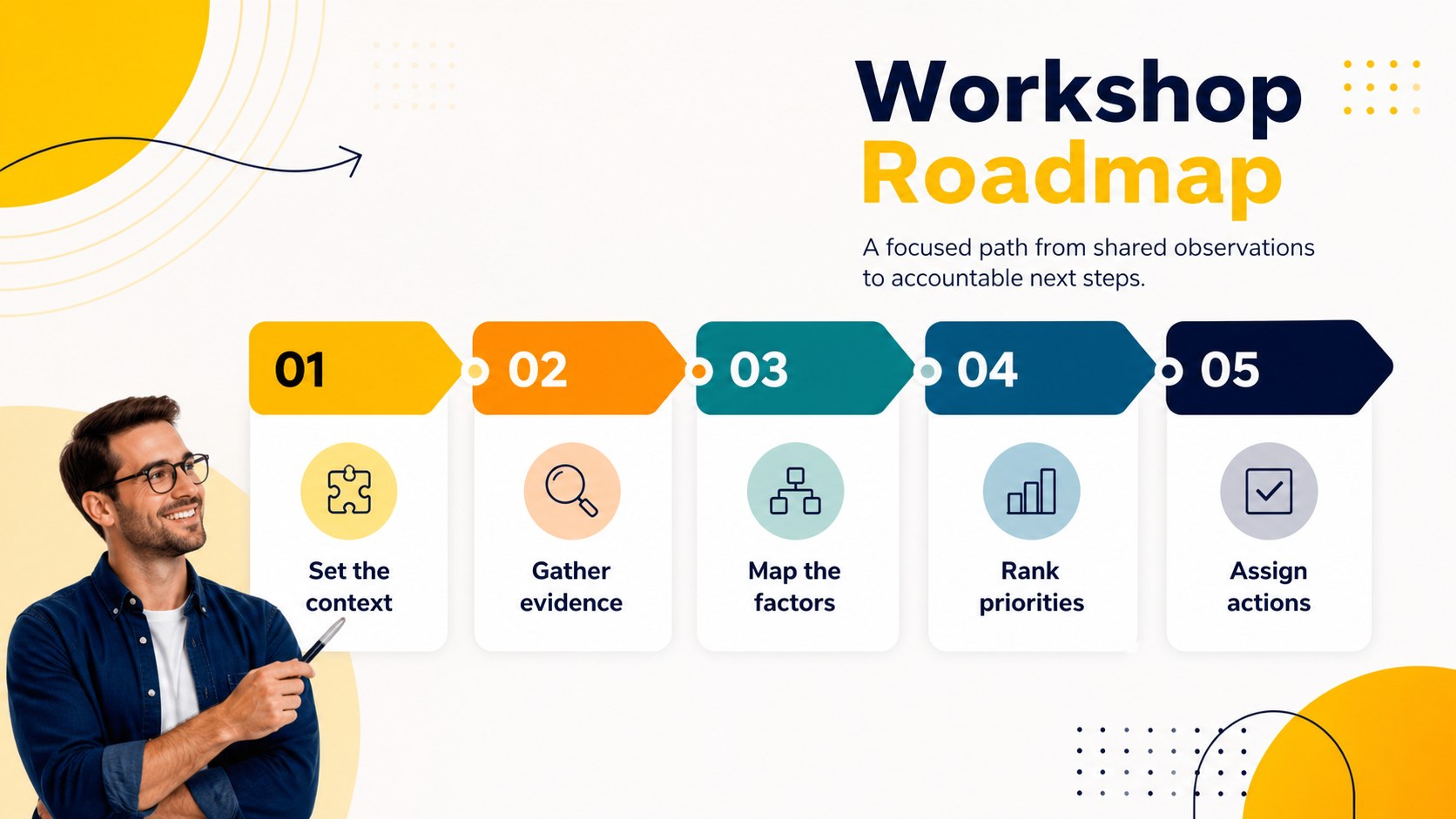
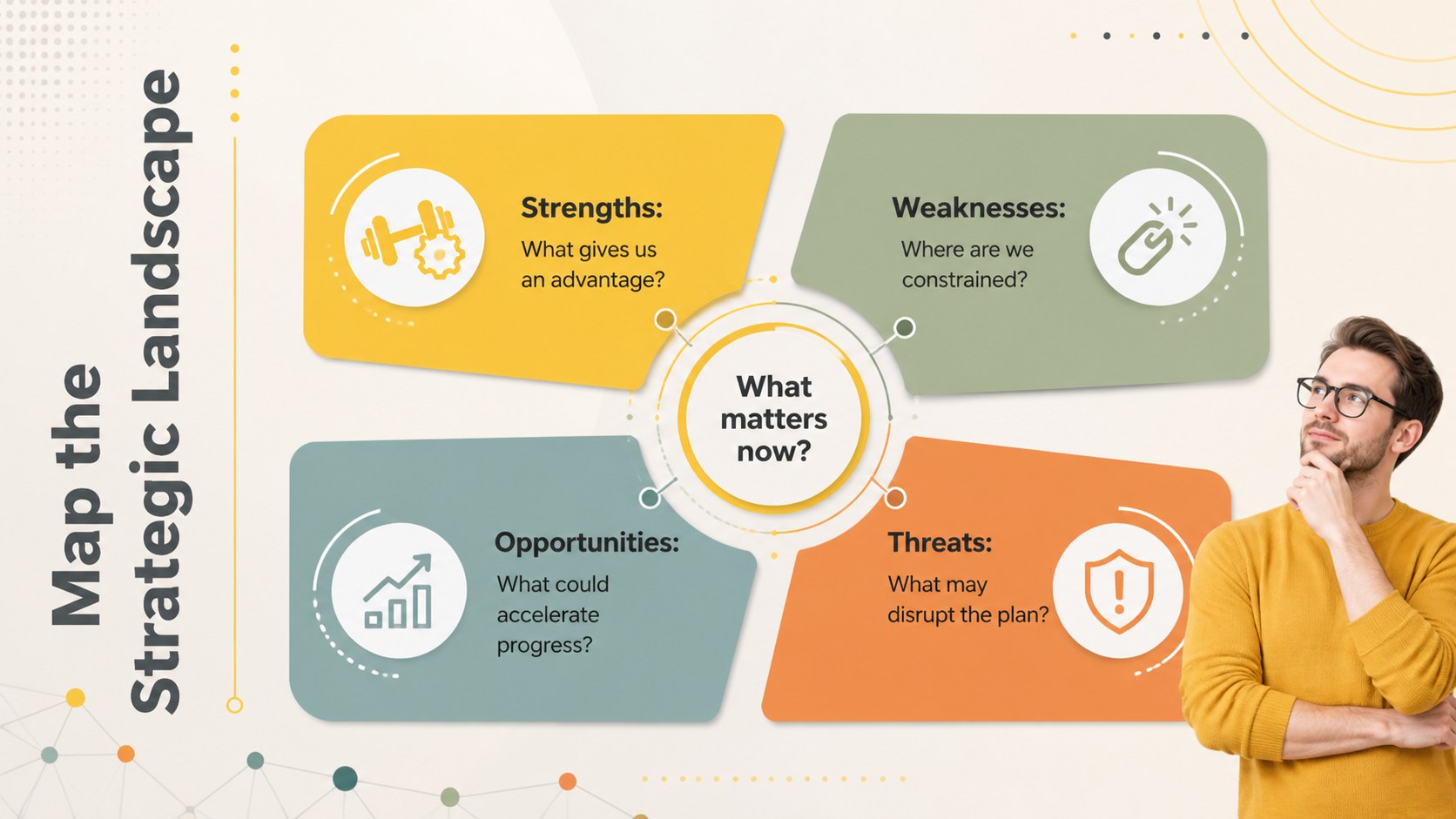
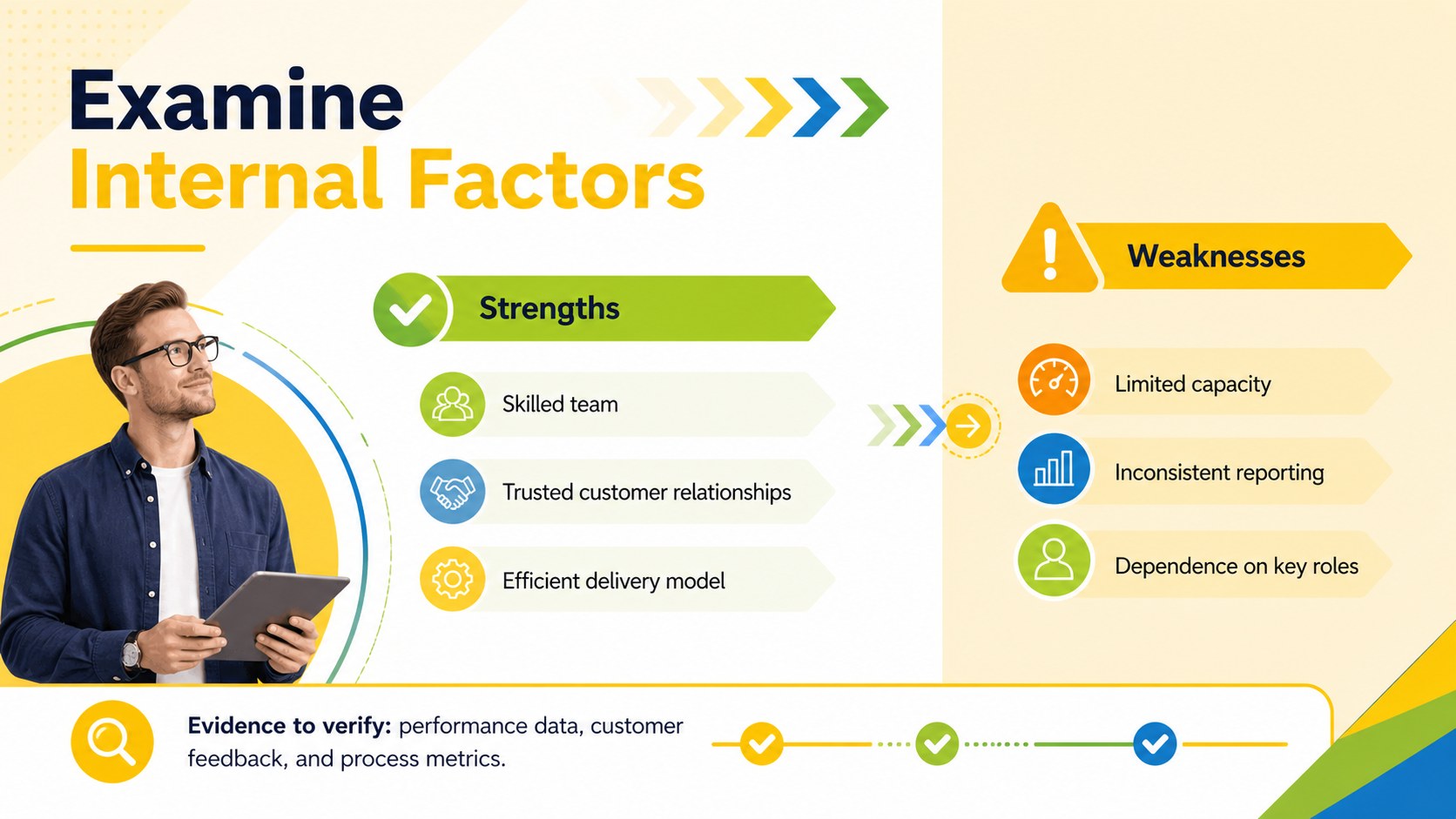
Turn strategic discussion into a practical action plan with this vibrant SWOT strategy workshop deck. Designed for collaborative sessions, its bold yellow accents, lively supporting colors, clean typography, and modern geometric details make complex observations easier to organize and compare. Use the layouts to examine strengths, weaknesses, opportunities, and threats without losing your audience in dense blocks of text.
The deck includes seven ready-to-edit 16:9 layouts: an opening slide, workshop agenda, four-quadrant overview, internal factors comparison, external environment scan, priority matrix, and action-planning summary. These colorful SWOT analysis slides provide space for concise findings, supporting evidence, ownership, and next steps. Charts, icons, labels, and shapes can be adjusted to reflect your organization, project, or market. Every layout is prepared for PowerPoint and Google Slides.
This team strategy planning deck is suited to founders, consultants, department leaders, product teams, nonprofit planners, and business students. Apply it to quarterly reviews, launch planning, competitive discussions, organizational assessments, or business risk opportunity mapping. The structured flow helps facilitators move from open brainstorming to ranked priorities and accountable actions while preserving the energetic, professional tone of the presentation.
Perfect for: quarterly strategy workshop; startup planning session; product launch assessment; department performance review; competitive environment scan; consulting client workshop.
Frequently asked questions
Can I edit this deck in PowerPoint and Google Slides? Yes. All text, colors, shapes, icons, and diagram elements are editable in PowerPoint and Google Slides. Minor font substitutions may occur if a typeface is not installed on your device.
Practical details
Yes. All text, colors, shapes, icons, and diagram elements are editable in PowerPoint and Google Slides. Minor font substitutions may occur if a typeface is not installed on your device.
Replace the sample labels and prompts with factors relevant to your organization, project, or market. You can also recolor individual quadrants, duplicate sections, and resize text areas for longer findings.
Yes. The sequence moves from framing and brainstorming to prioritization and action planning. Facilitators can complete the slides before a meeting or update them during a collaborative session.
Yes. Update the theme colors, fonts, logo area, and graphic styles using the standard editing tools in PowerPoint or Google Slides. Keep the high-contrast yellow accents or replace them with your approved brand palette.
Keep exploring
15Build an engaging World UFO Day session with this flying saucer history lesson deck, featuring retro green-and-brown slides for PowerPoint and Google Slides.
 15
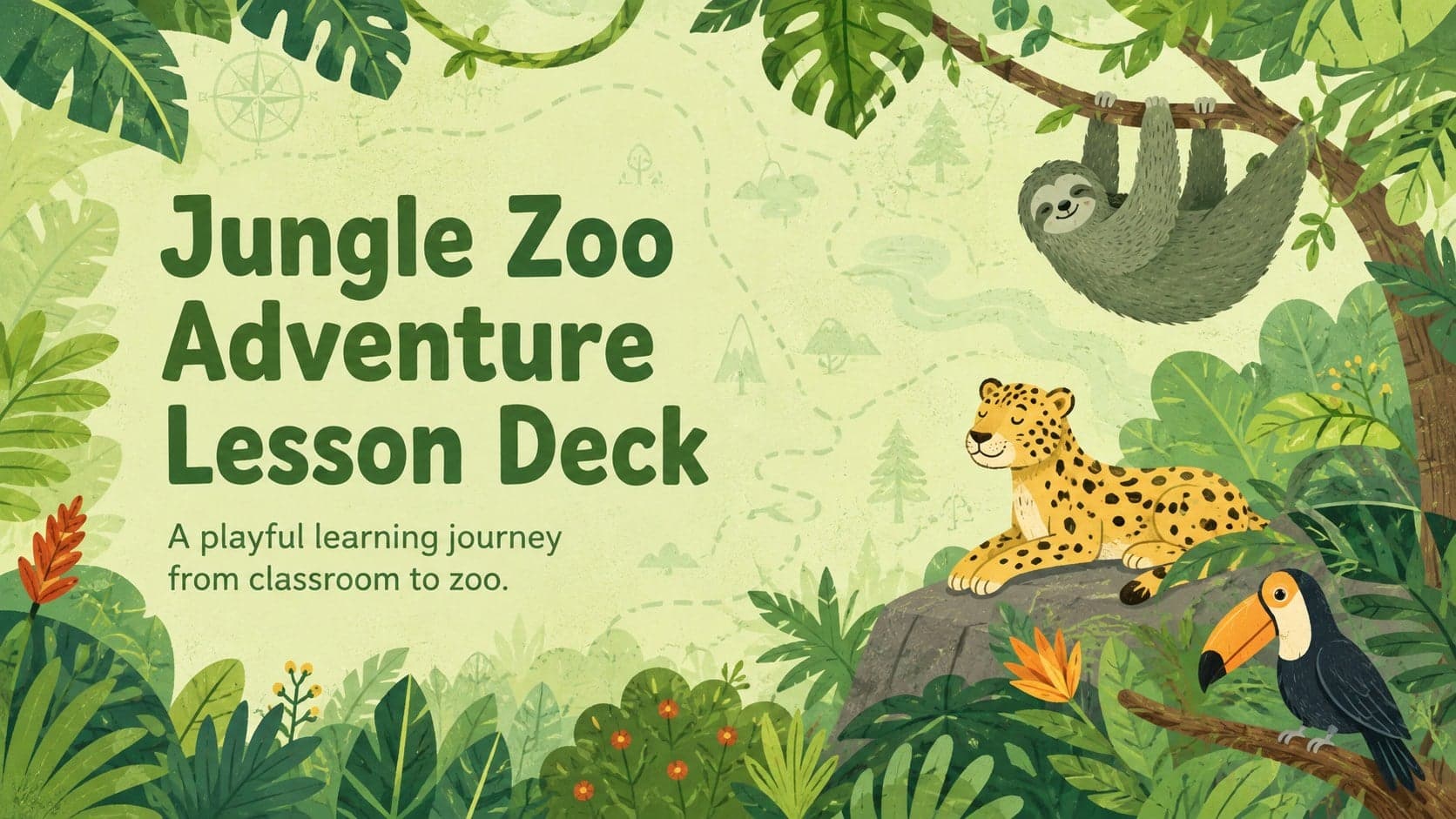
15Plan a lively animal-learning journey with this jungle zoo adventure lesson deck, ready to customize in PowerPoint and Google Slides for young learners.
 16
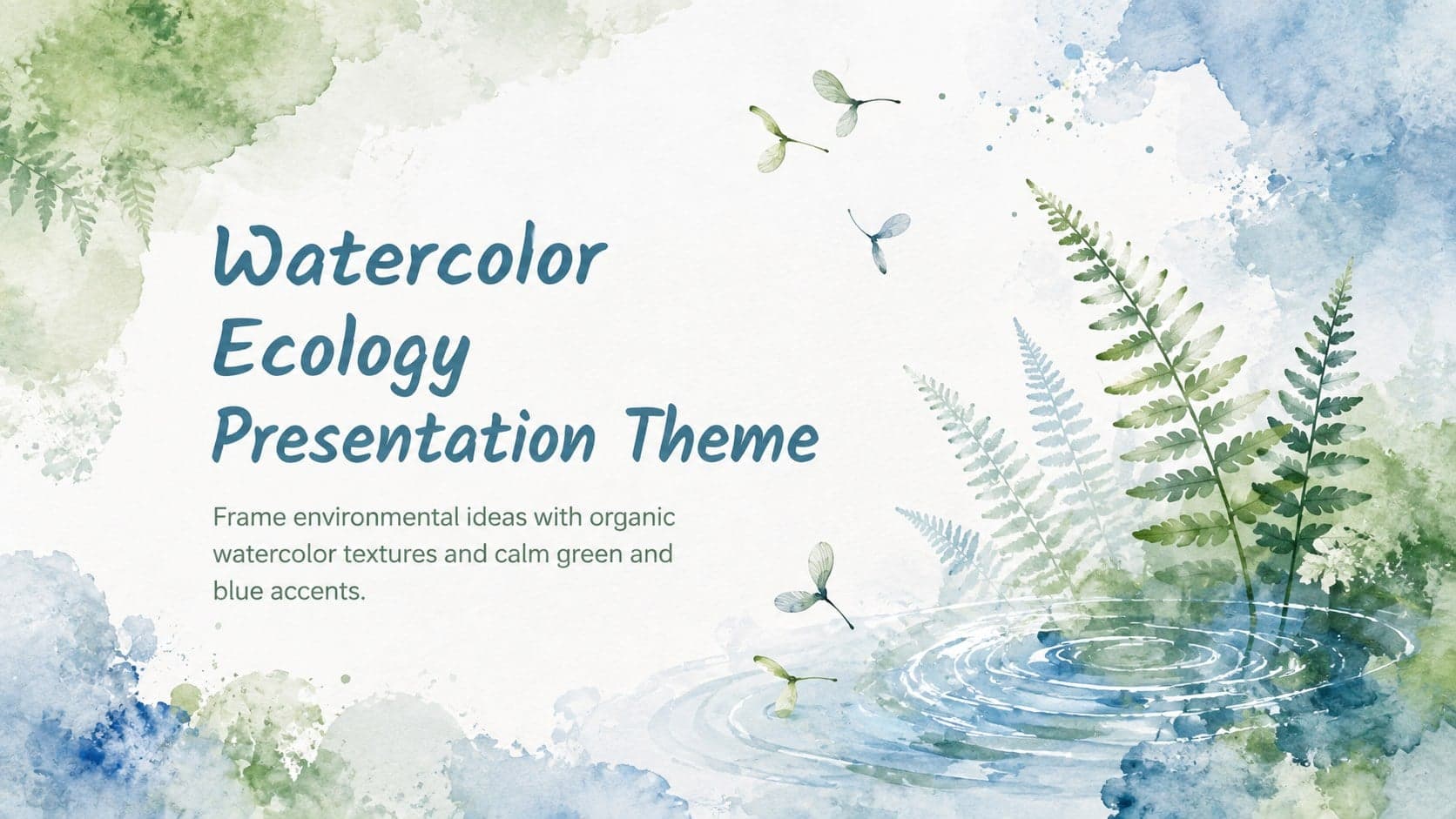
16Turn environmental research into a clear story with a Watercolor Ecology Presentation Theme for PowerPoint and Google Slides in calming green and blue.
 16
16Build focused fashion, literature, and humanities presentations with the Red Triangle Editorial Theme, editable in PowerPoint and Google Slides.
 15
15Turn streaming stats, favorite tracks, and concert highlights into a bold annual listening recap slide deck for PowerPoint and Google Slides.
 15
15Turn highlights, milestones, and favorite moments into a colorful year in review slide deck with bold 3D graphics for PowerPoint and Google Slides.
 3
3Build a credible endorsement with Standout Colleague Recommendation Letter Slides, featuring colorful prompts for skills, achievements, and team impact.
 4
4Build clear beginner sessions with an ice hockey fundamentals training deck for coaches, PE teachers, and clubs, ready for PowerPoint and Google Slides.