
 15
15presentation
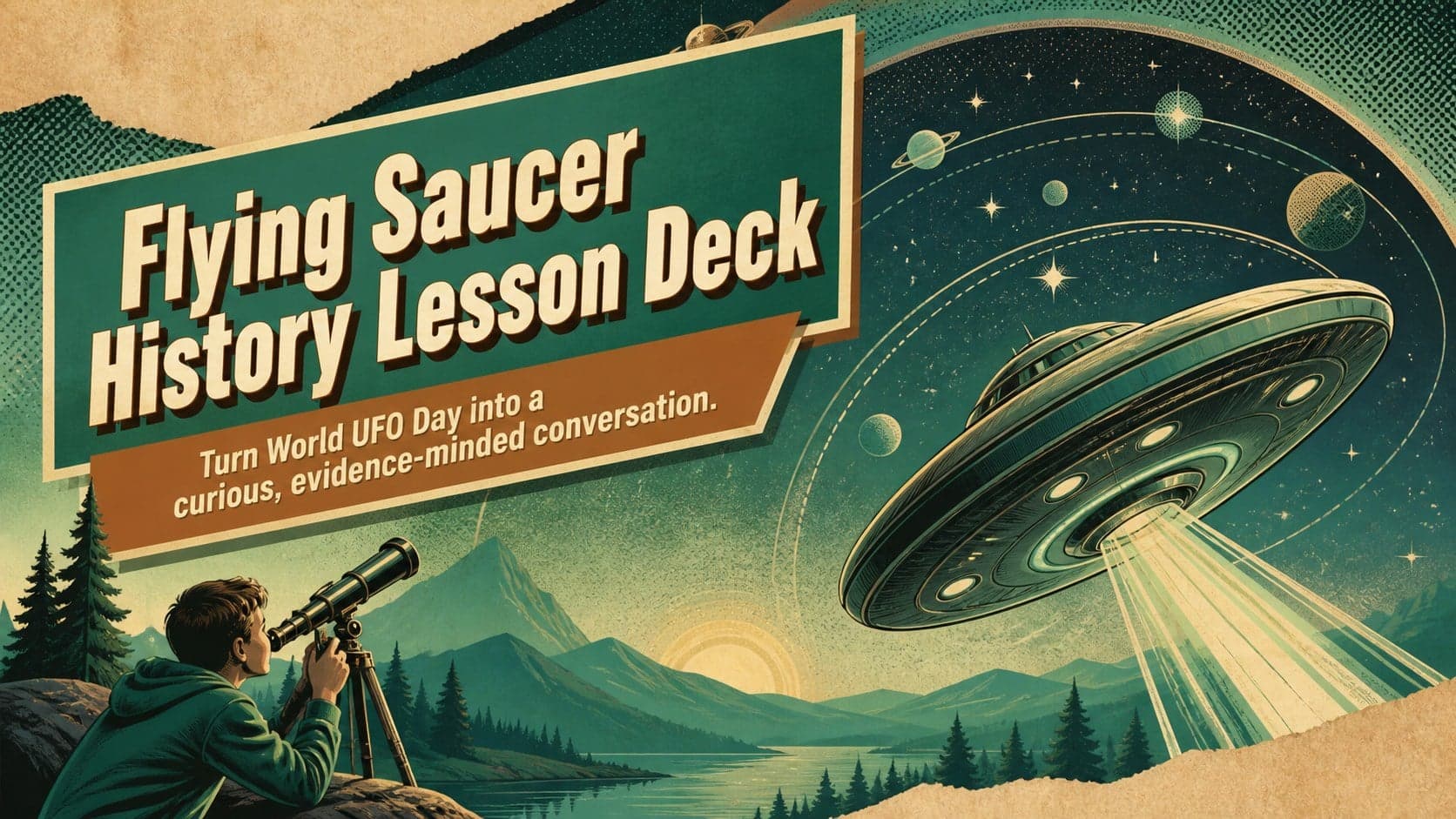
Flying Saucer History Lesson Deck
Build an engaging World UFO Day session with this flying saucer history lesson deck, featuring retro green-and-brown slides for PowerPoint and Google Slides.
Google SlidesPowerPoint
presentation · English
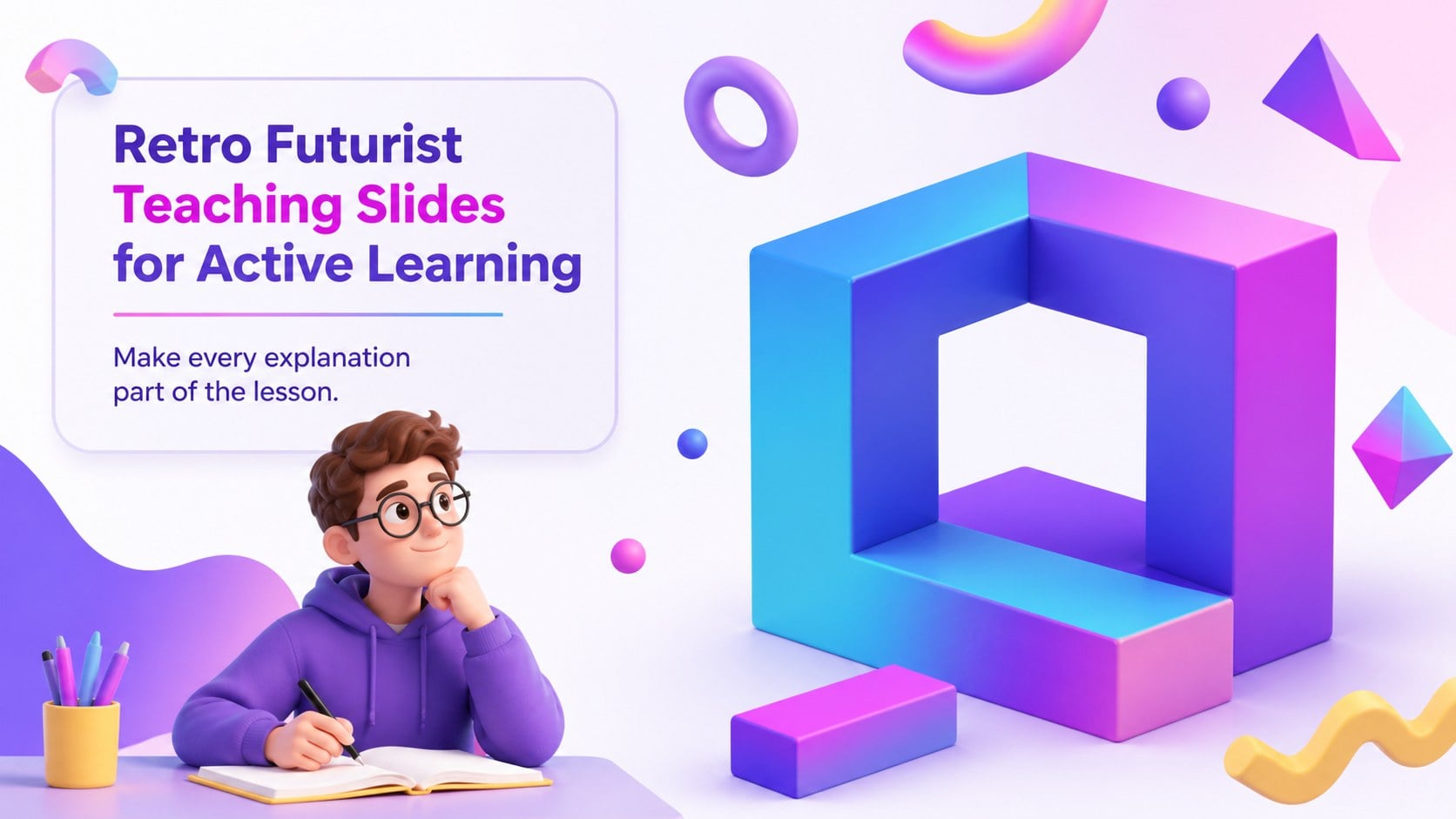
Use retro futurist teaching slides for peer-led lessons, with editable PowerPoint and Google Slides layouts, 3D geometry, and vivid purple-pink color.
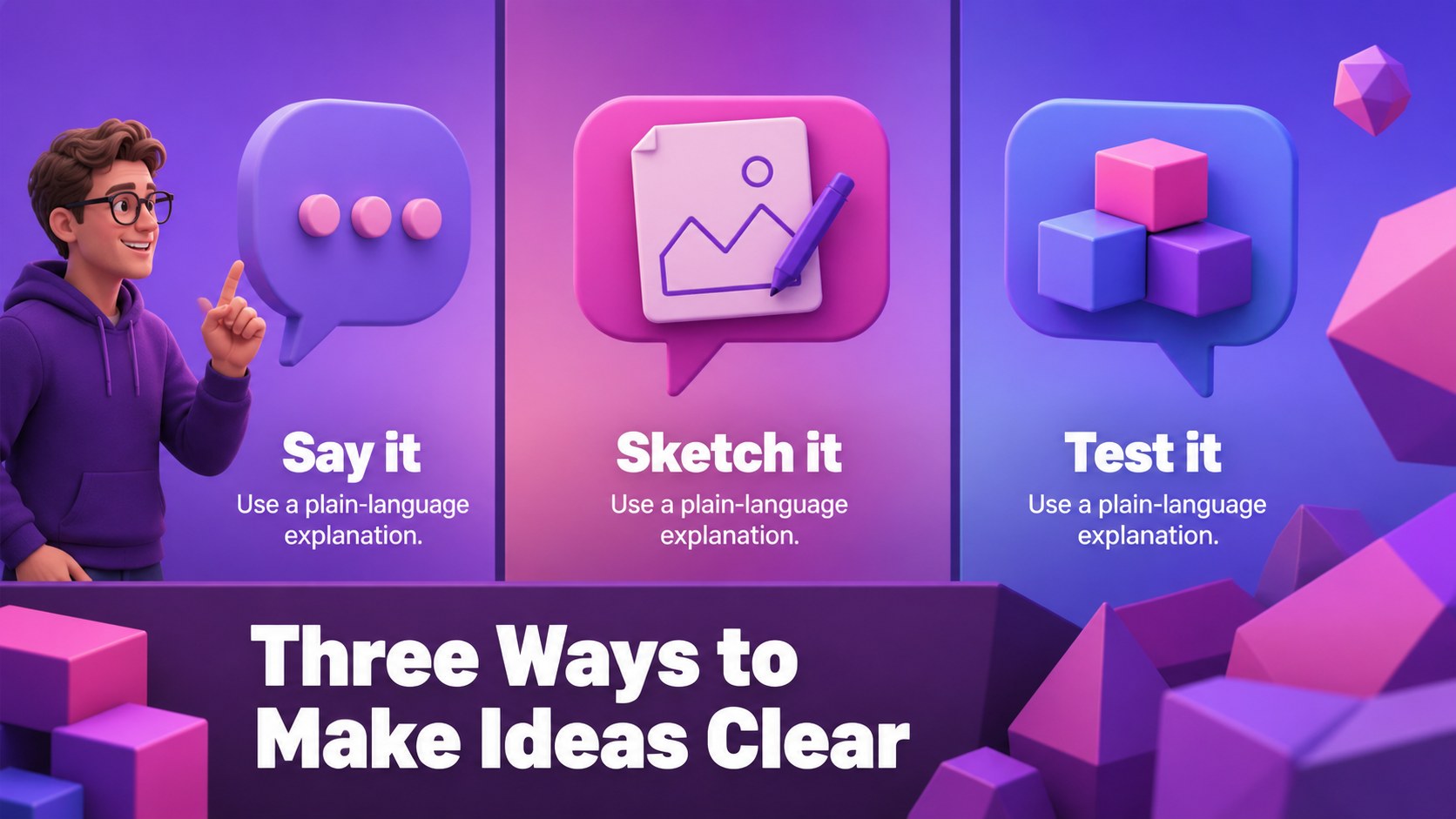
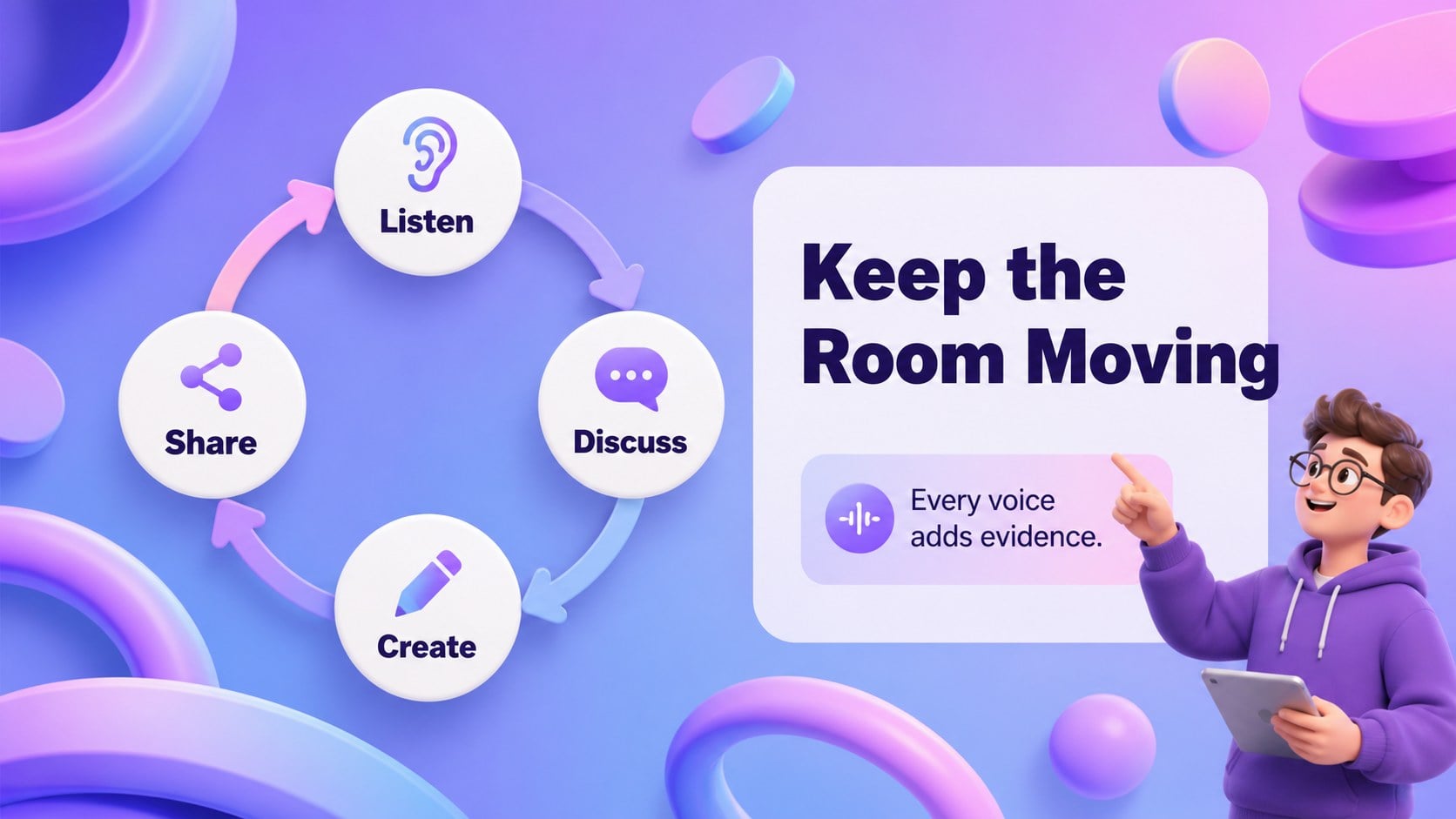
Design notes
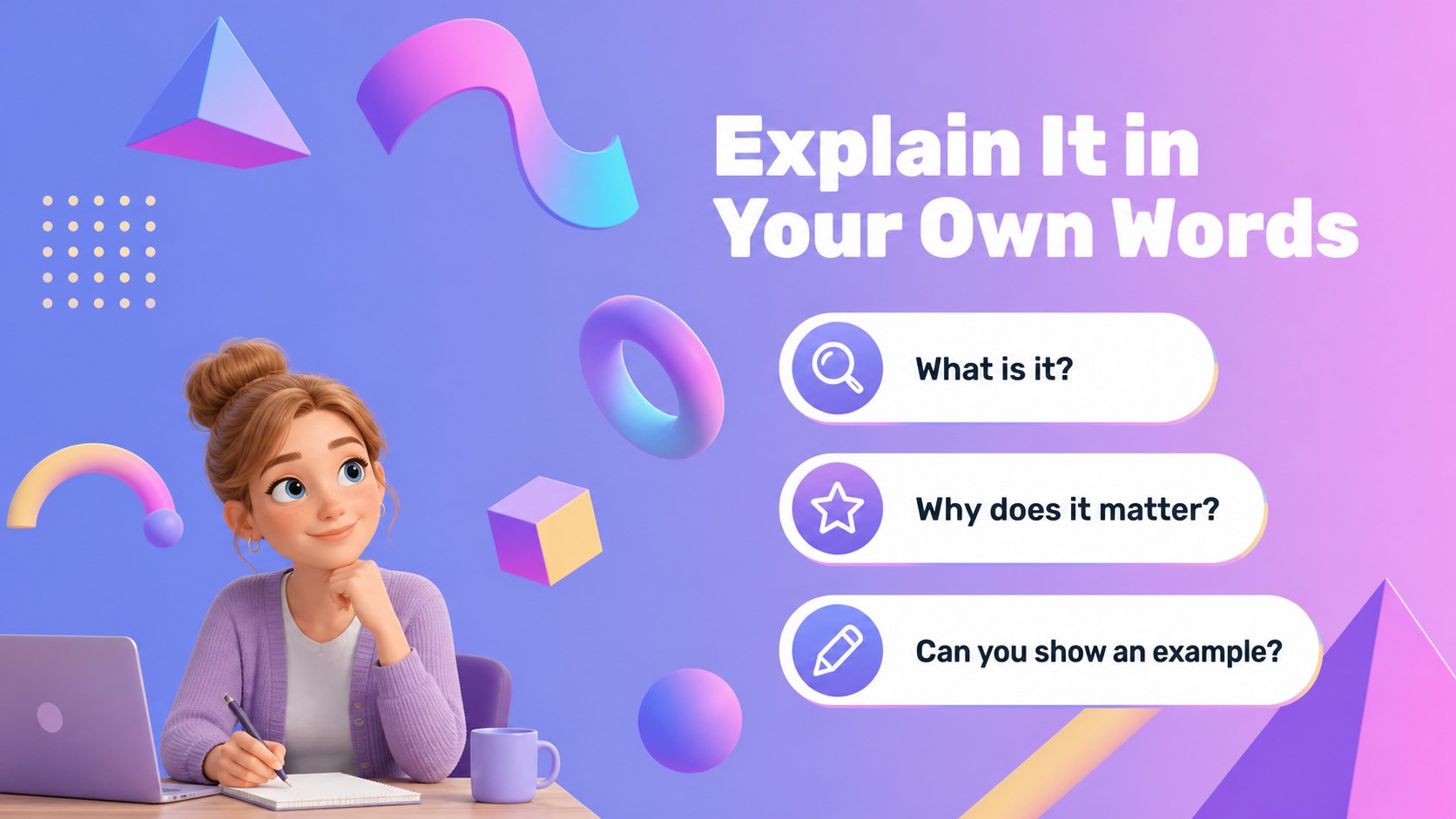
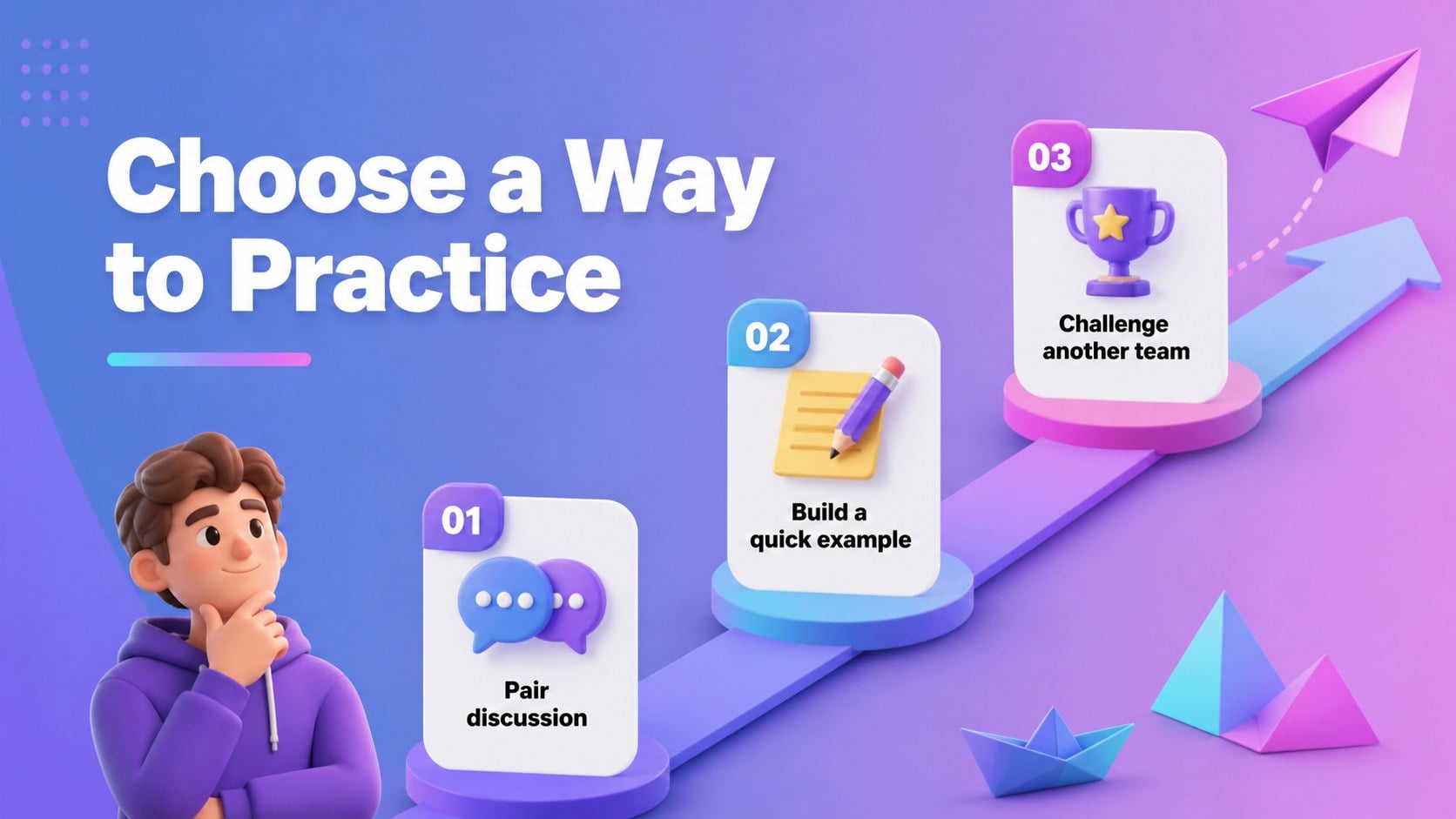
Turn peer instruction into a lively visual experience with retro futurist teaching slides designed for educators, tutors, and workshop leaders. The deck combines dimensional shapes, playful Memphis-style geometry, and vivid purple-pink gradients to give classroom activities a memorable digital identity. Use it to introduce a topic, organize student-led explanations, or frame a collaborative project without losing visual clarity.
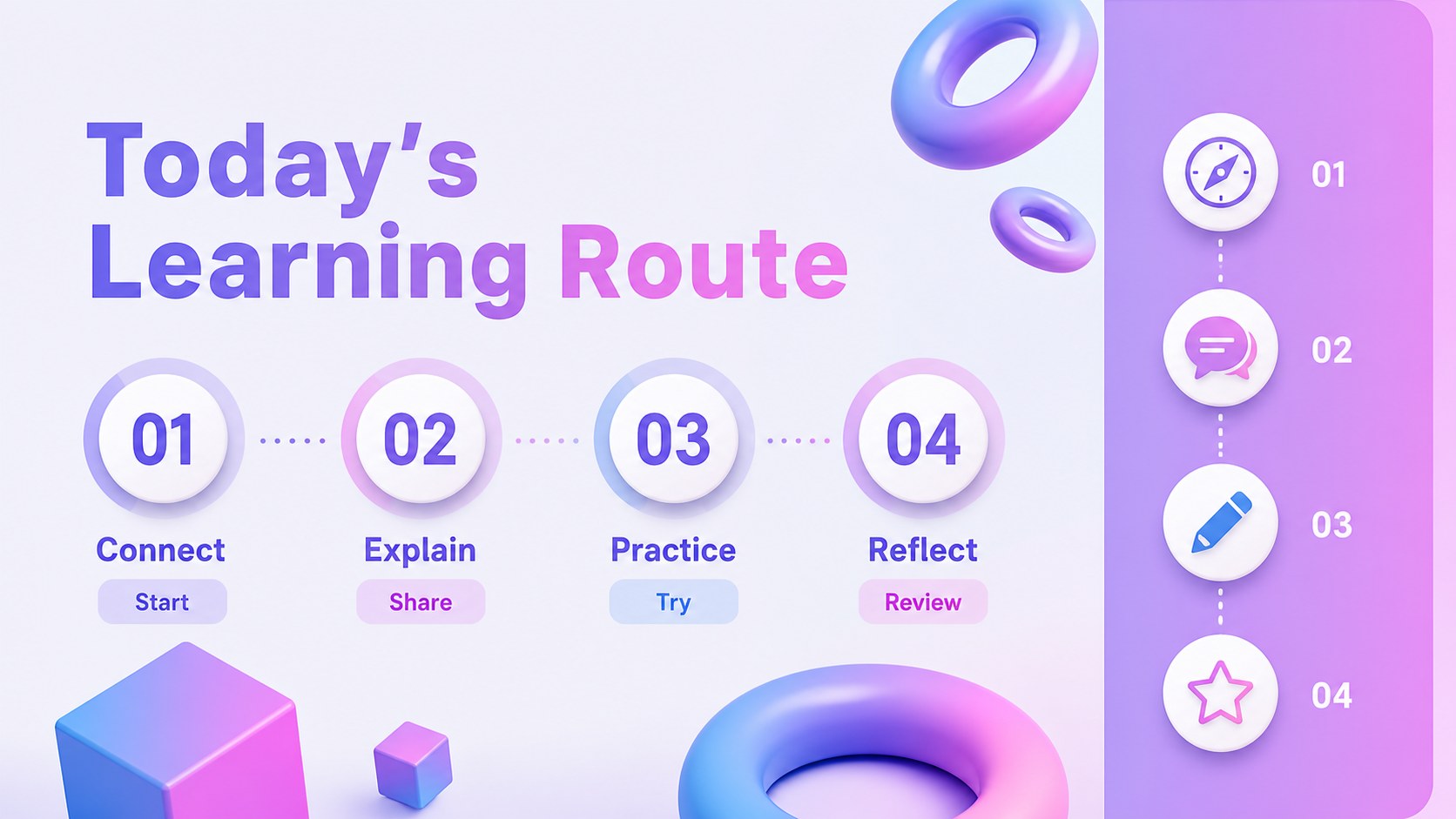
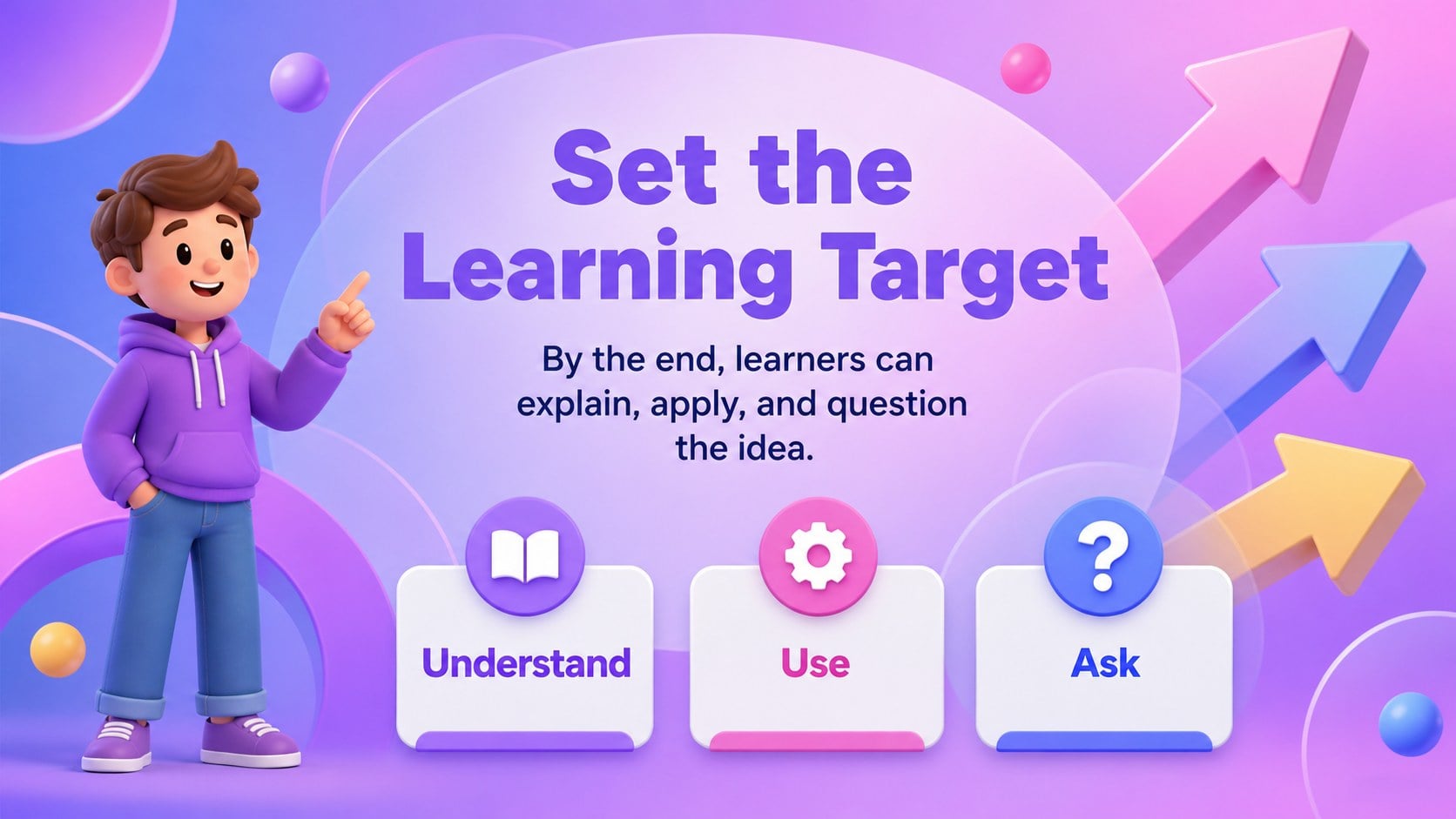
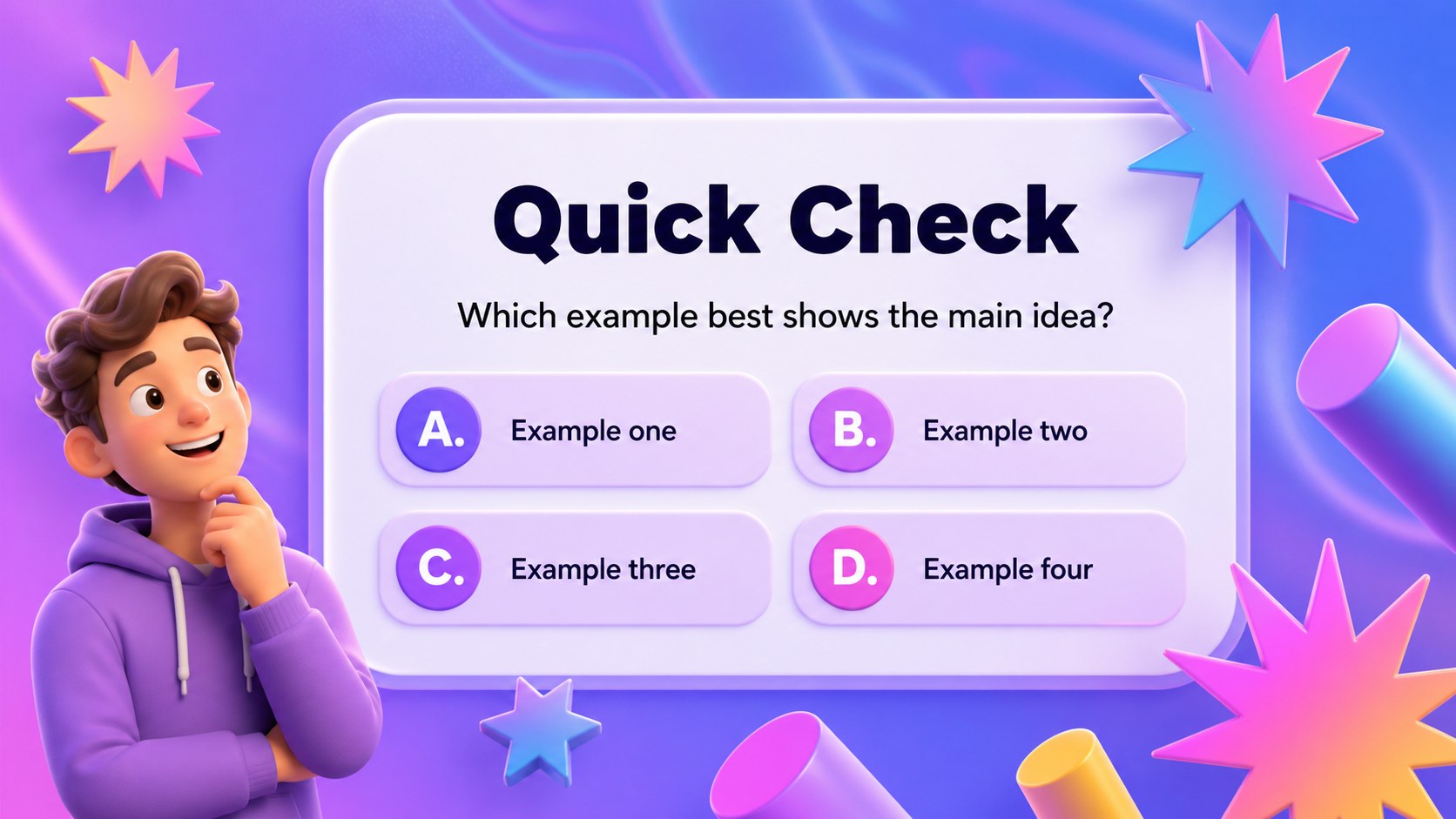
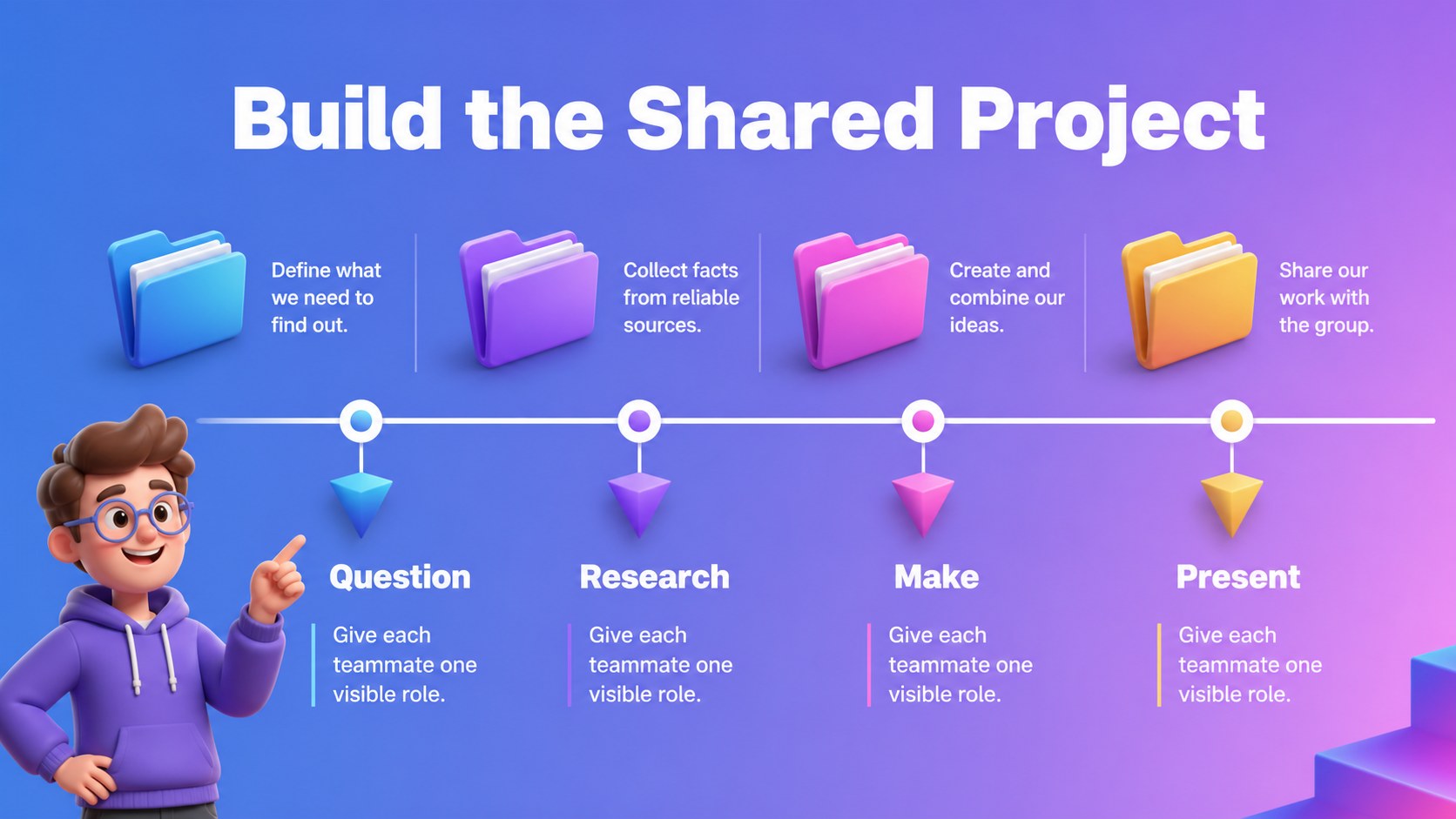
Inside, you will find more than 25 editable layouts for lesson openers, learning goals, concept breakdowns, group tasks, quick polls, quizzes, progress checks, and final reflections. Charts, diagrams, timelines, image frames, icons, and text blocks make it simple to adapt the material for different subjects and age groups. A consistent Rubik font and flexible visual system keep every section connected while leaving room for your own examples and teaching notes.
These active learning presentation slides work well for virtual classes, classroom workshops, teacher training, and student project showcases. Edit the deck in PowerPoint or Google Slides, adjust the purple and pink accents to suit your school identity, and add transitions when a more dynamic lesson flow is useful. The result is a practical teaching resource that makes participation, explanation, and review easier to structure.
Perfect for: student-led lesson; virtual classroom activity; teacher training workshop; group project showcase; interactive knowledge review.
Frequently asked questions
Can I edit these slides in PowerPoint? Yes. The layouts are designed for PowerPoint editing, including text, shapes, charts, colors, and image areas. You can adapt the deck to your subject and add your own teaching notes.
Practical details
Yes. The layouts are designed for PowerPoint editing, including text, shapes, charts, colors, and image areas. You can adapt the deck to your subject and add your own teaching notes.
Yes, the presentation can be opened and customized in Google Slides. Check fonts, animations, and transitions after importing because some effects may display differently between presentation platforms.
It suits peer teaching, collaborative projects, quizzes, concept reviews, and virtual lessons. The varied layouts let you move from an introduction to explanation, participation, progress checking, and reflection.
Yes. Replace the accent colors while keeping the geometric visual language intact, or use the existing palette for a bold retro-futurist classroom look. You can also update the Rubik font styling to match your school materials.
Keep exploring
15Build an engaging World UFO Day session with this flying saucer history lesson deck, featuring retro green-and-brown slides for PowerPoint and Google Slides.
 15
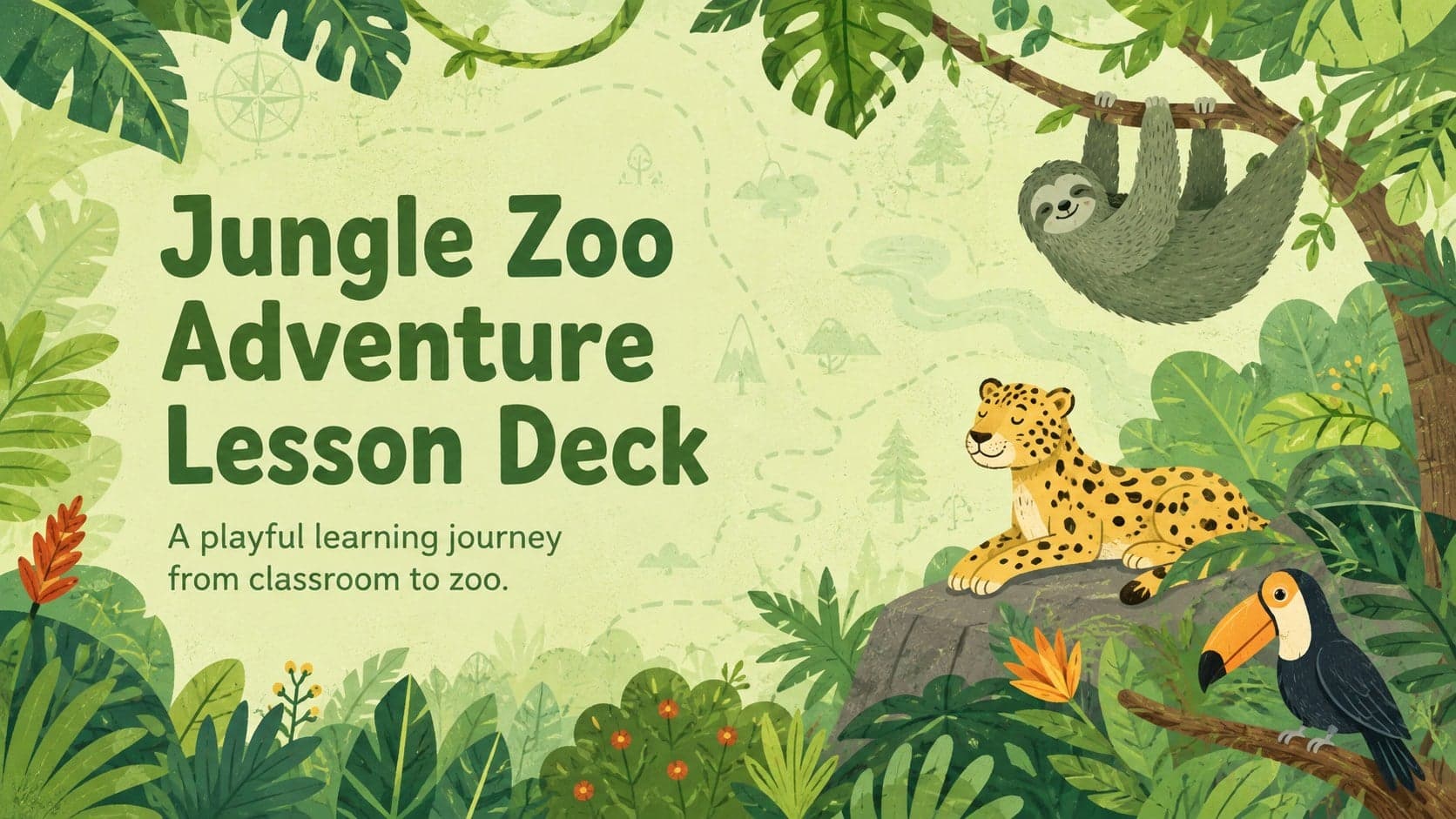
15Plan a lively animal-learning journey with this jungle zoo adventure lesson deck, ready to customize in PowerPoint and Google Slides for young learners.
 16
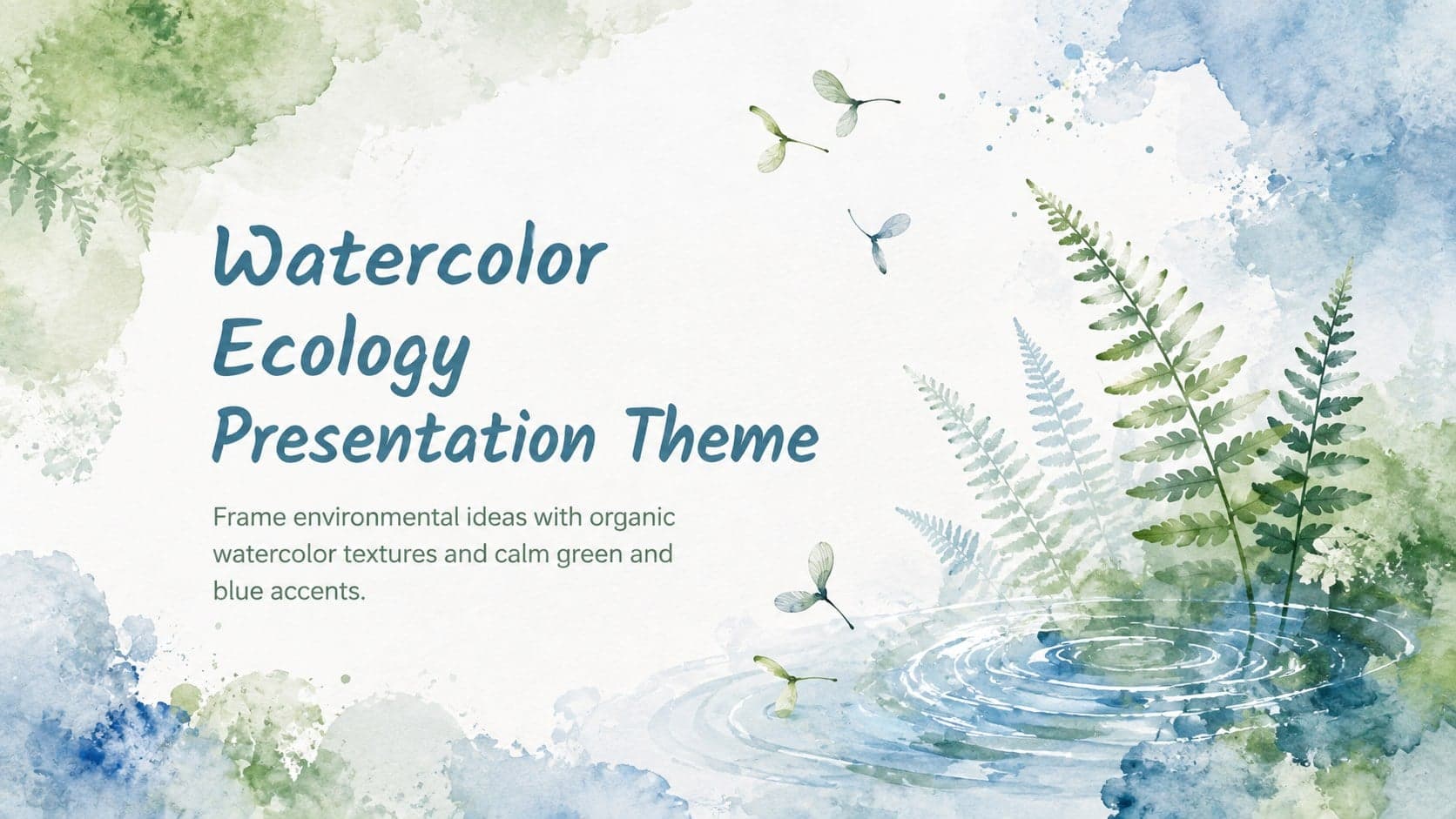
16Turn environmental research into a clear story with a Watercolor Ecology Presentation Theme for PowerPoint and Google Slides in calming green and blue.
 16
16Build focused fashion, literature, and humanities presentations with the Red Triangle Editorial Theme, editable in PowerPoint and Google Slides.
 15
15Turn streaming stats, favorite tracks, and concert highlights into a bold annual listening recap slide deck for PowerPoint and Google Slides.
 15
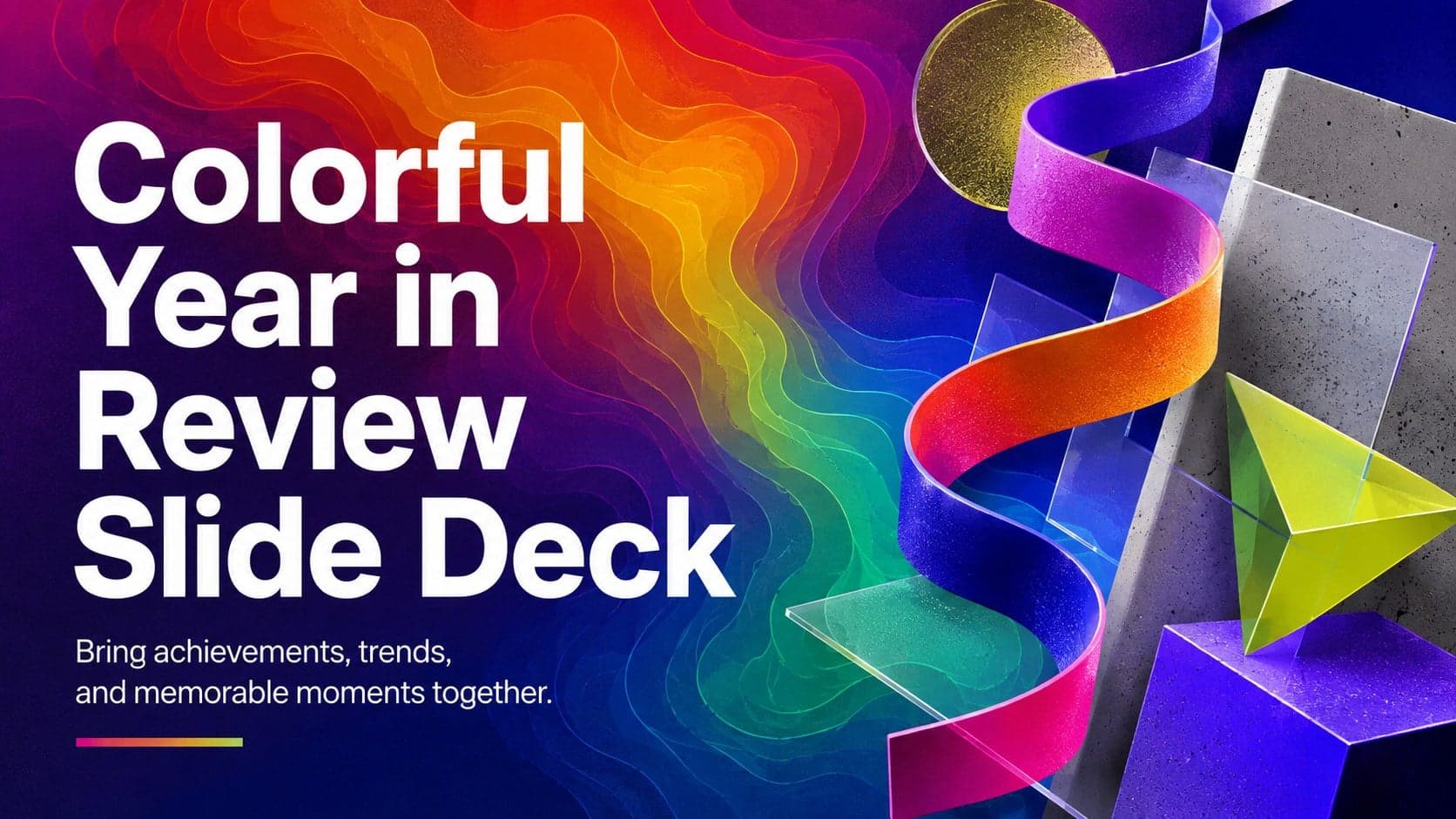
15Turn highlights, milestones, and favorite moments into a colorful year in review slide deck with bold 3D graphics for PowerPoint and Google Slides.
 3
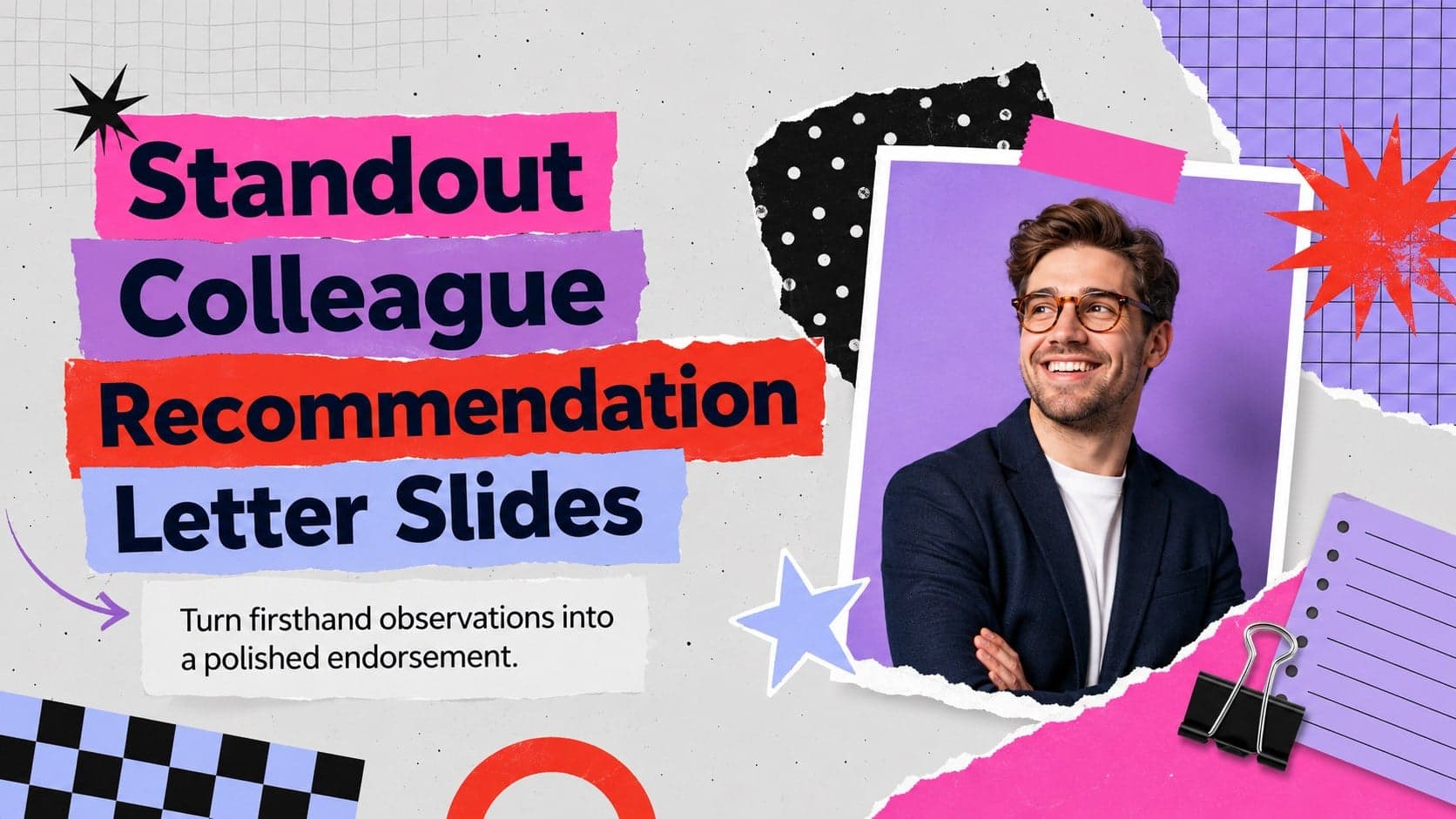
3Build a credible endorsement with Standout Colleague Recommendation Letter Slides, featuring colorful prompts for skills, achievements, and team impact.
 4
4Build clear beginner sessions with an ice hockey fundamentals training deck for coaches, PE teachers, and clubs, ready for PowerPoint and Google Slides.