
 15
15presentation
Flying Saucer History Lesson Deck
Build an engaging World UFO Day session with this flying saucer history lesson deck, featuring retro green-and-brown slides for PowerPoint and Google Slides.
Google SlidesPowerPoint
presentation · English
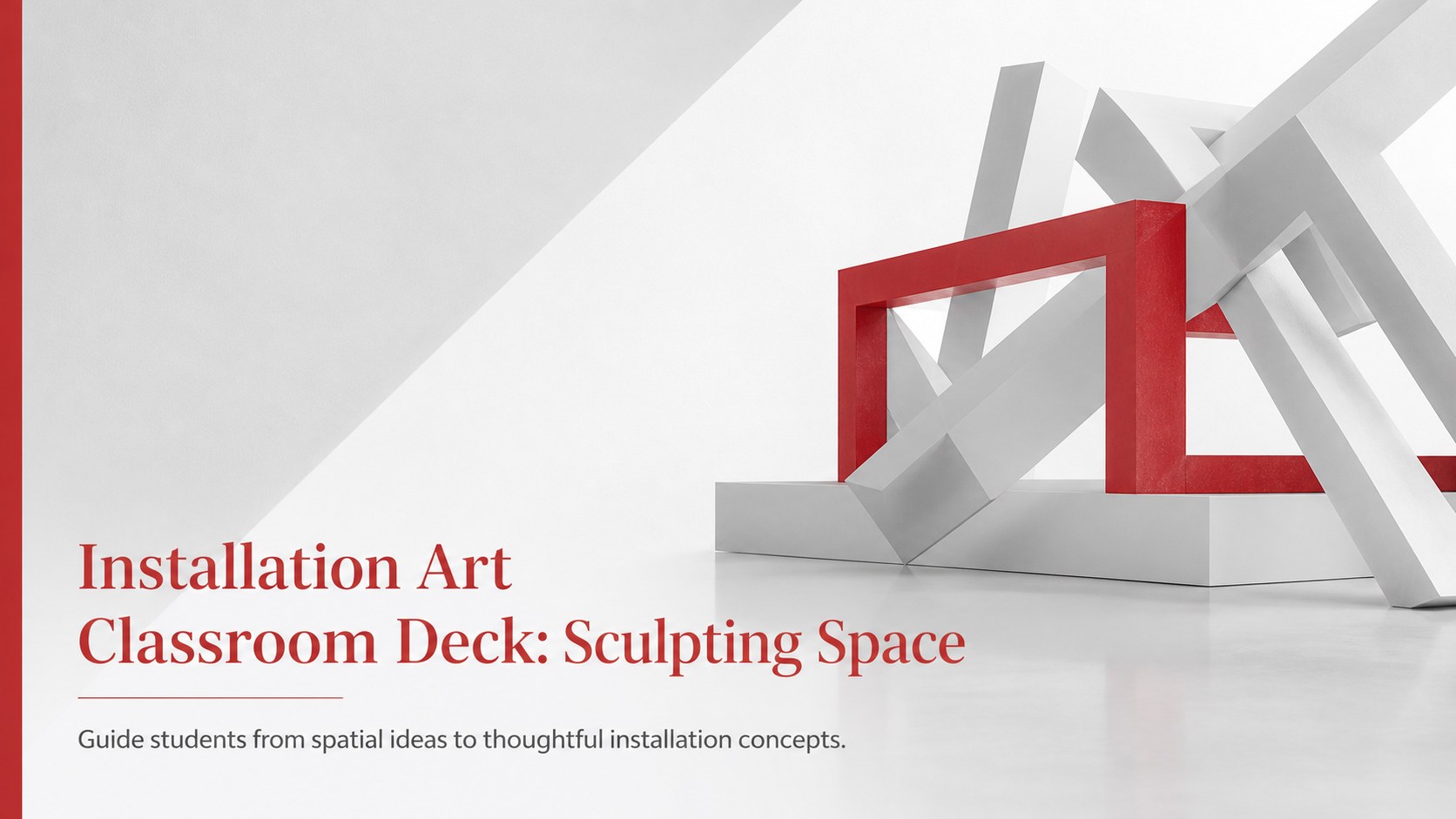
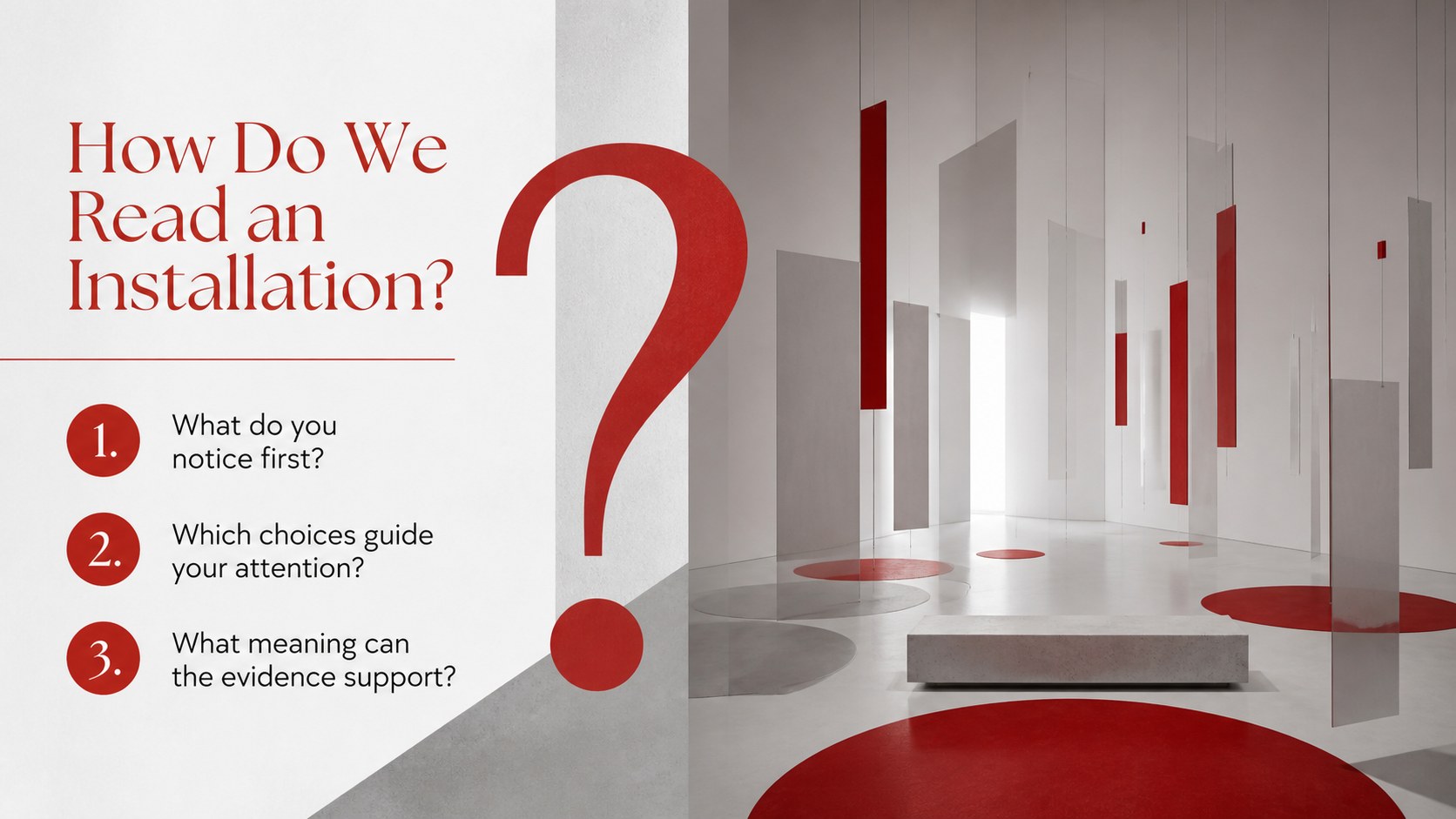
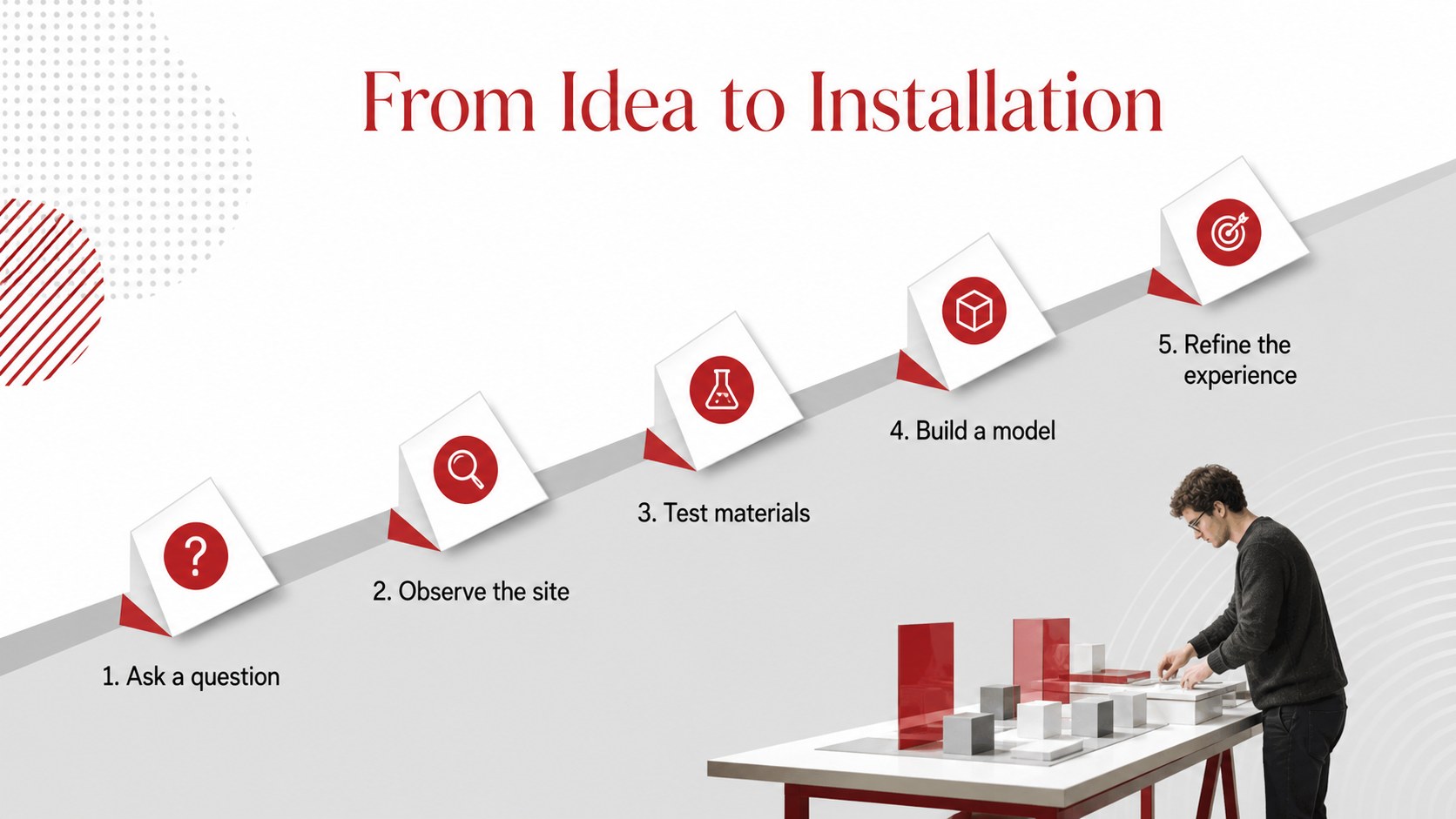
Turn spatial concepts into classwork with this installation art classroom deck for PowerPoint and Google Slides, featuring planning prompts and critique.
Design notes
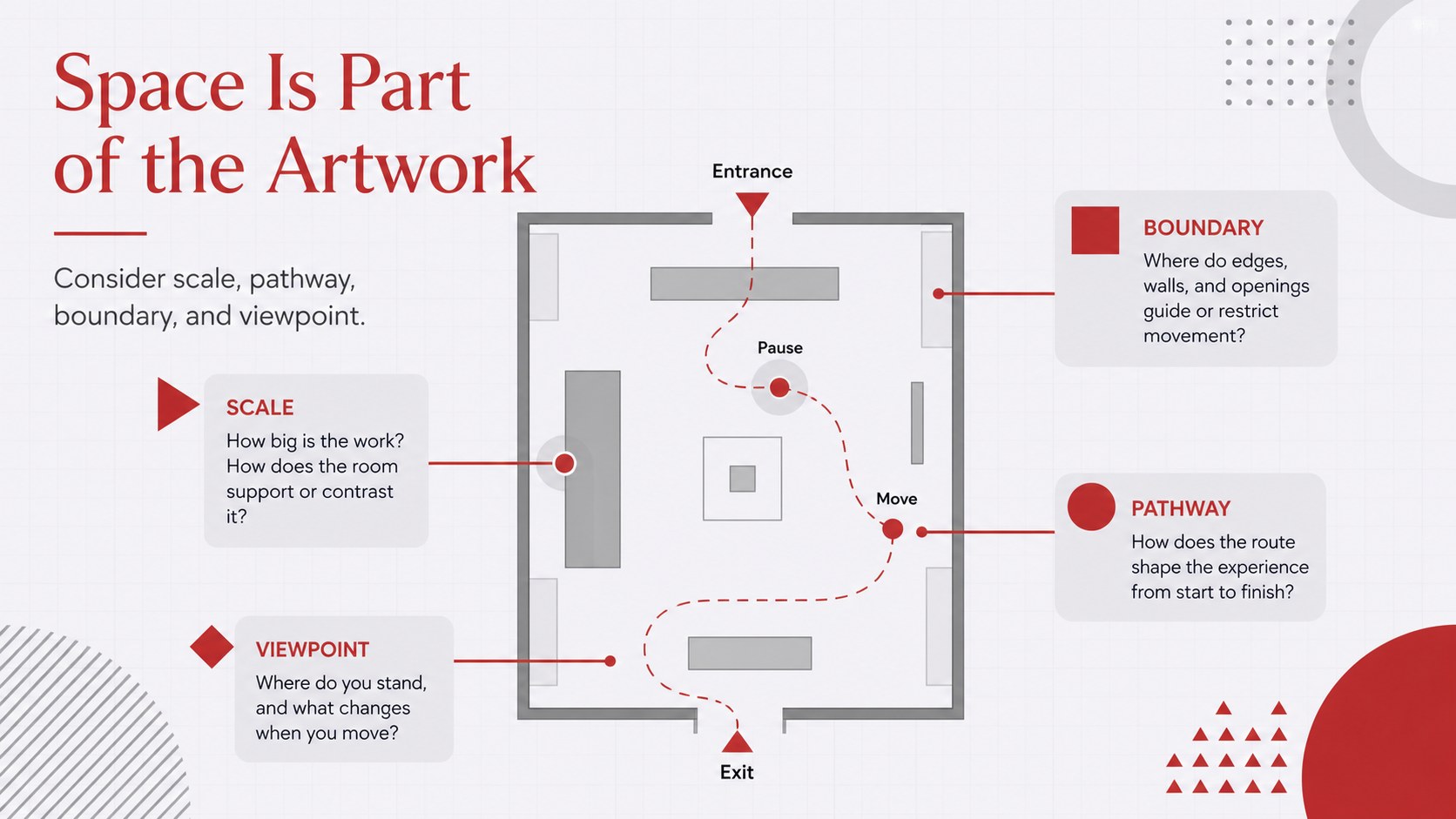
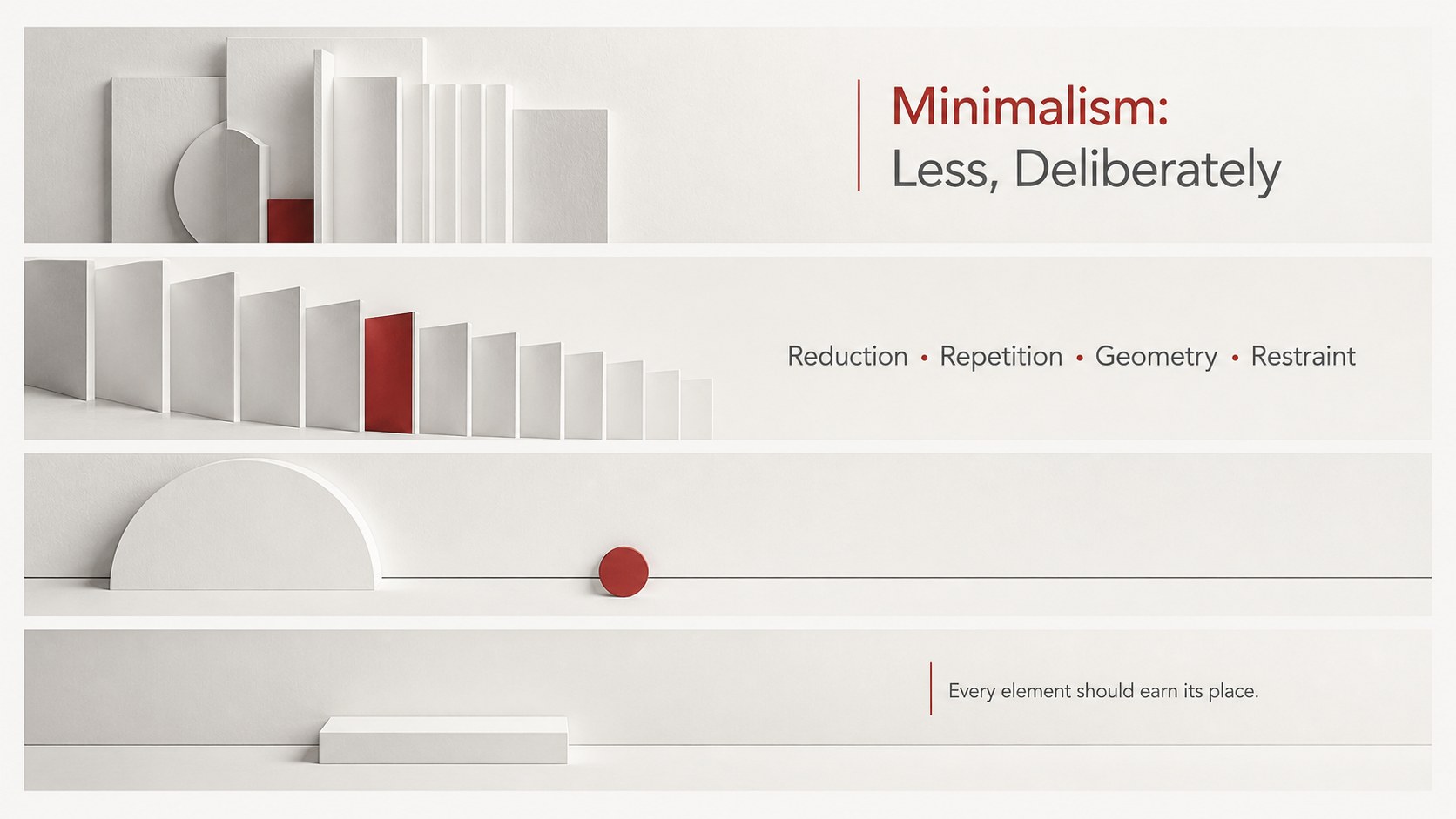
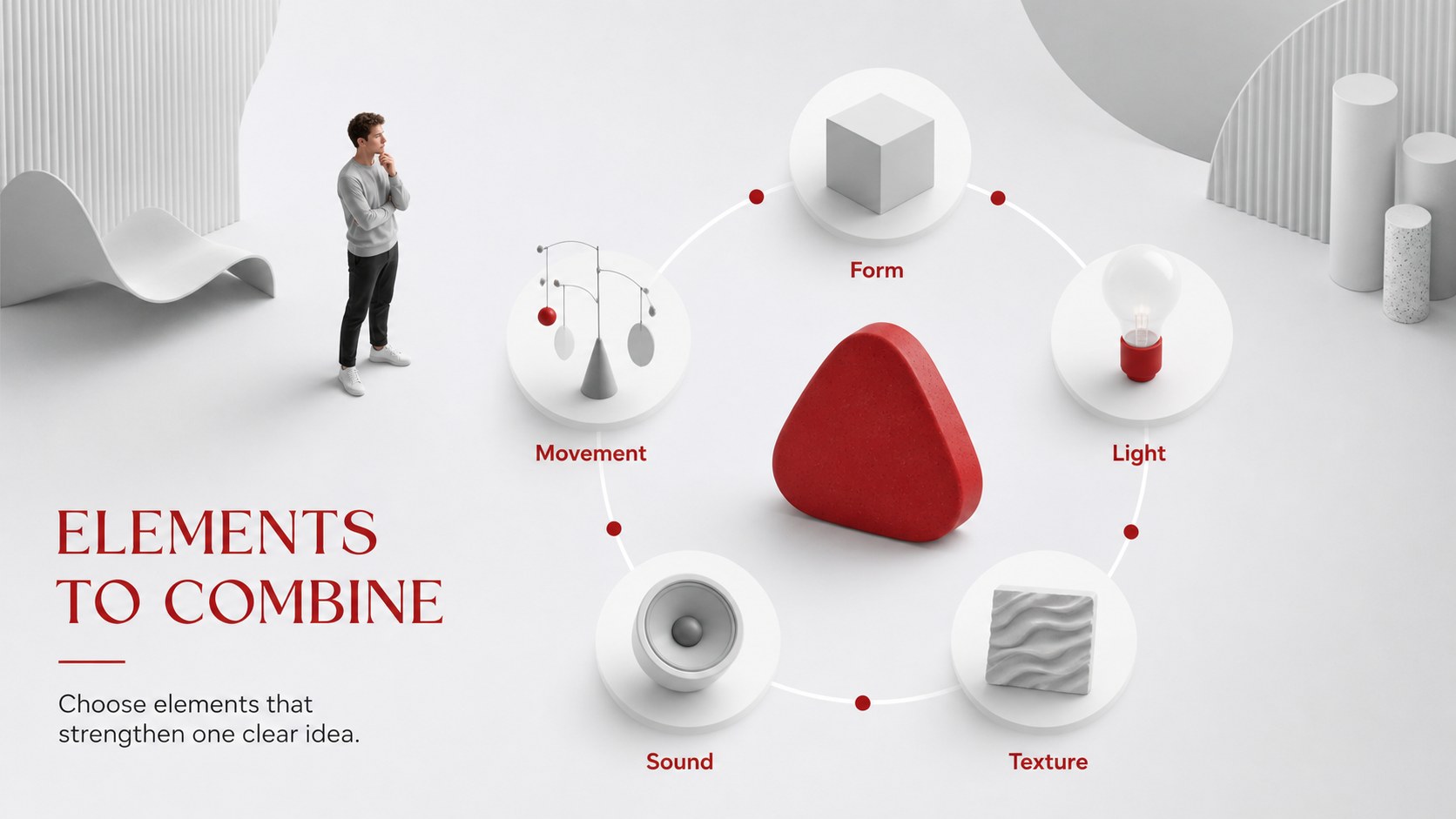
Help learners explore how objects, space, light, and audience movement can shape an artwork. This installation art classroom deck gives educators a clear visual framework for introducing three-dimensional, site-aware creative practice without overwhelming students. Its restrained grey, red, and white palette pairs minimalist typography with dimensional forms for a polished gallery-inspired look.
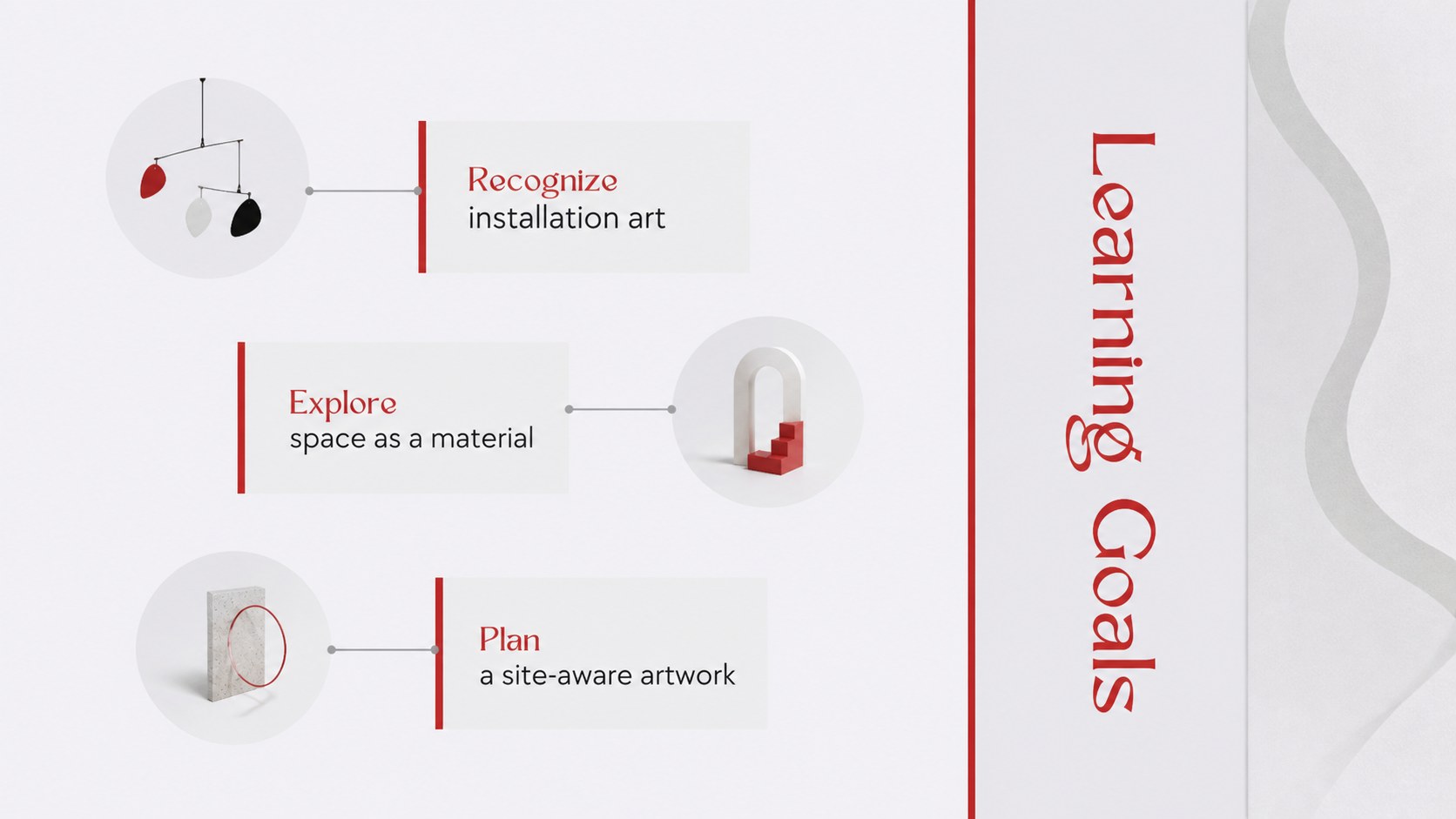
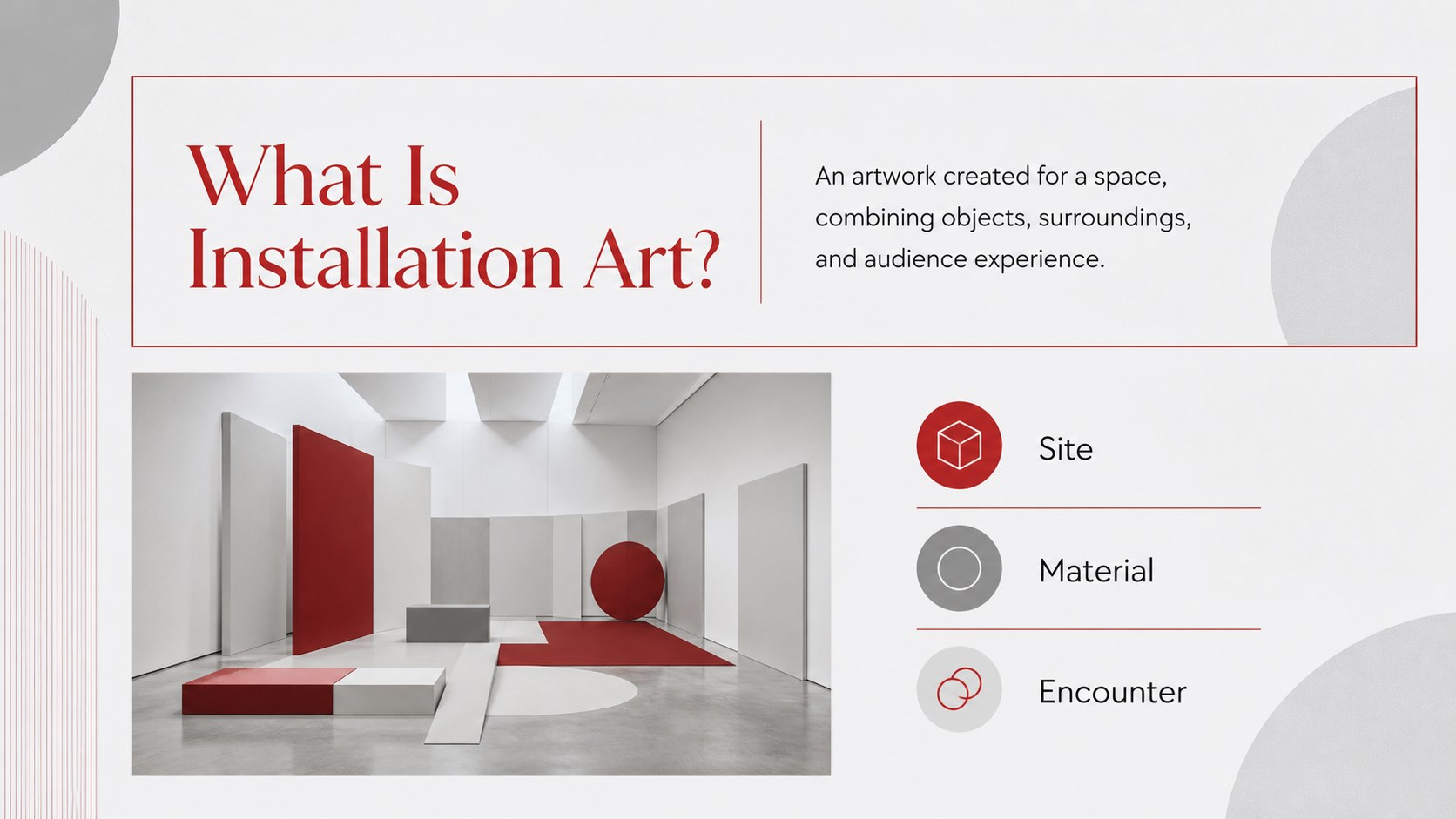
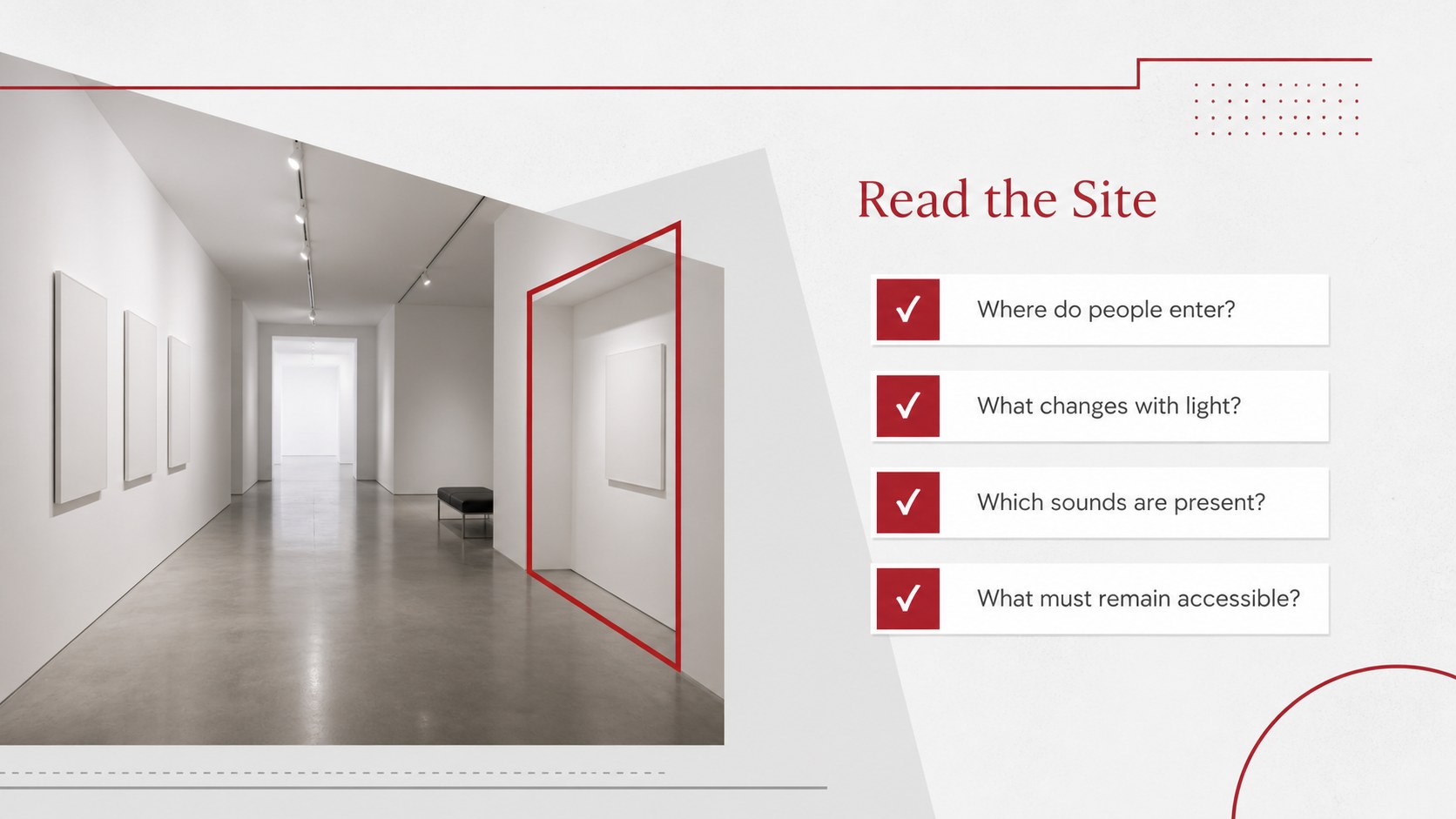
Inside, you will find slides covering learning goals, installation art principles, spatial composition, material choices, site observation, concept development, safe construction, and group critique. A guided planning sequence turns the deck into a practical site-specific art lesson, while reflection questions support an installation art critique presentation. Flexible text, image, comparison, process, and discussion layouts can be adapted to different projects and ability levels.
Use the deck for secondary art classes, college foundation courses, museum education, creative workshops, or art club sessions. It also works as a minimalist sculpture classroom template for introducing collaborative builds and temporary exhibitions. Every slide can be edited in PowerPoint or Google Slides, allowing instructors to replace examples, adjust activities, add local gallery references, and tailor the lesson to available spaces and materials.
Perfect for: secondary school art lesson; college sculpture seminar; museum education workshop; art club installation project; student exhibition planning.
Frequently asked questions
Can I edit this deck in PowerPoint and Google Slides? Yes. All text, colors, images, shapes, and activity prompts can be adjusted in PowerPoint or Google Slides. Font appearance and spacing may vary slightly between the two platforms.
Practical details
Yes. All text, colors, images, shapes, and activity prompts can be adjusted in PowerPoint or Google Slides. Font appearance and spacing may vary slightly between the two platforms.
Simplify the terminology and use shorter planning tasks for younger learners. For advanced students, add artist research, site analysis, material constraints, and a more detailed critique rubric.
Yes. Replace the theme colors to coordinate the deck with a school identity, exhibition concept, or student project. Keep strong contrast between text and backgrounds so every slide remains readable.
Yes. Several layouts support sketches, photographs, material studies, process notes, and final project documentation. These placeholders can be duplicated for individual students or collaborative groups.
Keep exploring
15Build an engaging World UFO Day session with this flying saucer history lesson deck, featuring retro green-and-brown slides for PowerPoint and Google Slides.
 15
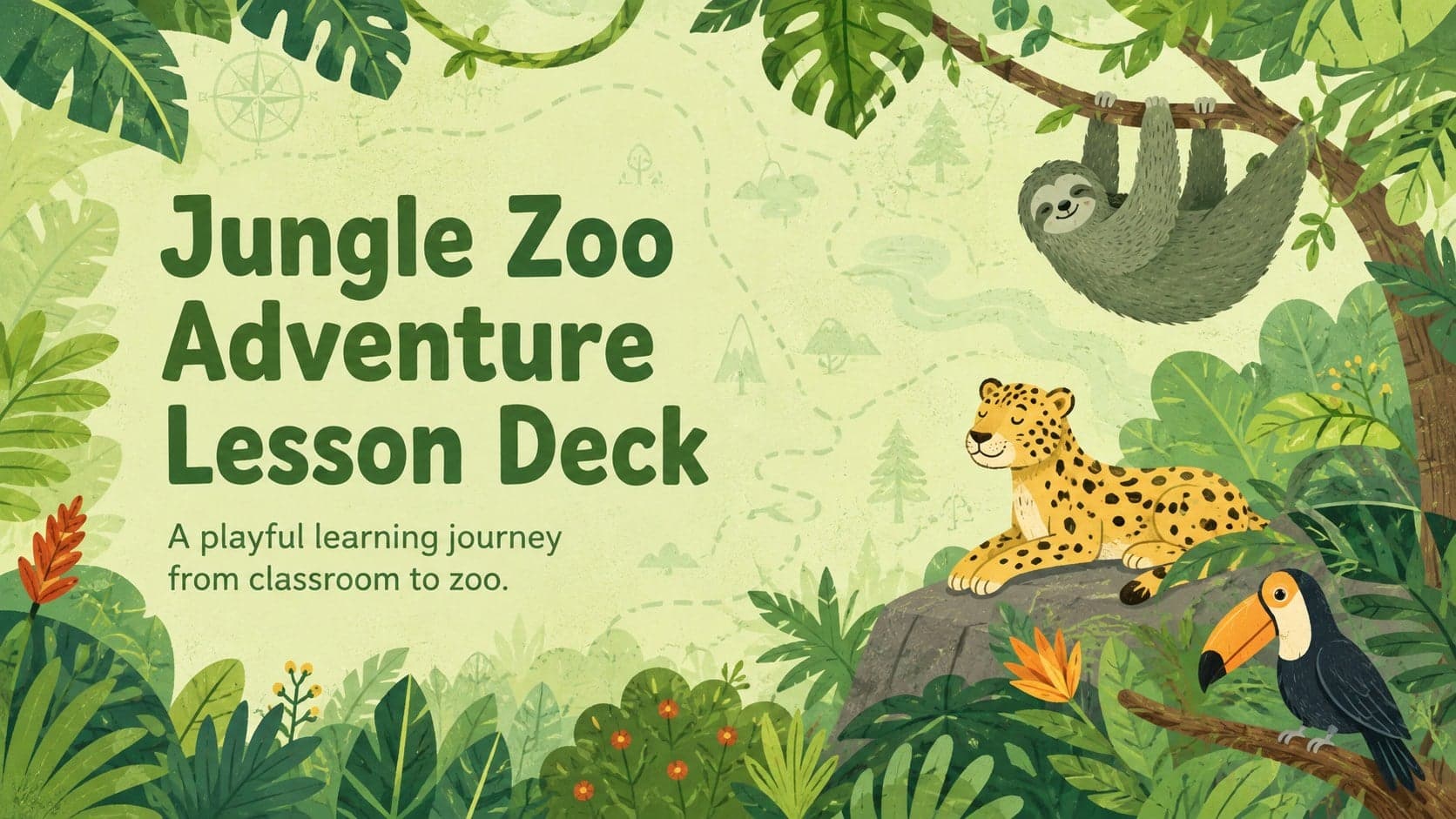
15Plan a lively animal-learning journey with this jungle zoo adventure lesson deck, ready to customize in PowerPoint and Google Slides for young learners.
 16
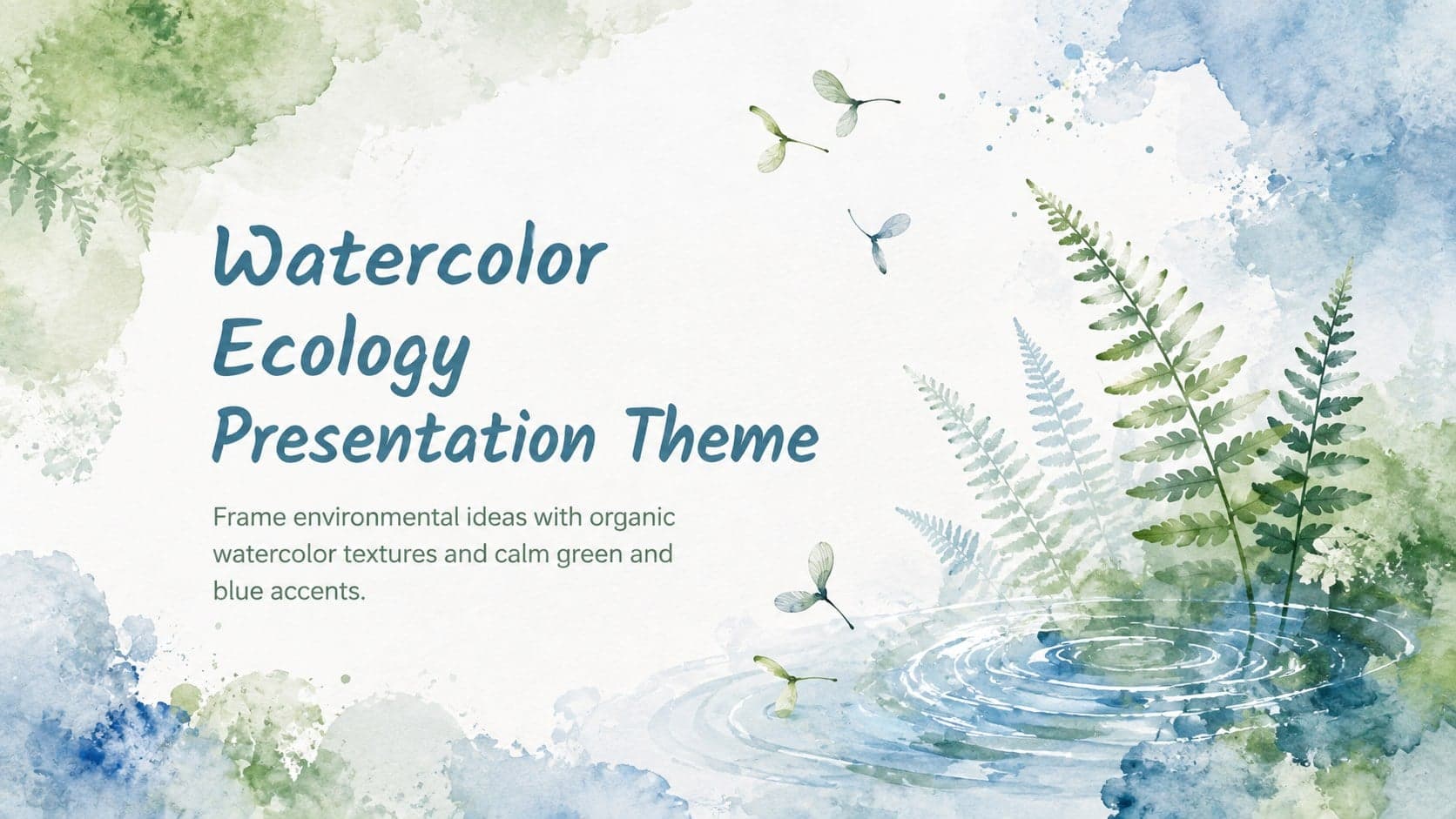
16Turn environmental research into a clear story with a Watercolor Ecology Presentation Theme for PowerPoint and Google Slides in calming green and blue.
 16
16Build focused fashion, literature, and humanities presentations with the Red Triangle Editorial Theme, editable in PowerPoint and Google Slides.
 15
15Turn streaming stats, favorite tracks, and concert highlights into a bold annual listening recap slide deck for PowerPoint and Google Slides.
 15
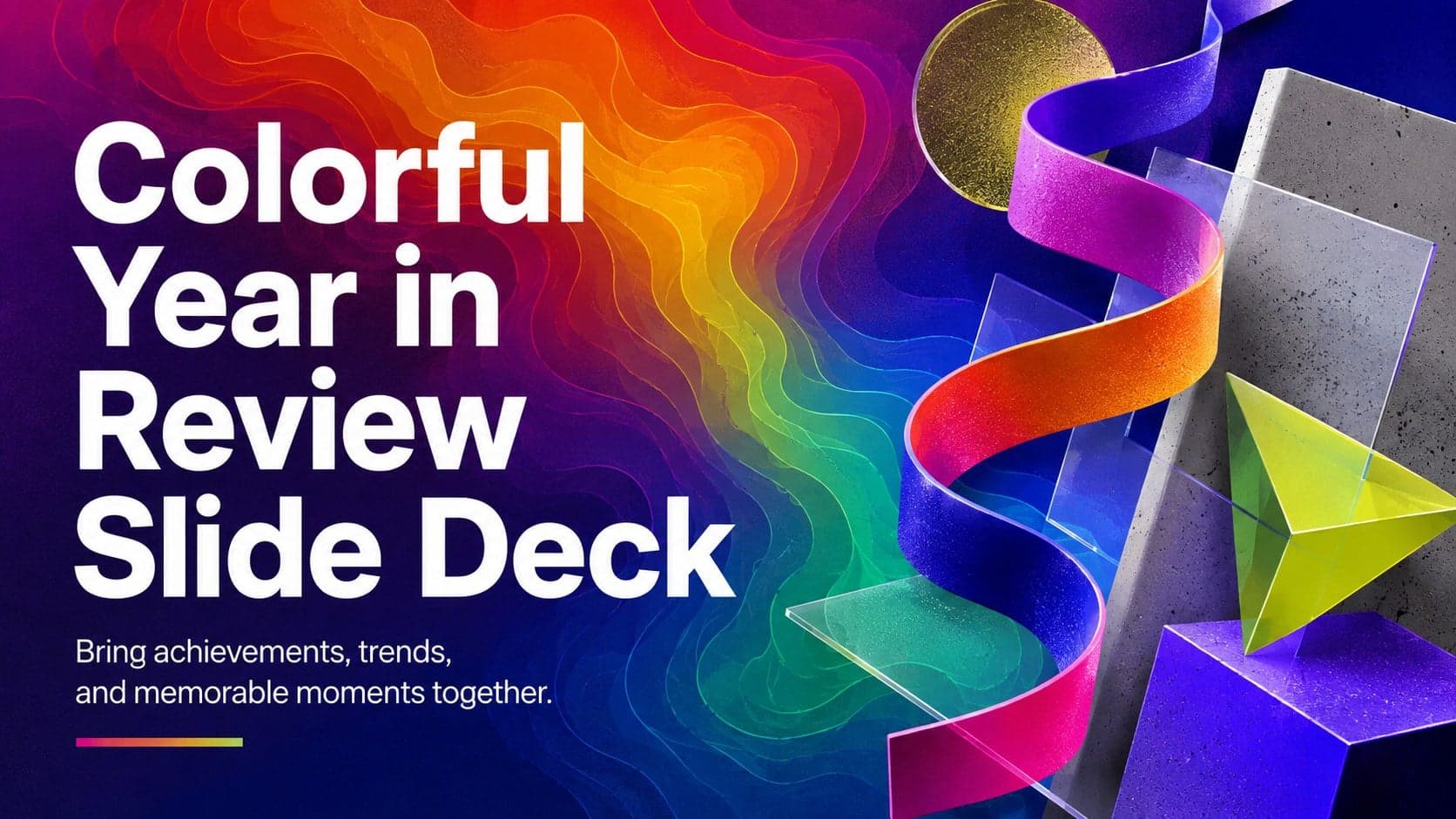
15Turn highlights, milestones, and favorite moments into a colorful year in review slide deck with bold 3D graphics for PowerPoint and Google Slides.
 3
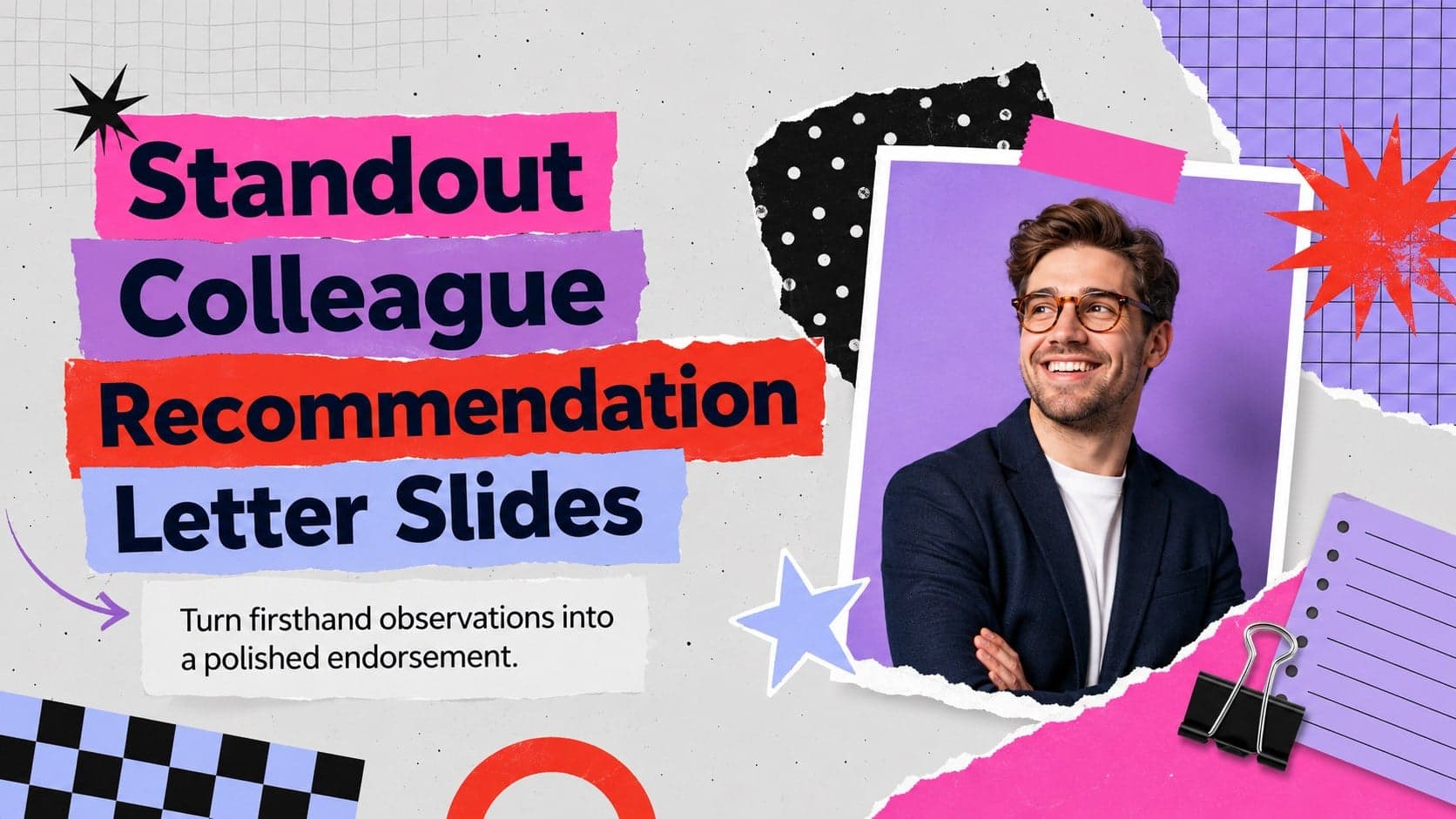
3Build a credible endorsement with Standout Colleague Recommendation Letter Slides, featuring colorful prompts for skills, achievements, and team impact.
 4
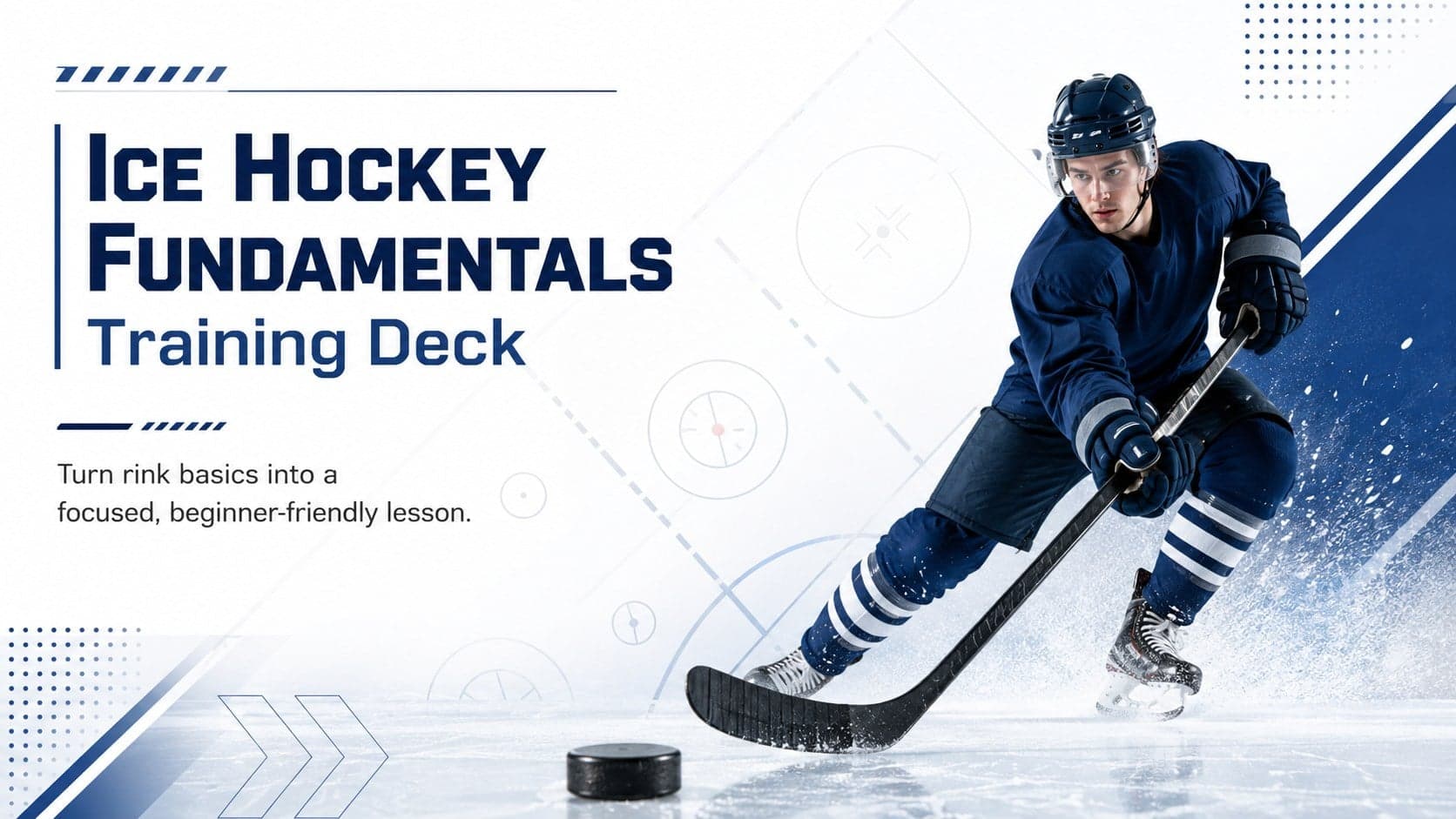
4Build clear beginner sessions with an ice hockey fundamentals training deck for coaches, PE teachers, and clubs, ready for PowerPoint and Google Slides.