
 15
15presentation
Flying Saucer History Lesson Deck
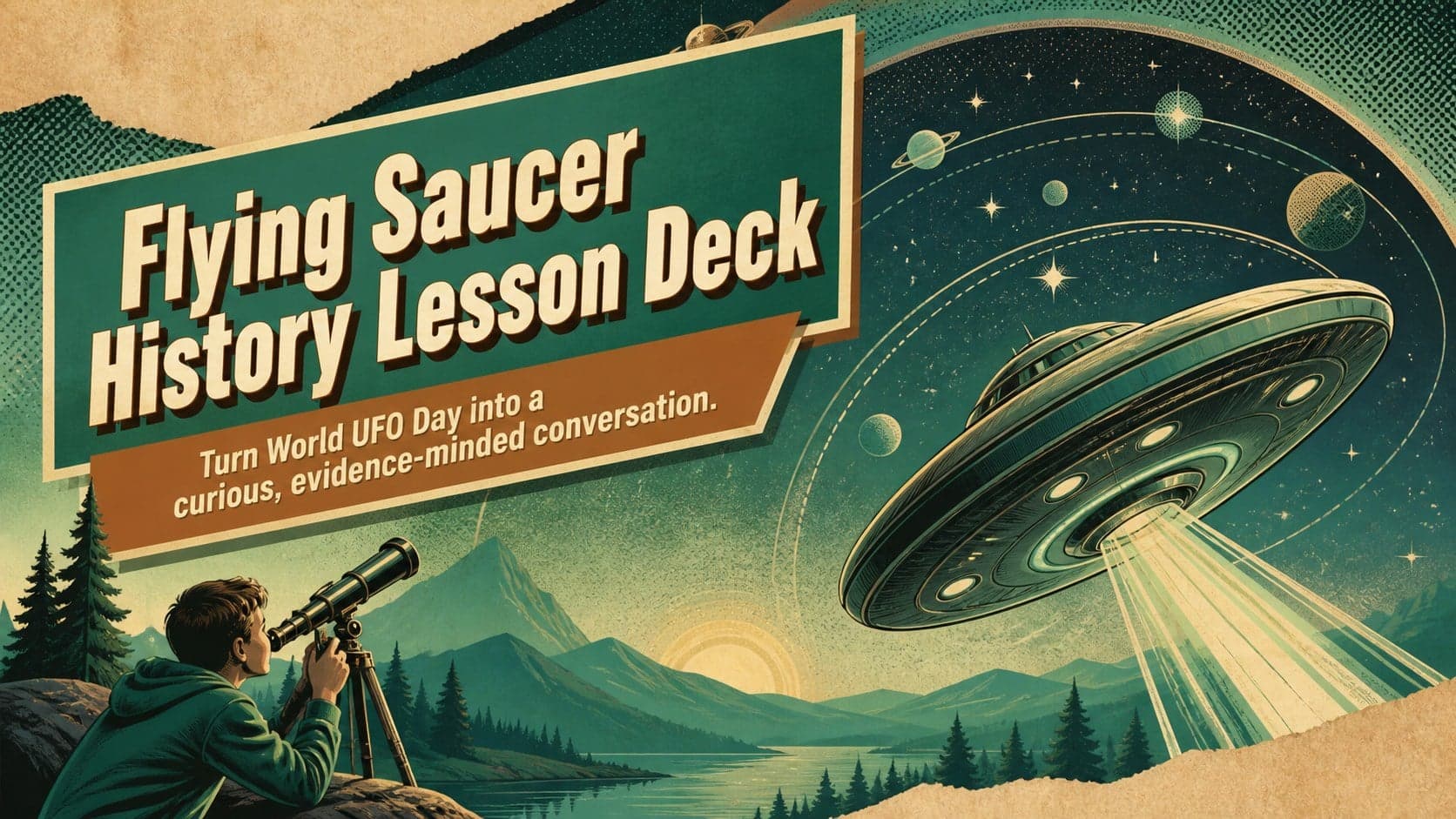
Build an engaging World UFO Day session with this flying saucer history lesson deck, featuring retro green-and-brown slides for PowerPoint and Google Slides.
Google SlidesPowerPoint
presentation · English
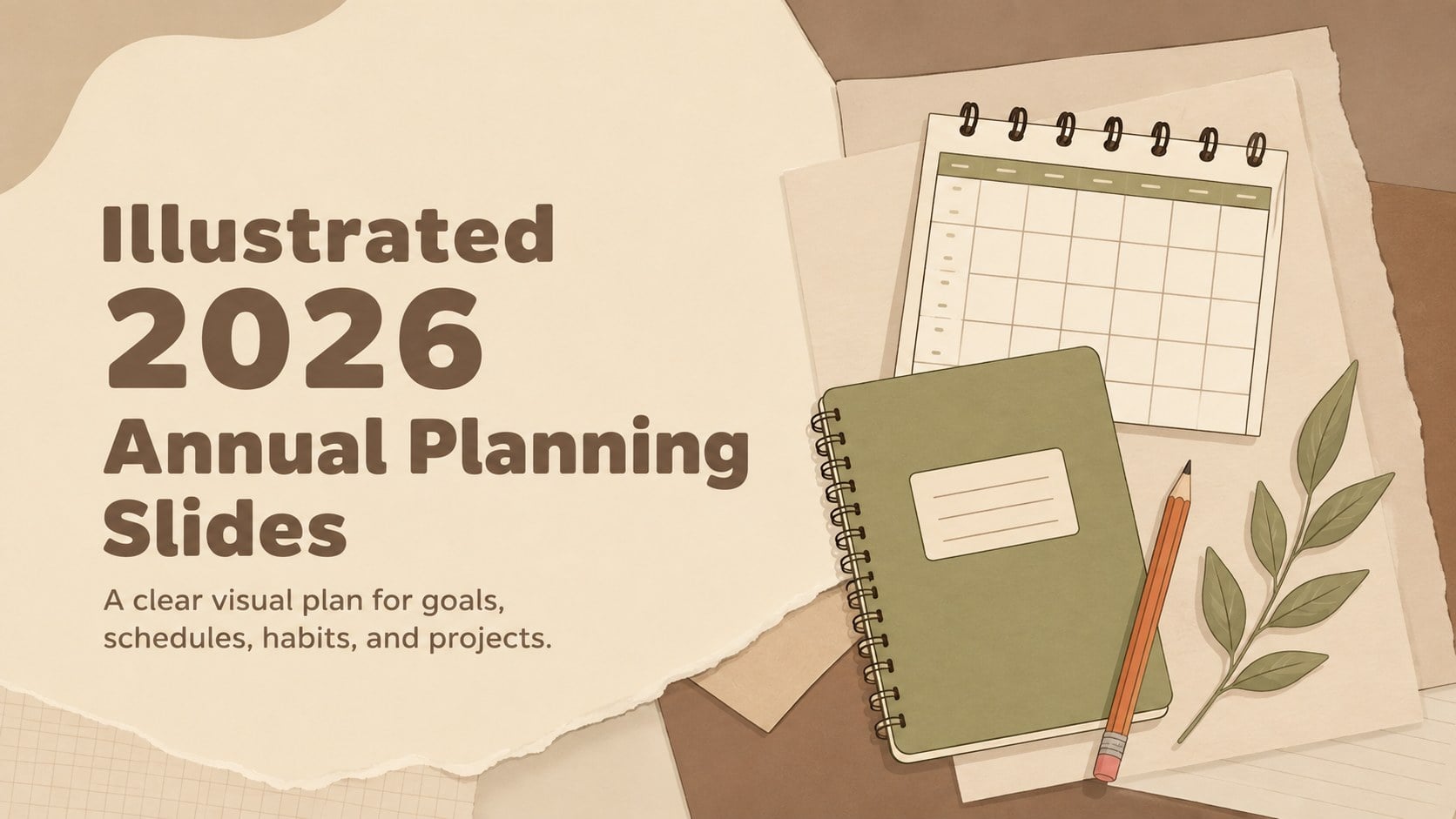
Bring goals, schedules, and priorities together with Illustrated 2026 Annual Planning Slides, editable in PowerPoint and Google Slides for easy organization.
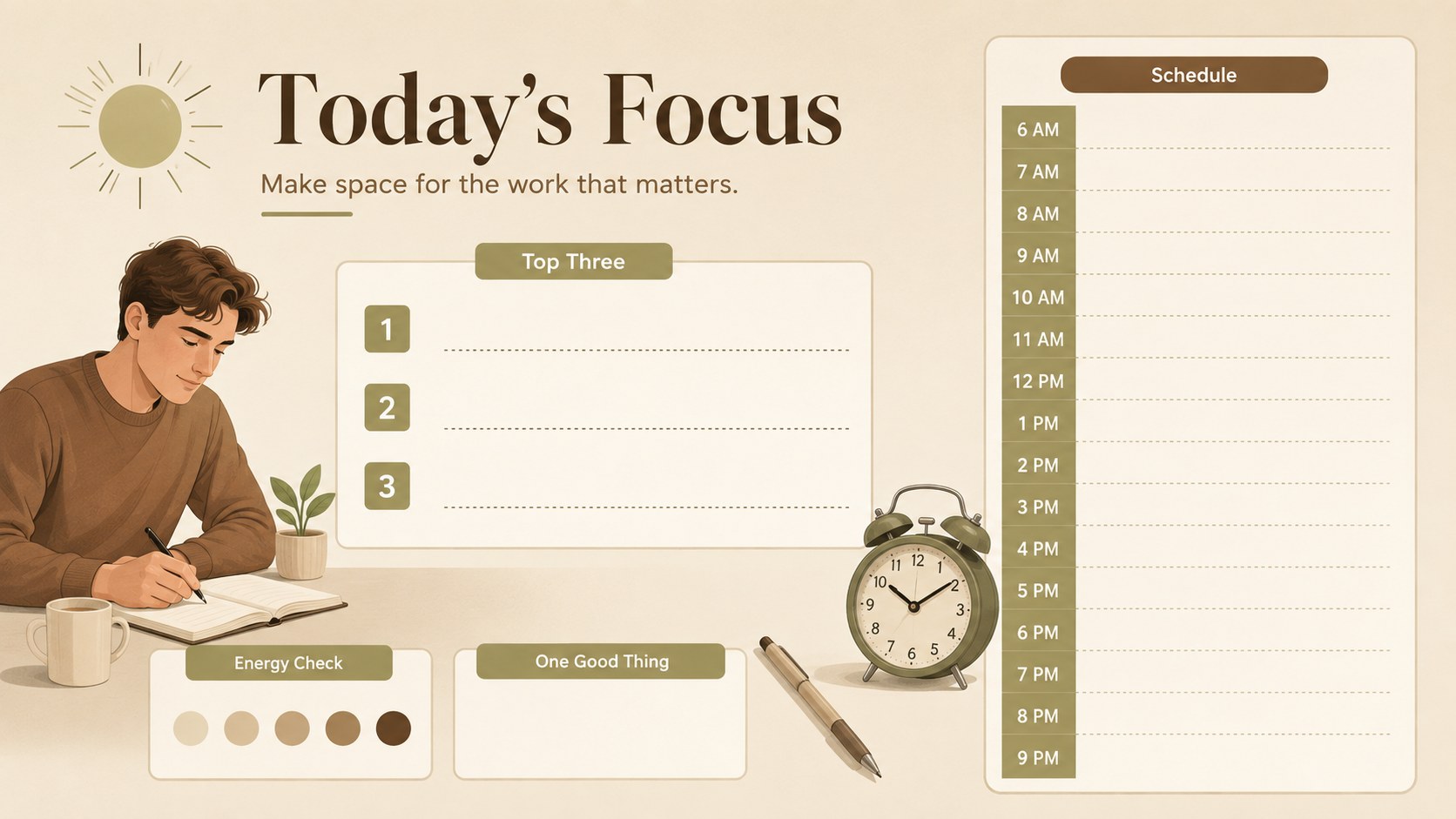
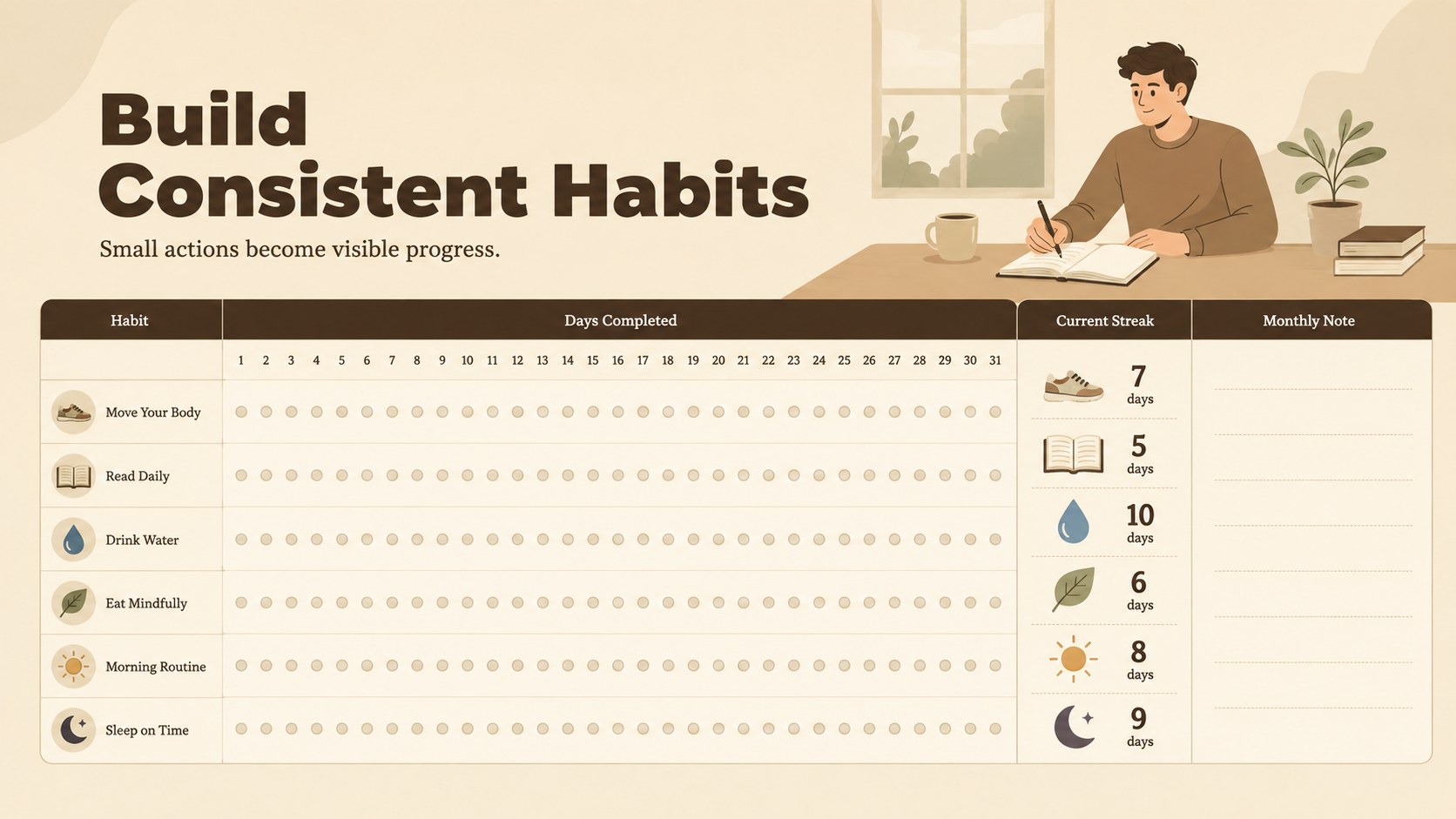
Design notes
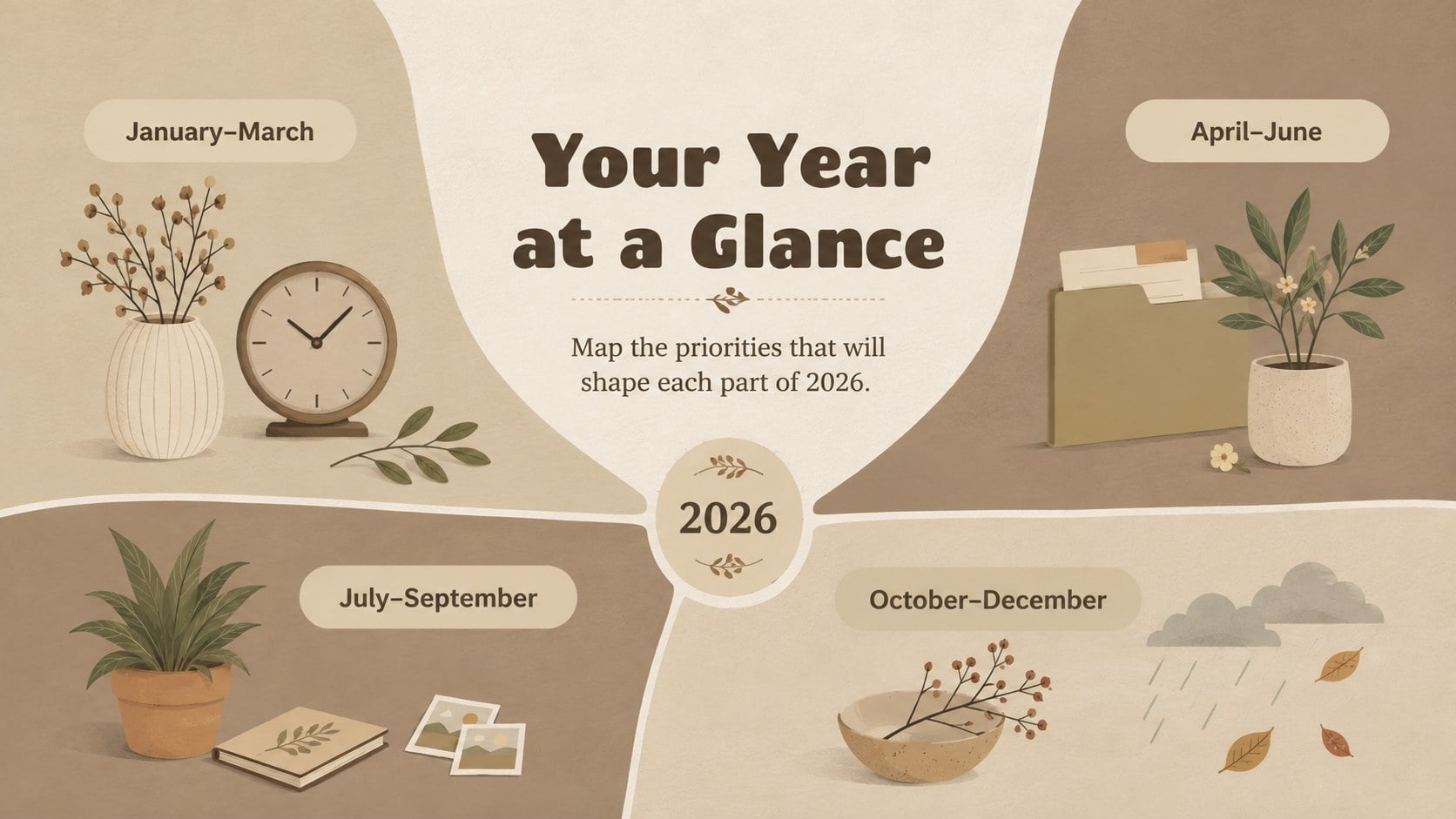
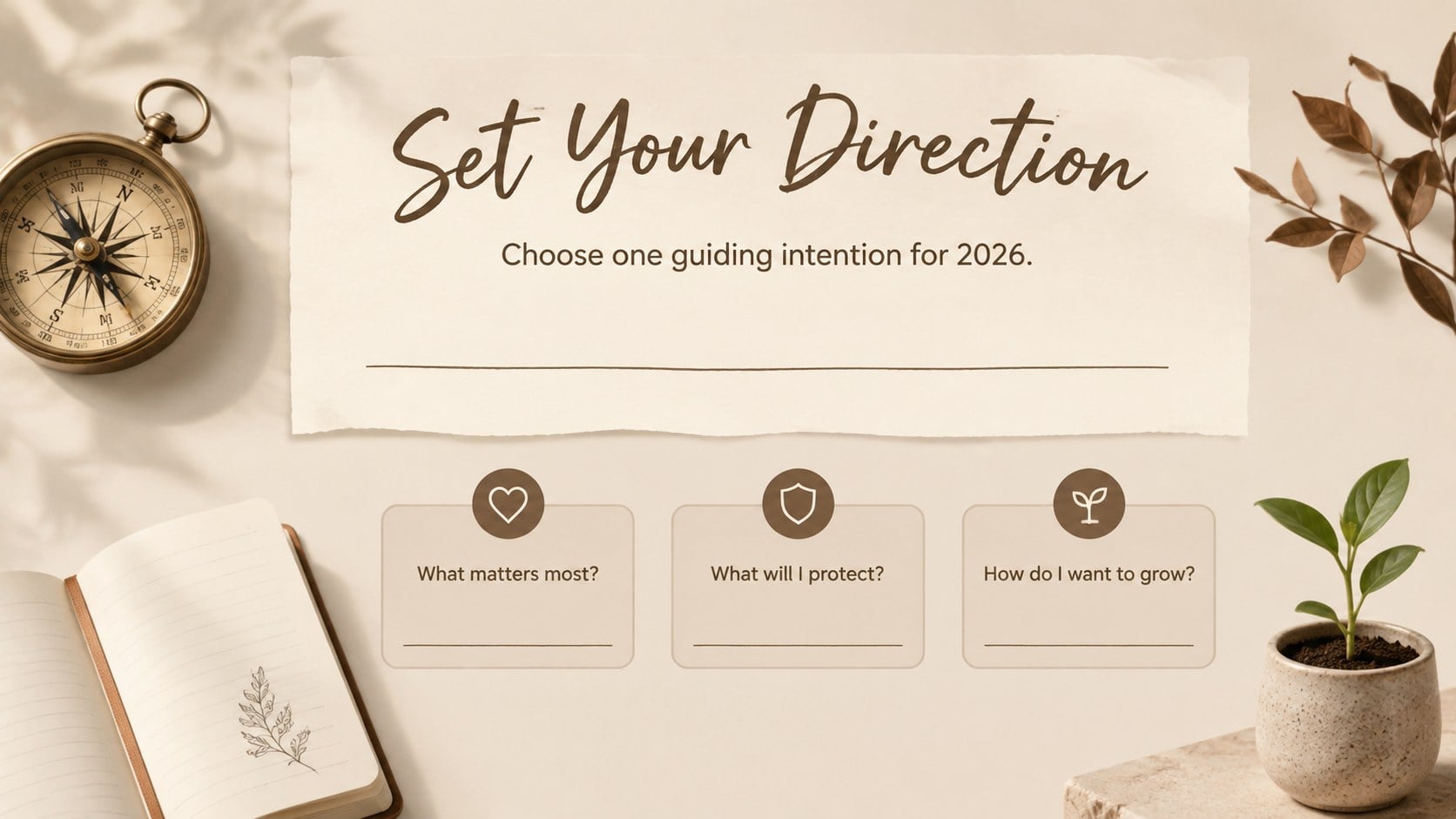
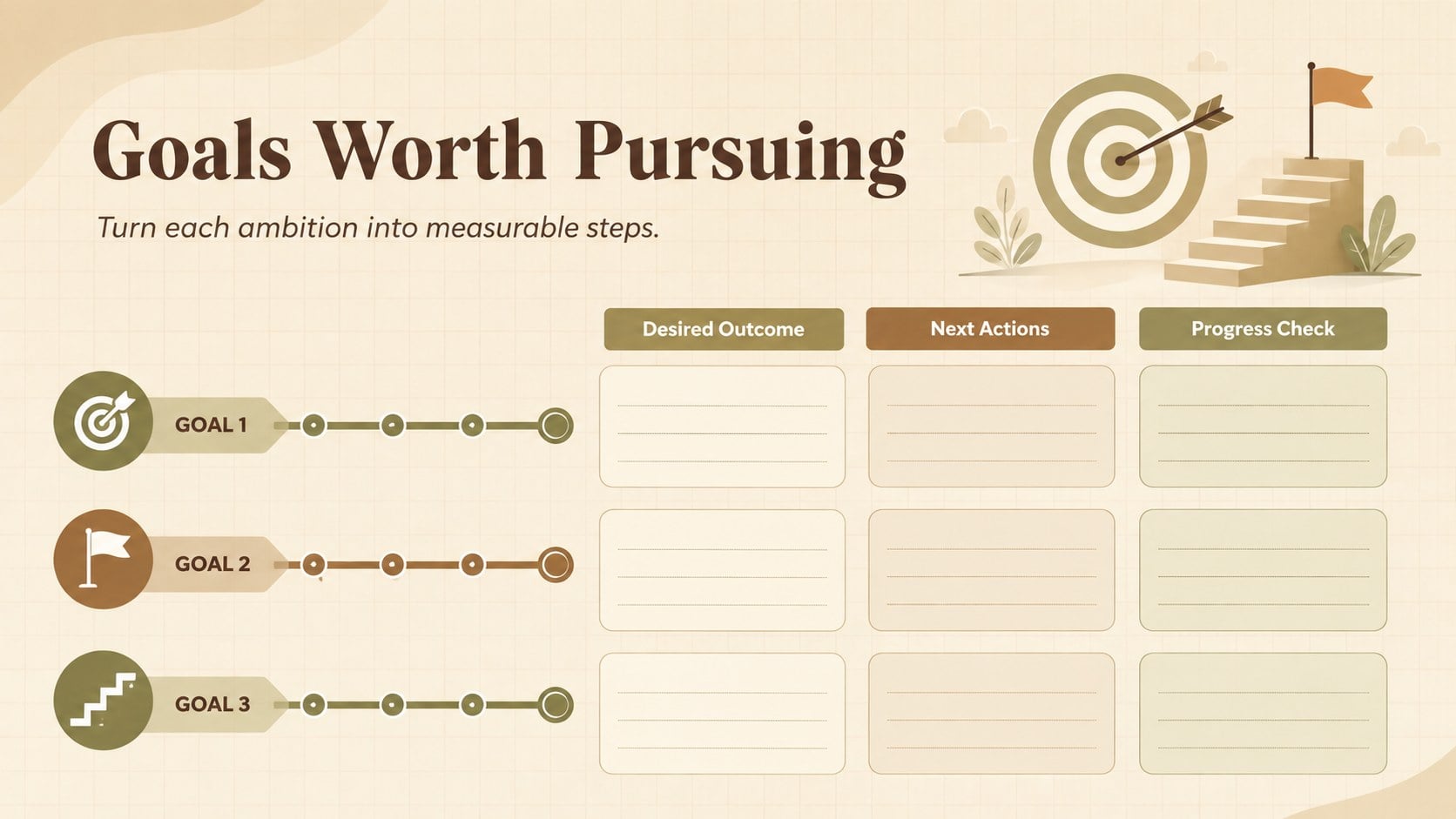
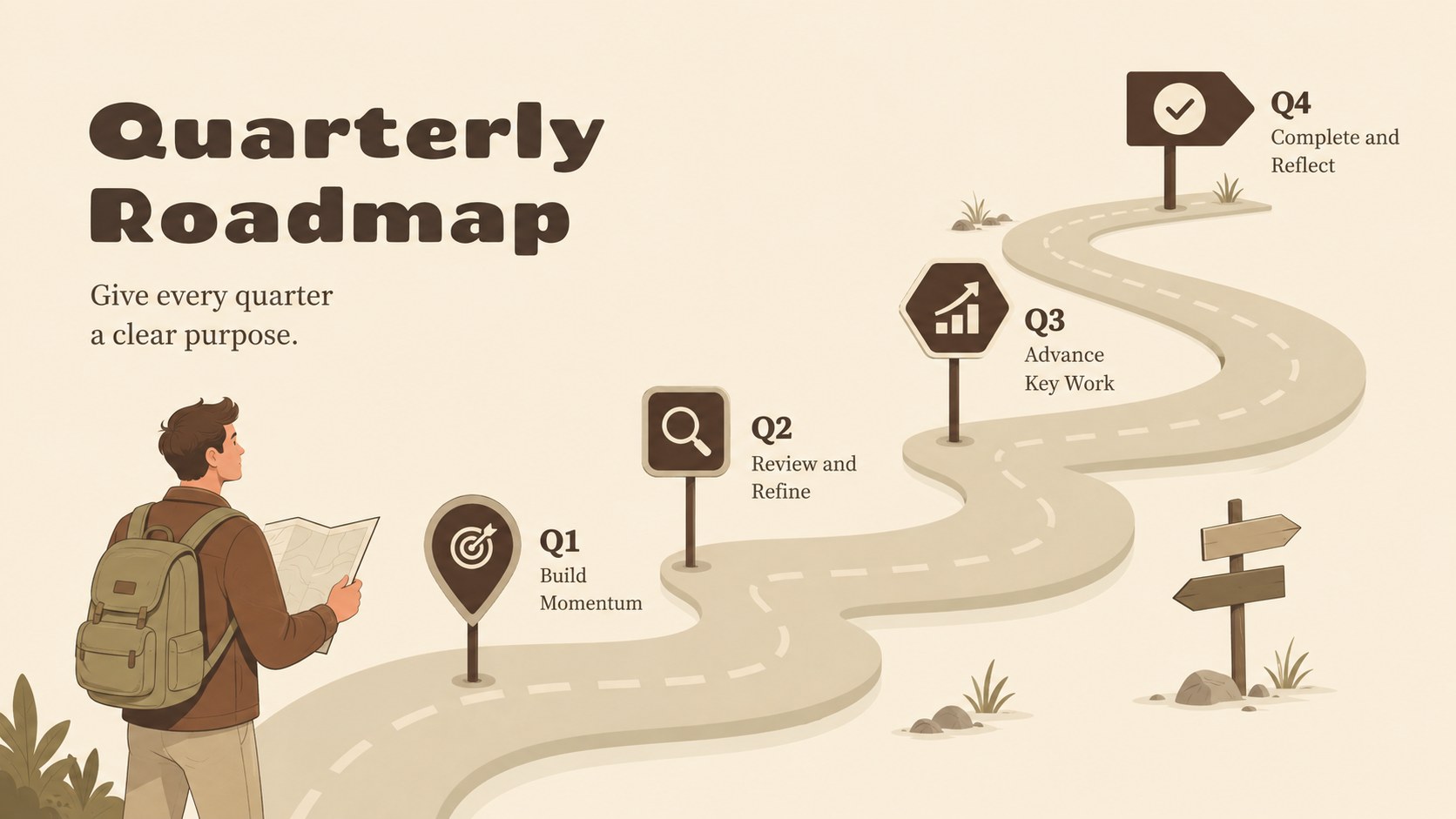
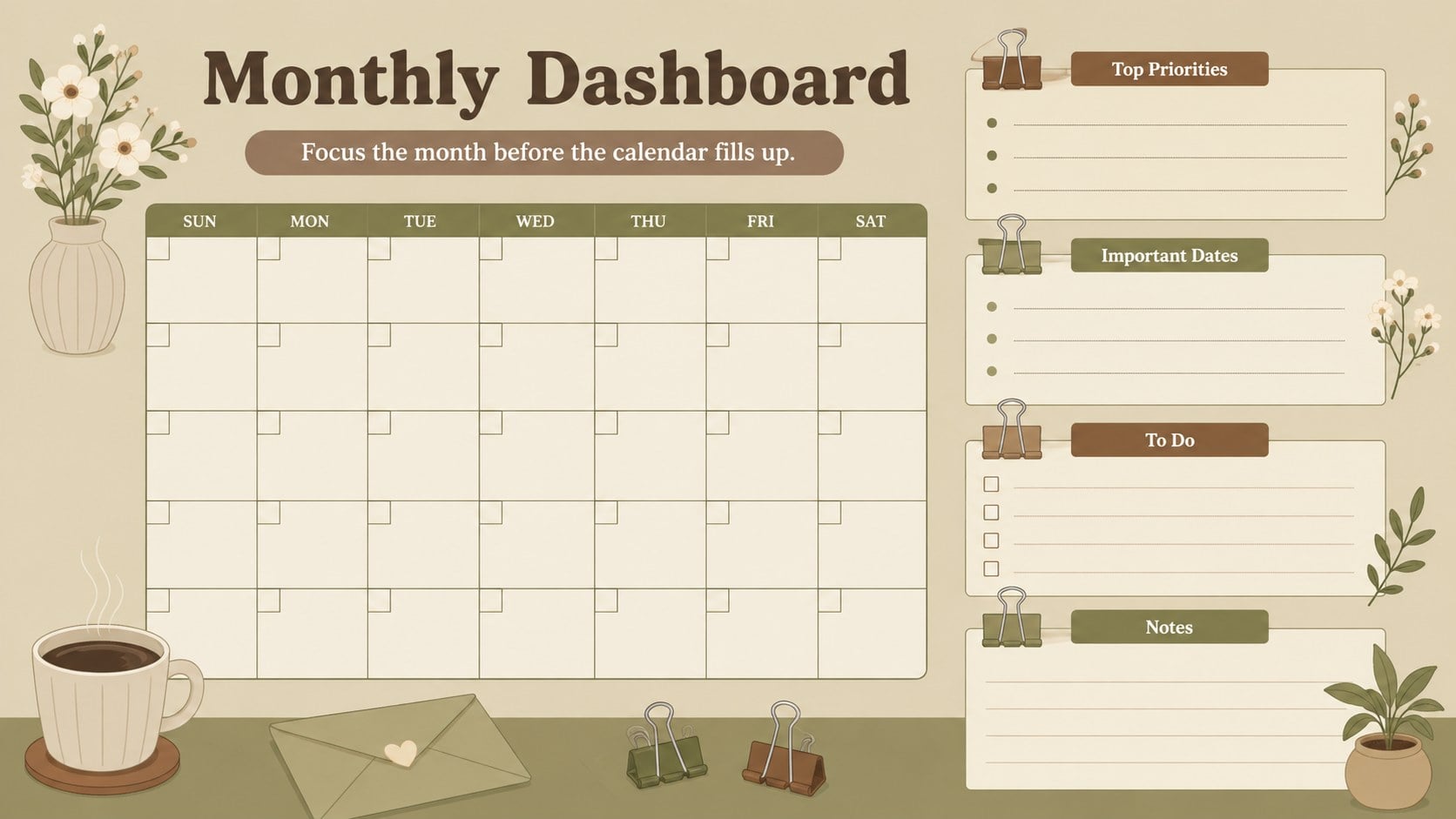
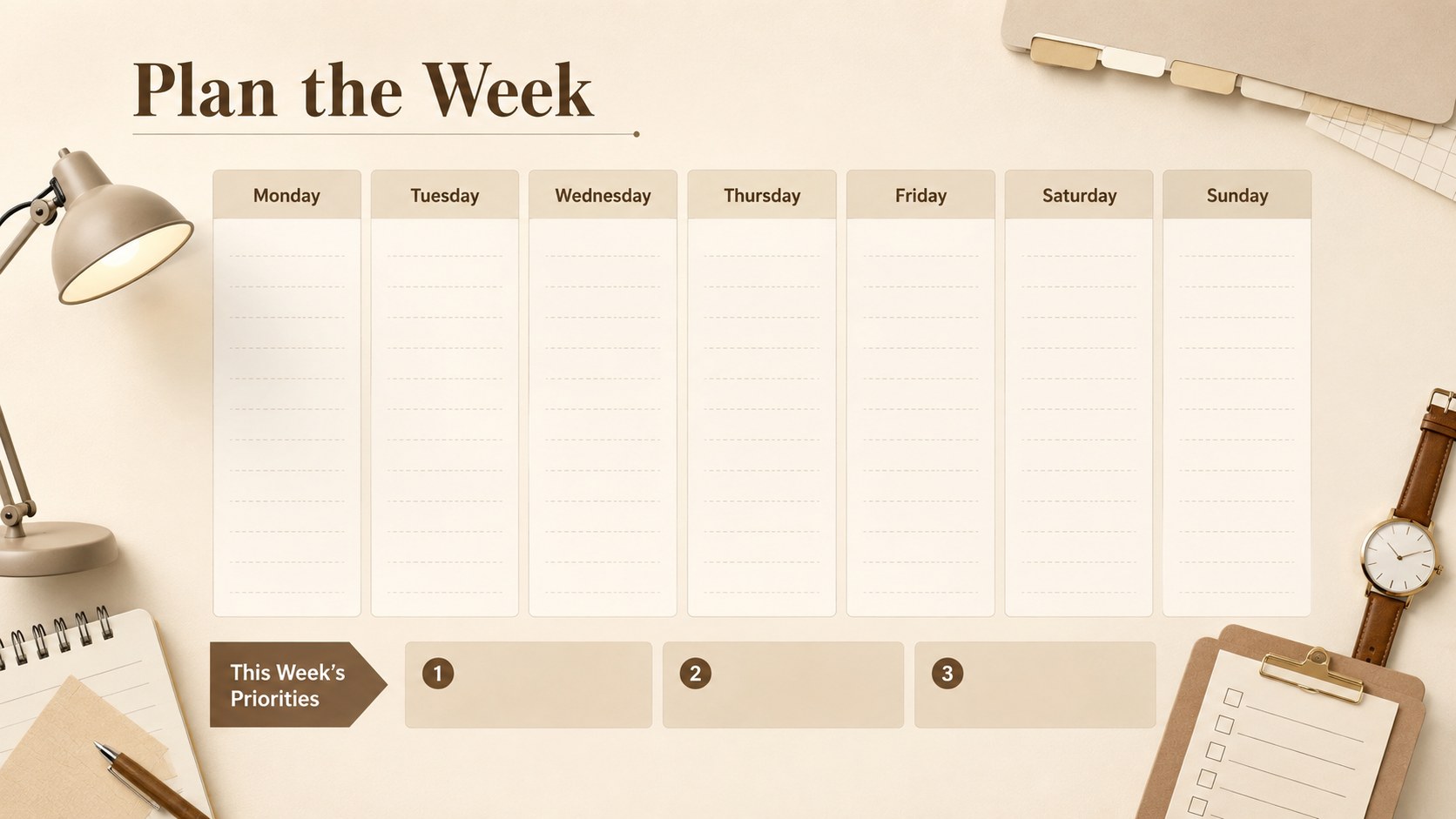
Illustrated 2026 Annual Planning Slides bring schedules, priorities, and long-term goals into one coordinated visual system. Designed in a calming beige and brown palette, this warm illustrated deck offers a polished way to organize personal routines, academic commitments, family plans, or professional projects. Every page can be edited in PowerPoint or Google Slides, making it simple to adjust labels, colors, dates, and layouts.
Inside, you will find 15 coordinated slides covering annual priorities, quarterly milestones, monthly schedules, weekly tasks, daily focus areas, habit tracking, important dates, project planning, budgeting, notes, and end-of-year reflection. Use the beige brown annual planning template as a complete organizer or select individual layouts for meetings, check-ins, and printable planning pages. The structured sections also make it an effective editable goal tracking presentation for reviewing progress with a team, class, or accountability partner.
These slides are suitable for professionals managing deadlines, students balancing coursework, teachers mapping classroom activities, and individuals building more consistent routines. The friendly illustrations keep planning approachable, while the practical layouts support detailed scheduling. Whether you need a 2026 personal productivity slide deck or a visual roadmap for shared objectives, the flexible design helps turn broad intentions into concrete actions.
Perfect for: personal annual goal planning; team milestone tracking; student schedule organization; family calendar coordination; weekly productivity reviews; project deadline planning.
Frequently asked questions
Can I edit every planning page? Yes. Text, dates, colors, shapes, and planning sections can be customized in PowerPoint or Google Slides. You can also duplicate layouts to create additional weeks or months.
Practical details
Yes. Text, dates, colors, shapes, and planning sections can be customized in PowerPoint or Google Slides. You can also duplicate layouts to create additional weeks or months.
The template is designed for Microsoft PowerPoint and Google Slides. Some fonts, transitions, or spacing may vary slightly between the two platforms.
Yes. Export selected pages as PDF files and choose the scaling options that fit your paper size. Review printer margins before producing bound or punched planner pages.
Rename the sections to match projects, courses, meetings, assignments, or reporting periods. The goal, schedule, tracker, and reflection layouts can be reused for either individual or collaborative planning.
Keep exploring
15Build an engaging World UFO Day session with this flying saucer history lesson deck, featuring retro green-and-brown slides for PowerPoint and Google Slides.
 15
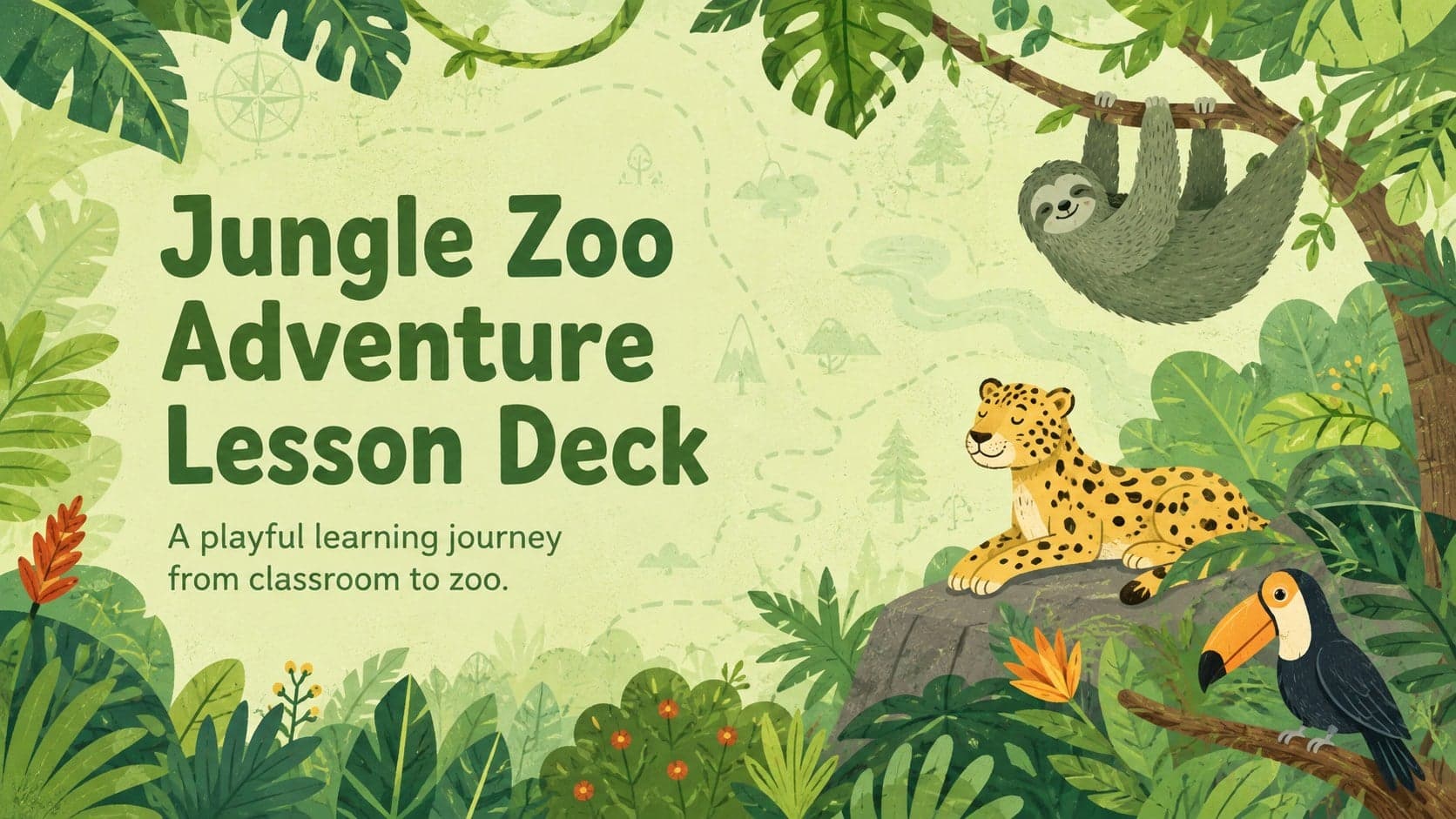
15Plan a lively animal-learning journey with this jungle zoo adventure lesson deck, ready to customize in PowerPoint and Google Slides for young learners.
 16
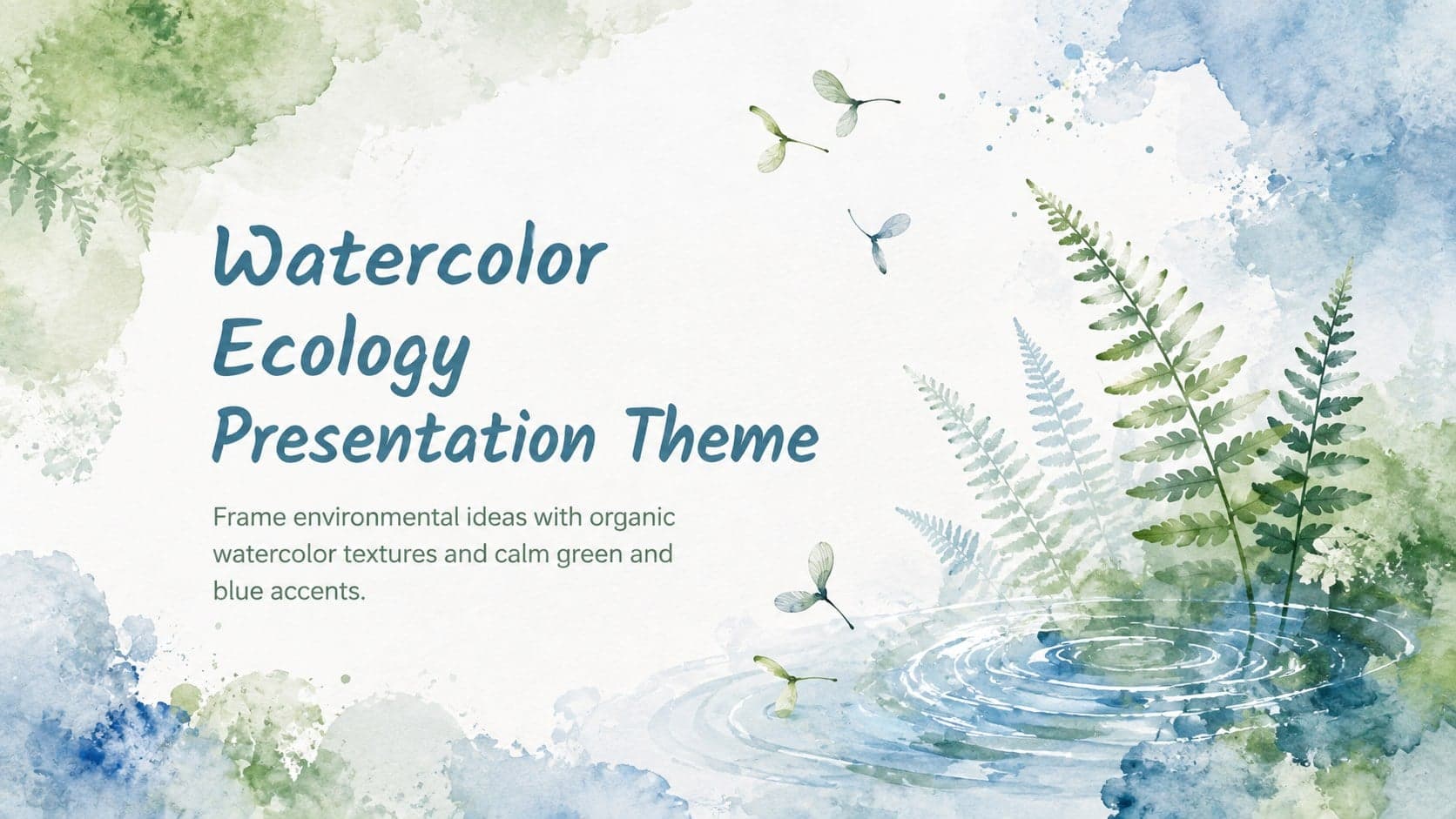
16Turn environmental research into a clear story with a Watercolor Ecology Presentation Theme for PowerPoint and Google Slides in calming green and blue.
 16
16Build focused fashion, literature, and humanities presentations with the Red Triangle Editorial Theme, editable in PowerPoint and Google Slides.
 15
15Turn streaming stats, favorite tracks, and concert highlights into a bold annual listening recap slide deck for PowerPoint and Google Slides.
 15
15Turn highlights, milestones, and favorite moments into a colorful year in review slide deck with bold 3D graphics for PowerPoint and Google Slides.
 3
3Build a credible endorsement with Standout Colleague Recommendation Letter Slides, featuring colorful prompts for skills, achievements, and team impact.
 4
4Build clear beginner sessions with an ice hockey fundamentals training deck for coaches, PE teachers, and clubs, ready for PowerPoint and Google Slides.