
 15
15presentation
Flying Saucer History Lesson Deck
Build an engaging World UFO Day session with this flying saucer history lesson deck, featuring retro green-and-brown slides for PowerPoint and Google Slides.
Google SlidesPowerPoint
presentation · English
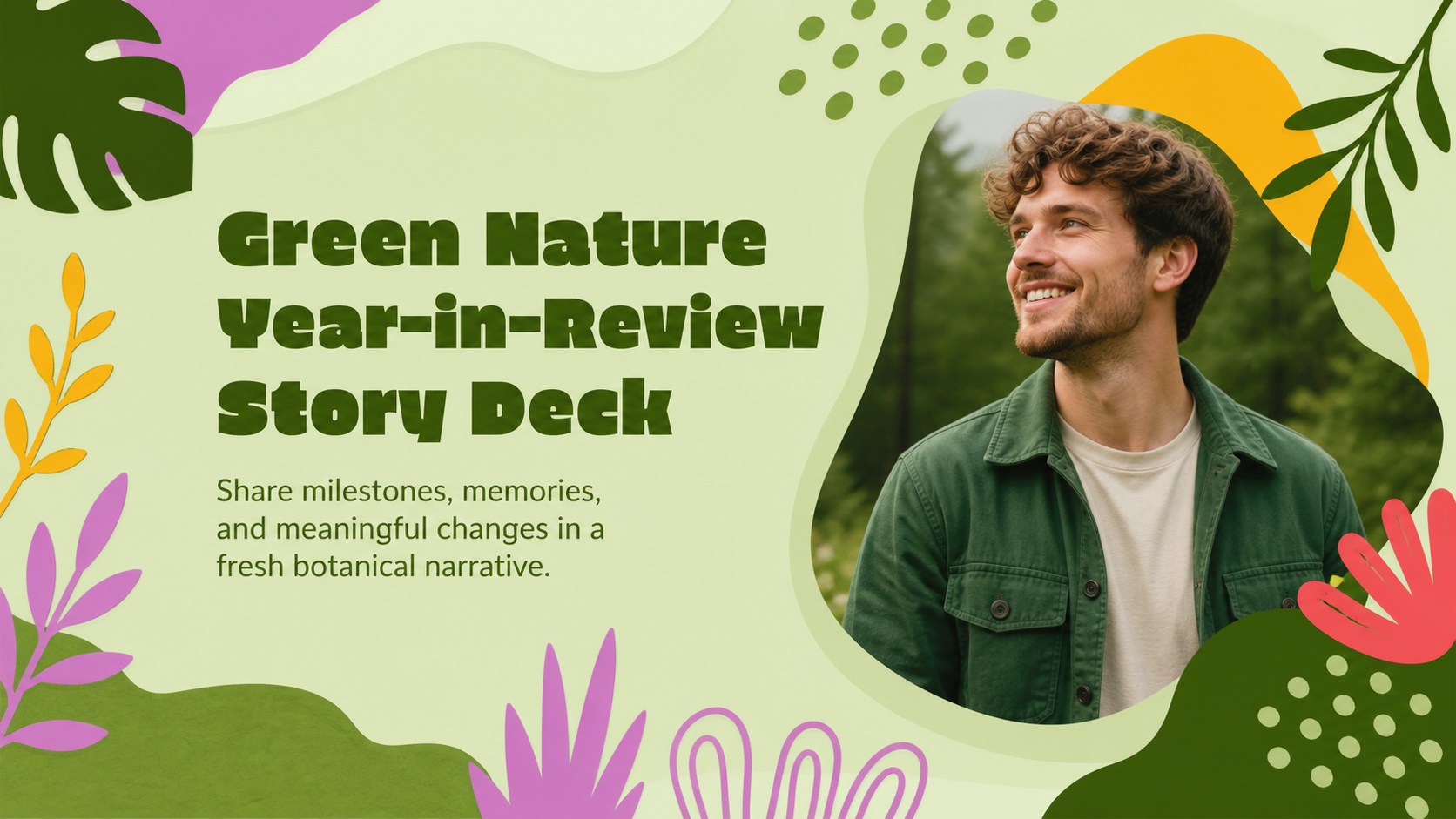
Build a Green Nature Year-in-Review Story Deck for milestones, memories, and personal wins, with editable layouts for PowerPoint and Google Slides.


Design notes
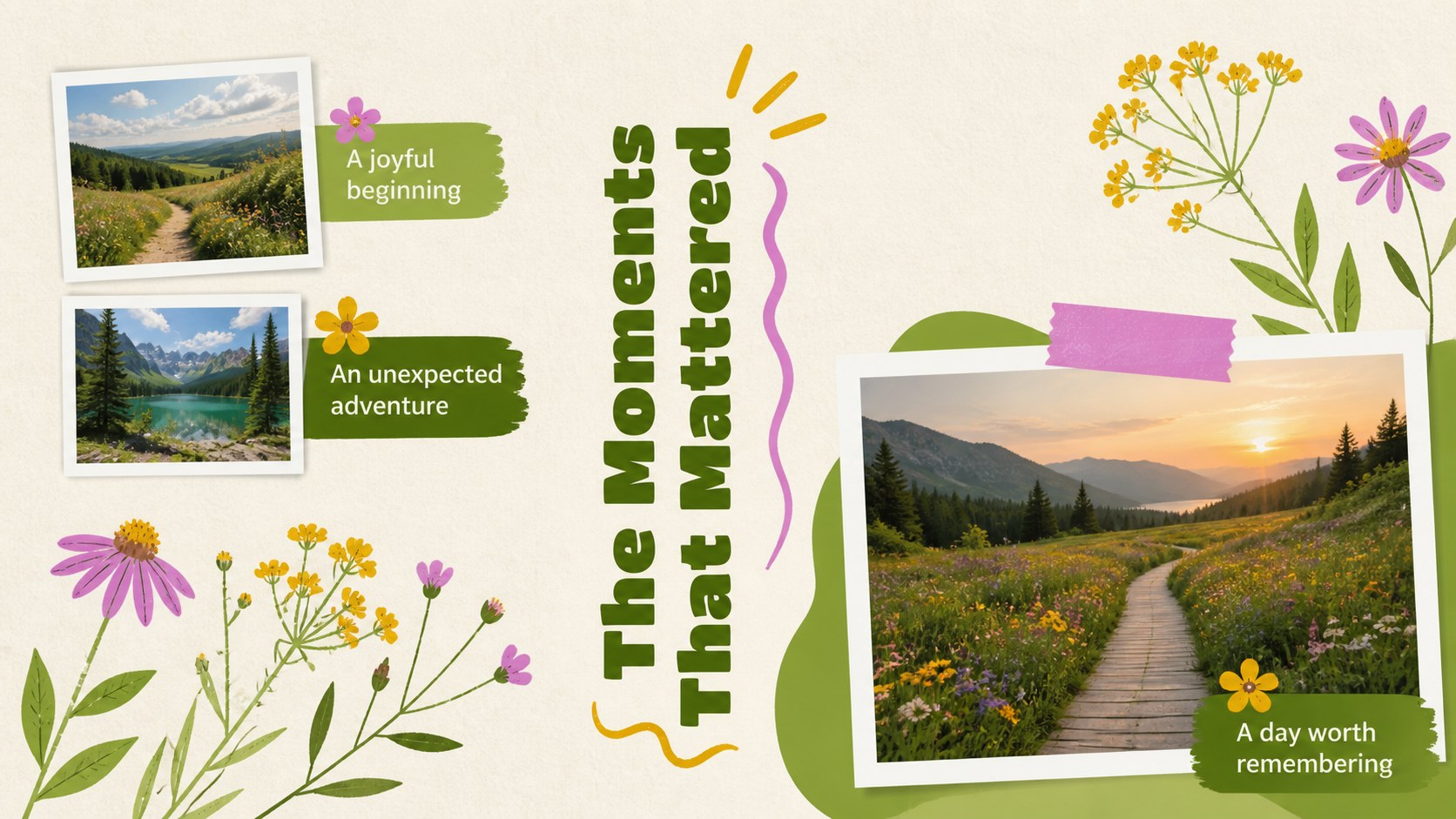
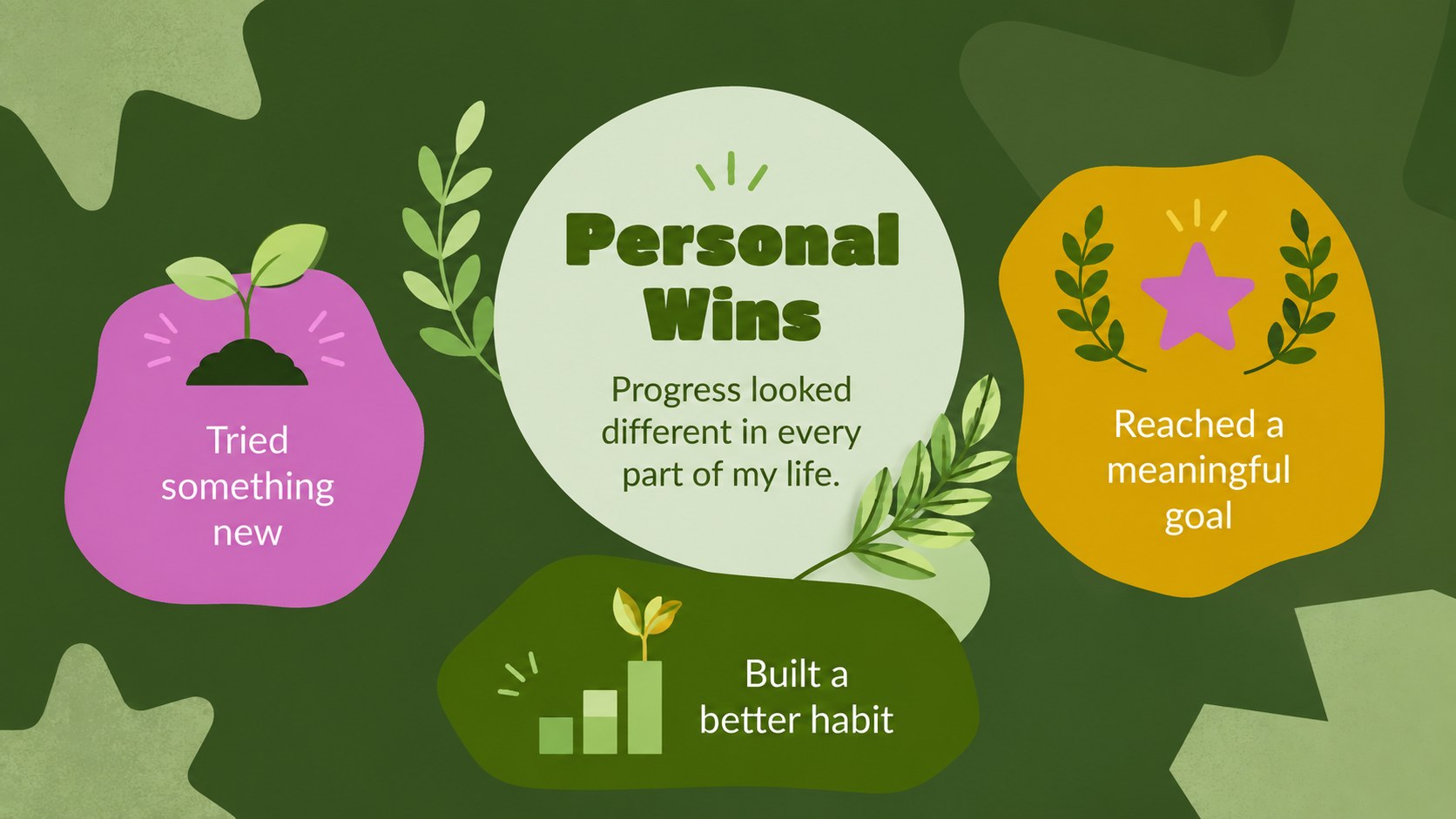
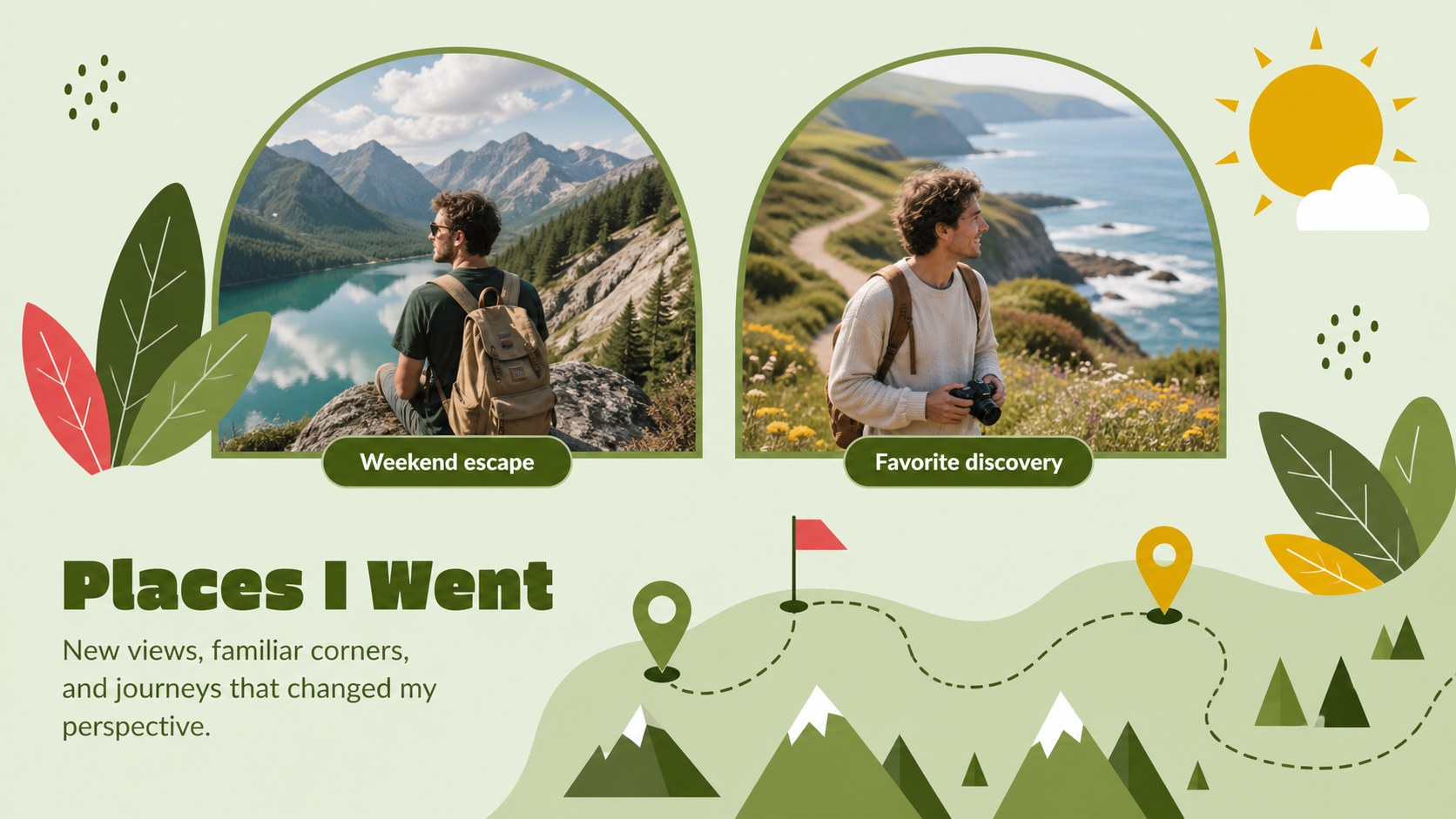
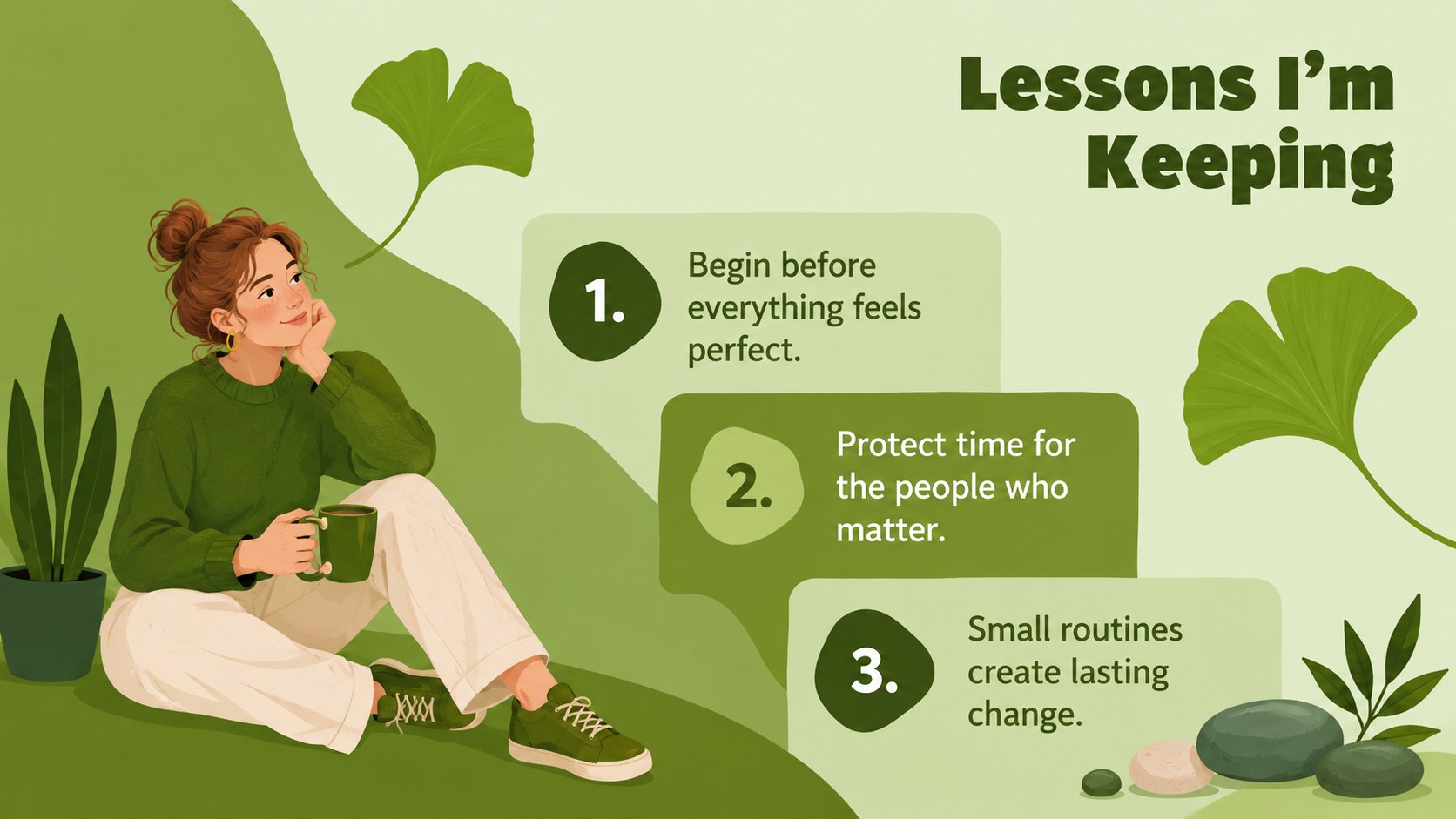
Turn meaningful experiences into a polished Green Nature Year-in-Review Story Deck. Created for personal recaps, family gatherings, classroom reflections, and informal celebrations, this presentation balances energetic green tones with expressive botanical graphics. It offers a lively way to share the events, people, achievements, and everyday discoveries that shaped your year.
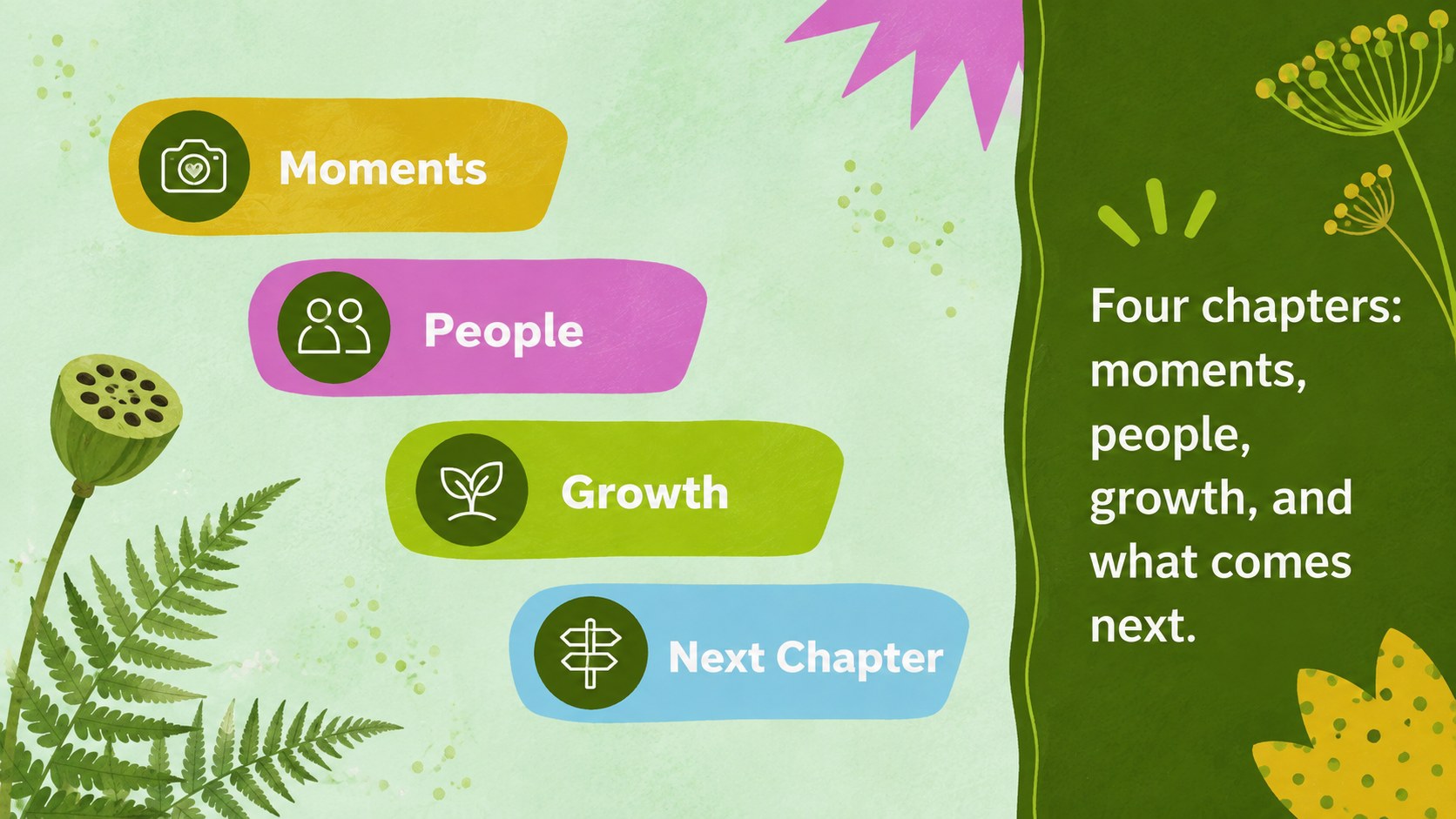
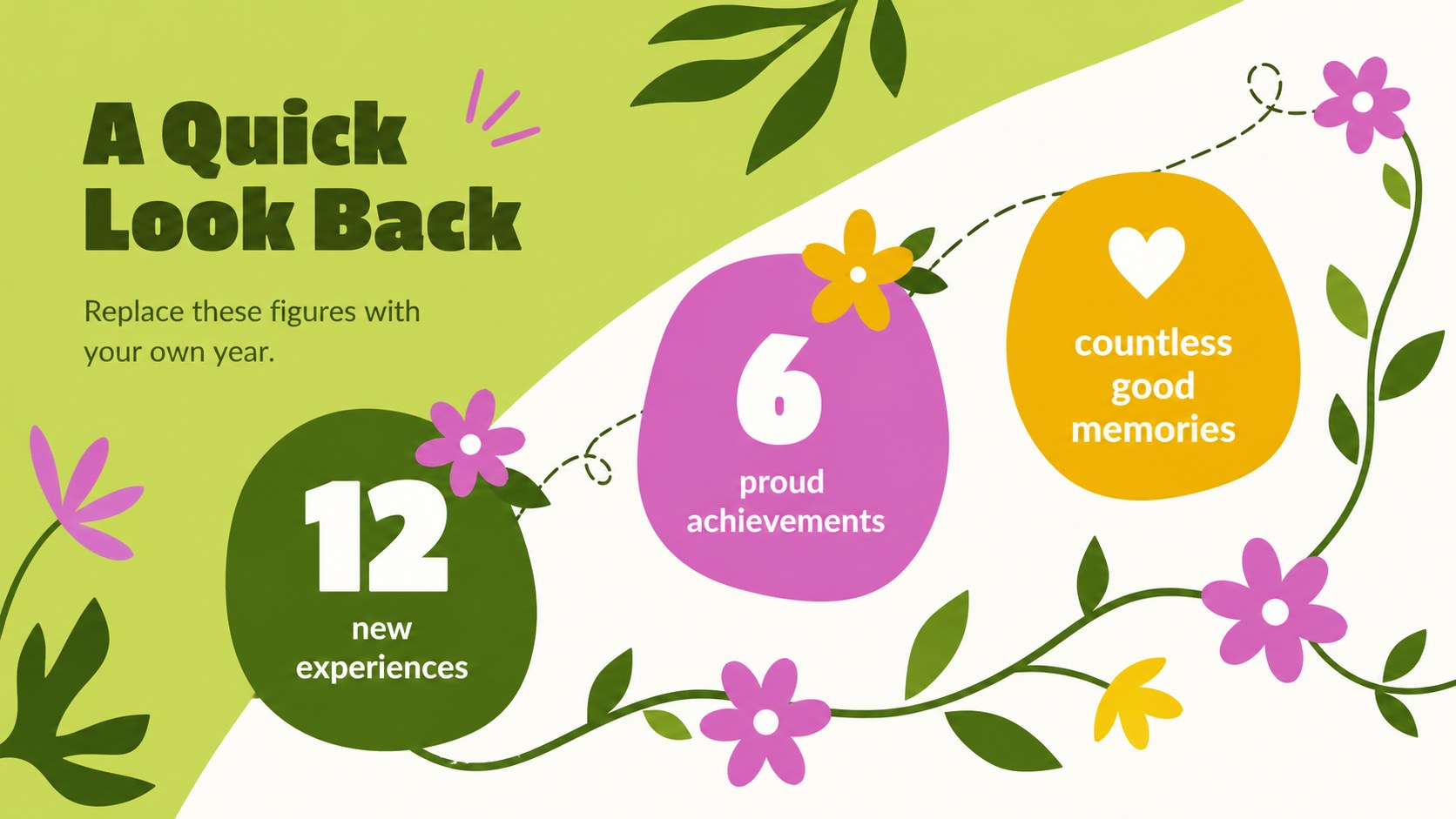
Inside, you will find 15 coordinated 16:9 layouts for opening remarks, memorable moments, personal wins, favorite places, important relationships, lessons learned, seasonal milestones, and future intentions. Use the annual memories slideshow template to combine photographs, brief stories, quotations, and simple statistics without crowding the page. A clear visual hierarchy and varied compositions help each section feel connected while keeping the narrative moving.
The green botanical recap slides are fully editable in PowerPoint and Google Slides. Change the wording, rearrange image frames, apply your own photos, or adjust the bright green palette to suit a personal event. This personal year in review presentation works especially well for students, friends, families, creators, and anyone preparing an engaging recap for a reunion, celebration, social gathering, or reflective end-of-year talk.
Perfect for: personal annual recap; family memory night; student reflection presentation; birthday year review; creator milestone update; friends reunion slideshow.
Frequently asked questions
Can I add my own photographs and captions? Yes. Replace the sample image areas with personal photographs, then edit the captions and story prompts to match each memory. Image cropping and placement can be adjusted directly in the presentation editor.
Practical details
Yes. Replace the sample image areas with personal photographs, then edit the captions and story prompts to match each memory. Image cropping and placement can be adjusted directly in the presentation editor.
The deck is designed for Microsoft PowerPoint and Google Slides. Some fonts, transitions, or image effects may render slightly differently between the two platforms.
Yes. You can update the colors, typefaces, decorative graphics, backgrounds, and image frames. For a consistent result, apply recurring changes through the theme or master-slide controls.
No. Keep only the layouts that support your story, duplicate useful pages, and reorder sections as needed. The deck works for both a short highlights recap and a longer chronological presentation.
Keep exploring
15Build an engaging World UFO Day session with this flying saucer history lesson deck, featuring retro green-and-brown slides for PowerPoint and Google Slides.
 15
15Plan a lively animal-learning journey with this jungle zoo adventure lesson deck, ready to customize in PowerPoint and Google Slides for young learners.
 16
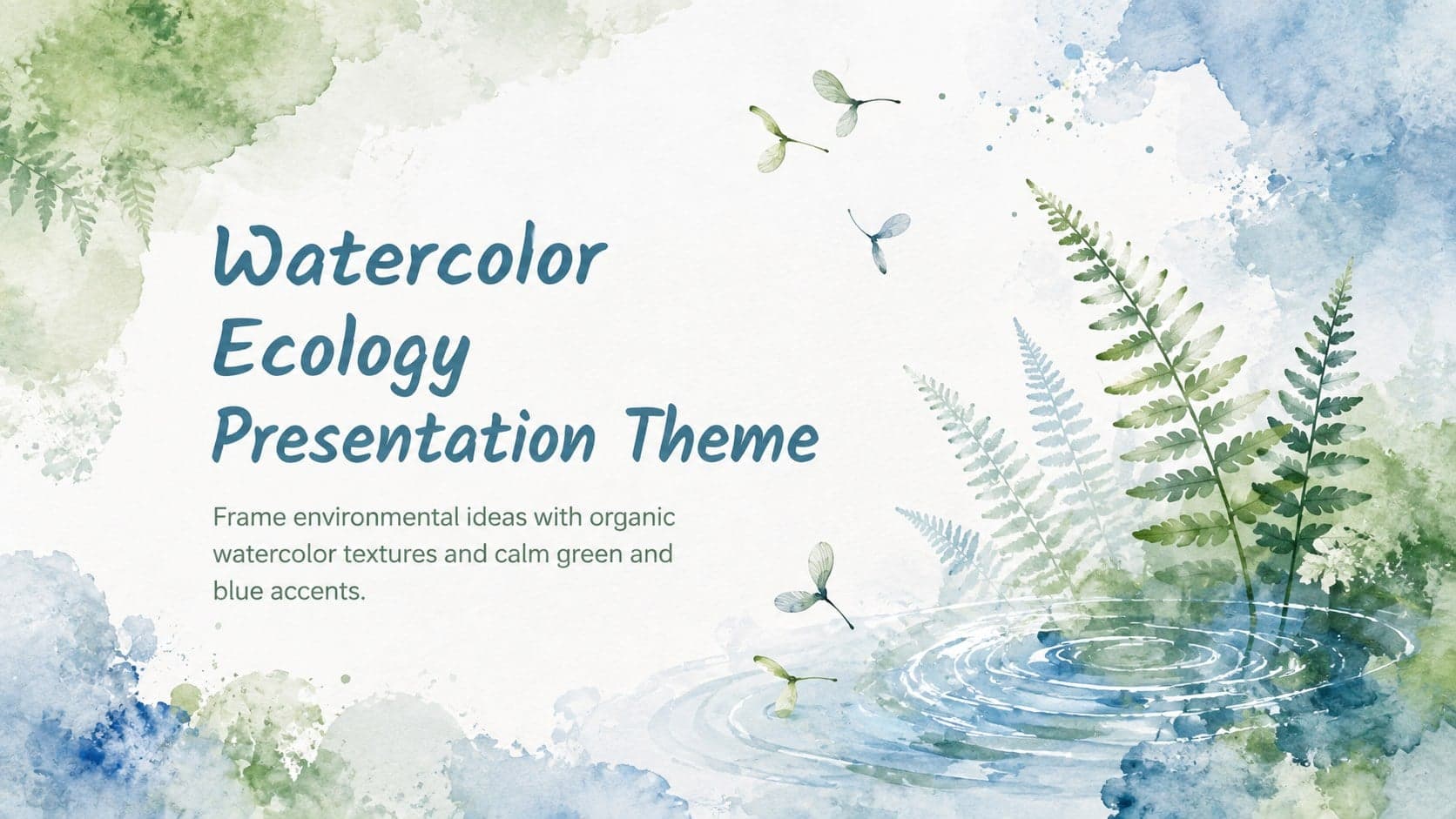
16Turn environmental research into a clear story with a Watercolor Ecology Presentation Theme for PowerPoint and Google Slides in calming green and blue.
 16
16Build focused fashion, literature, and humanities presentations with the Red Triangle Editorial Theme, editable in PowerPoint and Google Slides.
 15
15Turn streaming stats, favorite tracks, and concert highlights into a bold annual listening recap slide deck for PowerPoint and Google Slides.
 15
15Turn highlights, milestones, and favorite moments into a colorful year in review slide deck with bold 3D graphics for PowerPoint and Google Slides.
 3
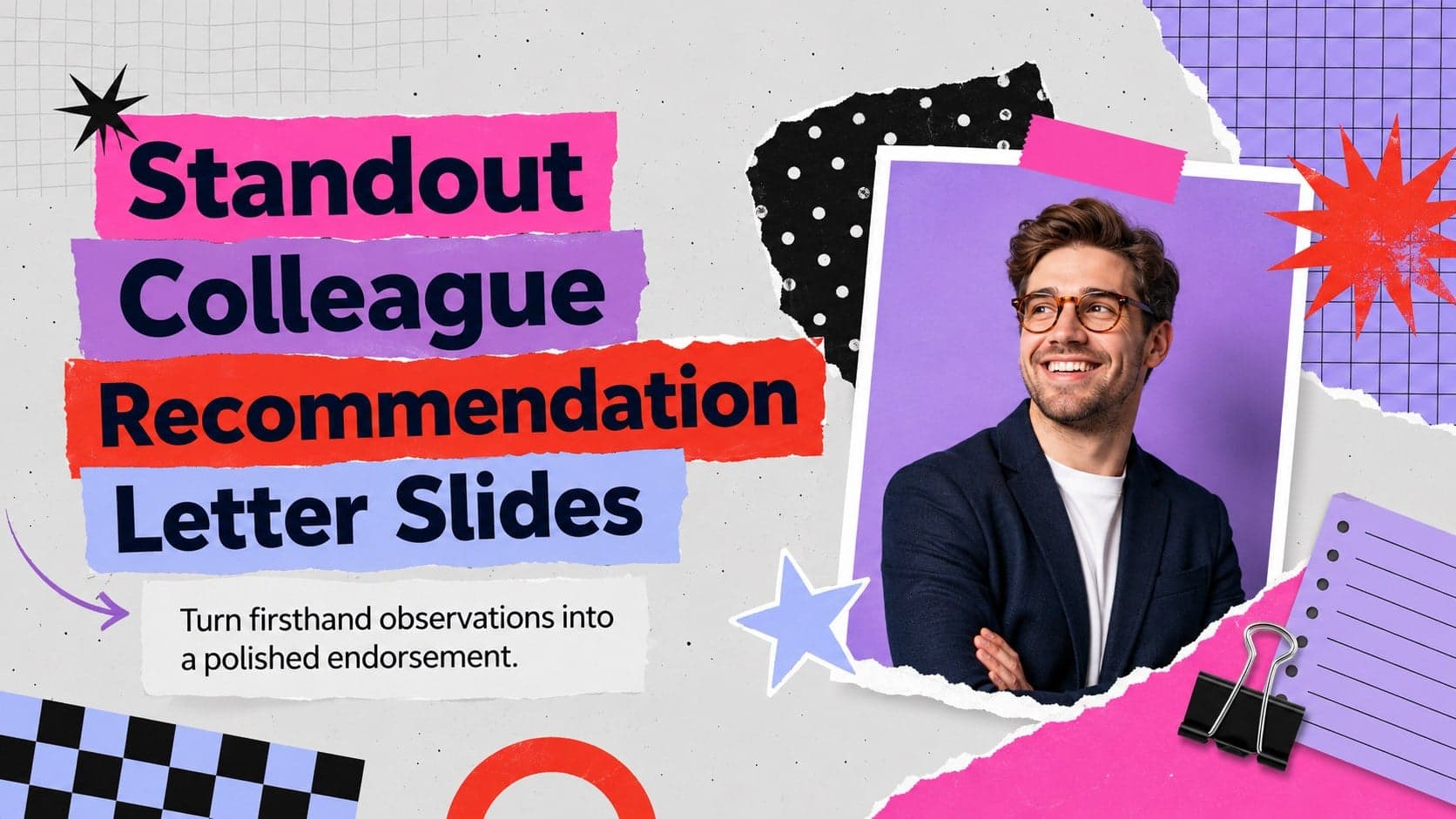
3Build a credible endorsement with Standout Colleague Recommendation Letter Slides, featuring colorful prompts for skills, achievements, and team impact.
 4
4Build clear beginner sessions with an ice hockey fundamentals training deck for coaches, PE teachers, and clubs, ready for PowerPoint and Google Slides.