
 15
15presentation
Flying Saucer History Lesson Deck
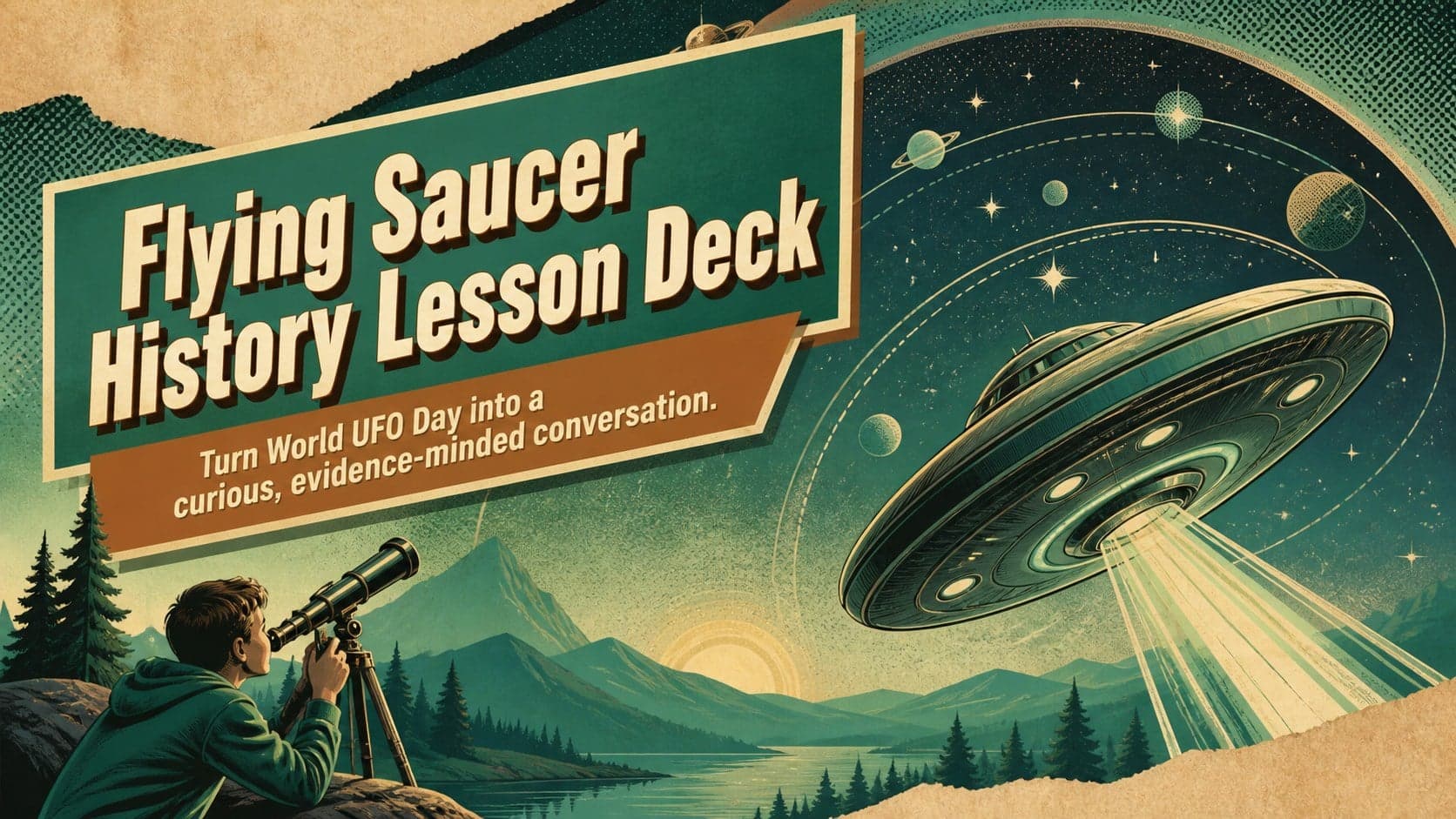
Build an engaging World UFO Day session with this flying saucer history lesson deck, featuring retro green-and-brown slides for PowerPoint and Google Slides.
Google SlidesPowerPoint
presentation · English
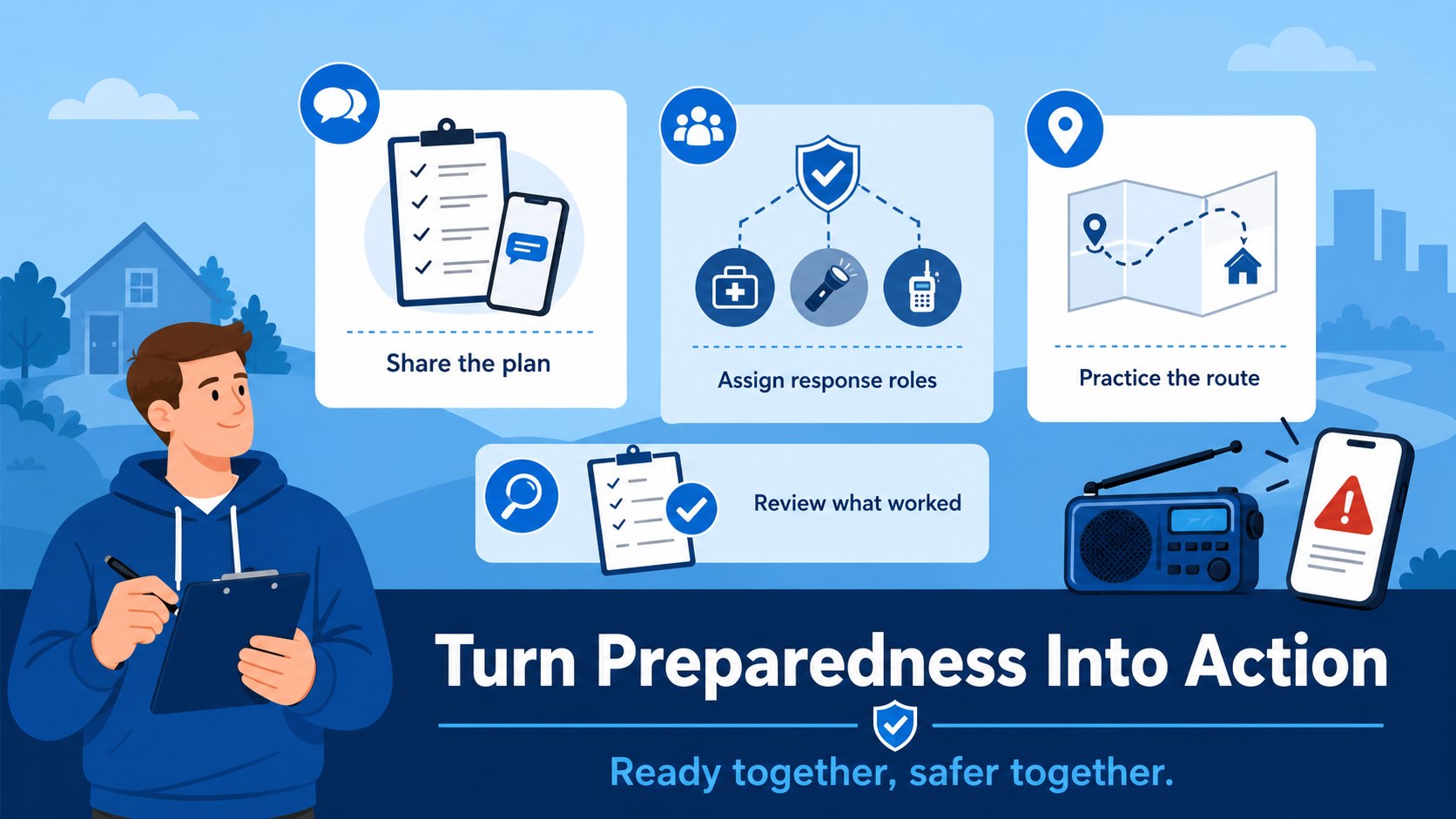
Create a disaster preparedness infographic deck for schools, workplaces, and drills, with editable blue visuals for clear emergency guidance and response…
Design notes
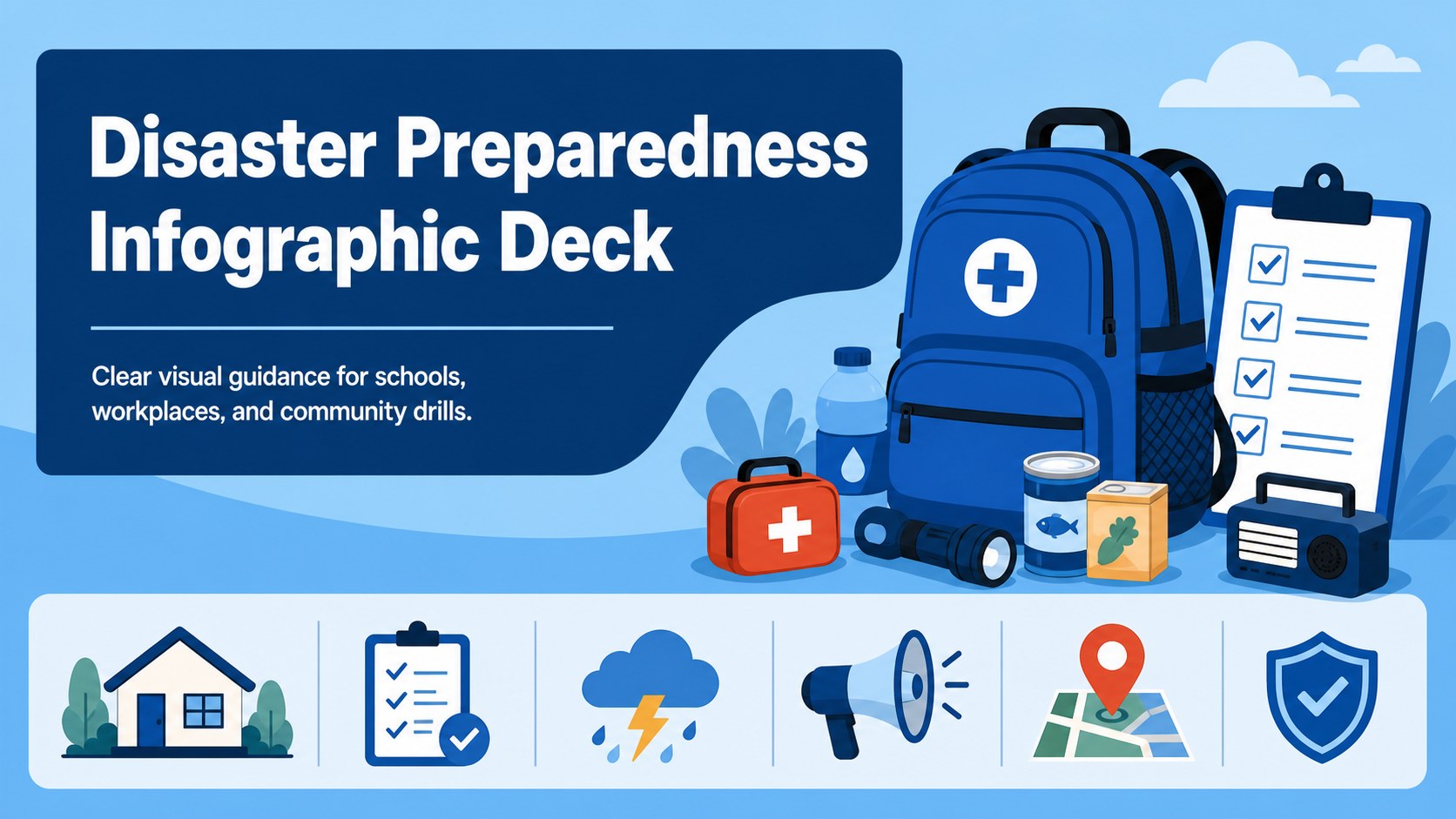
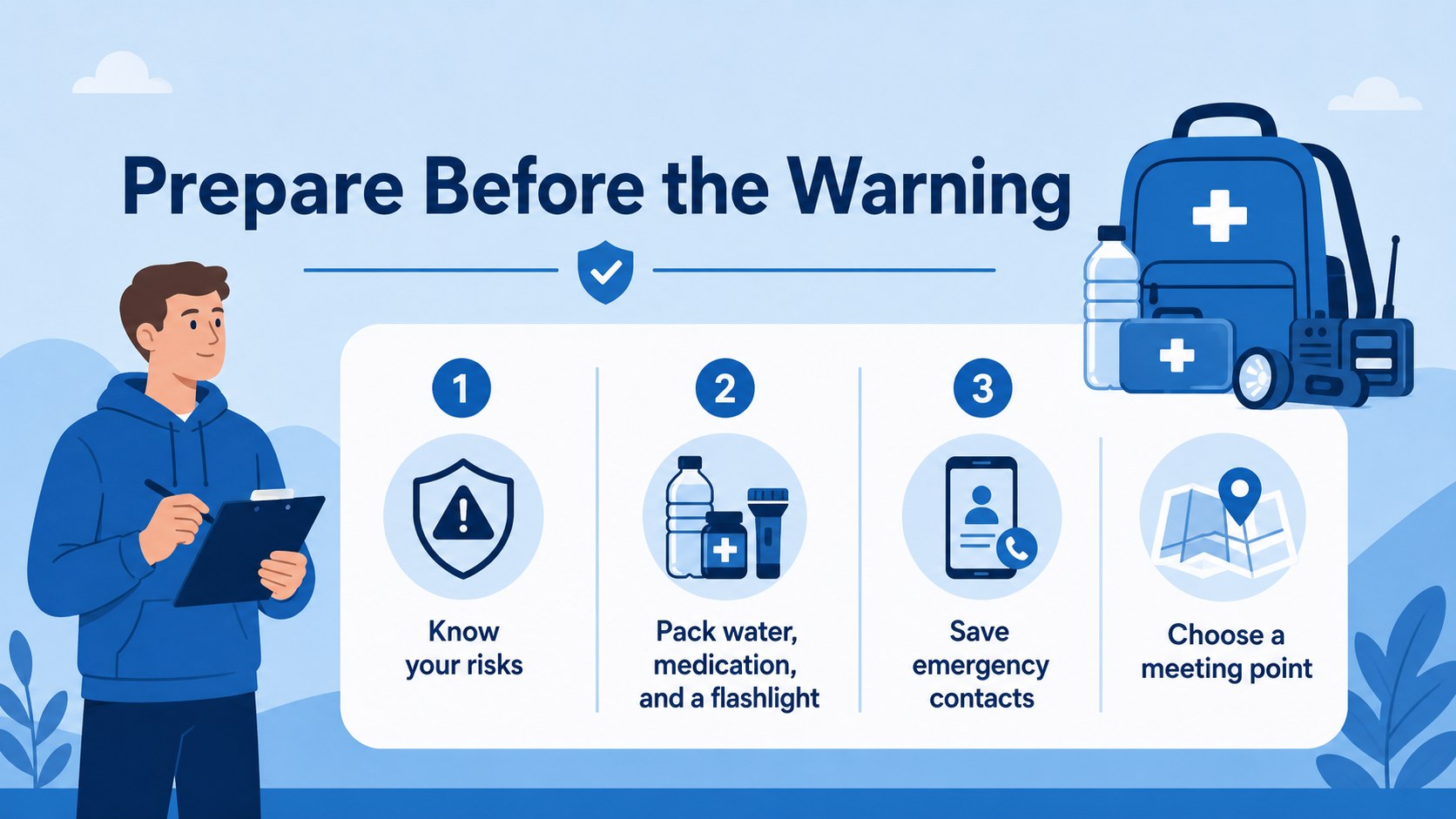
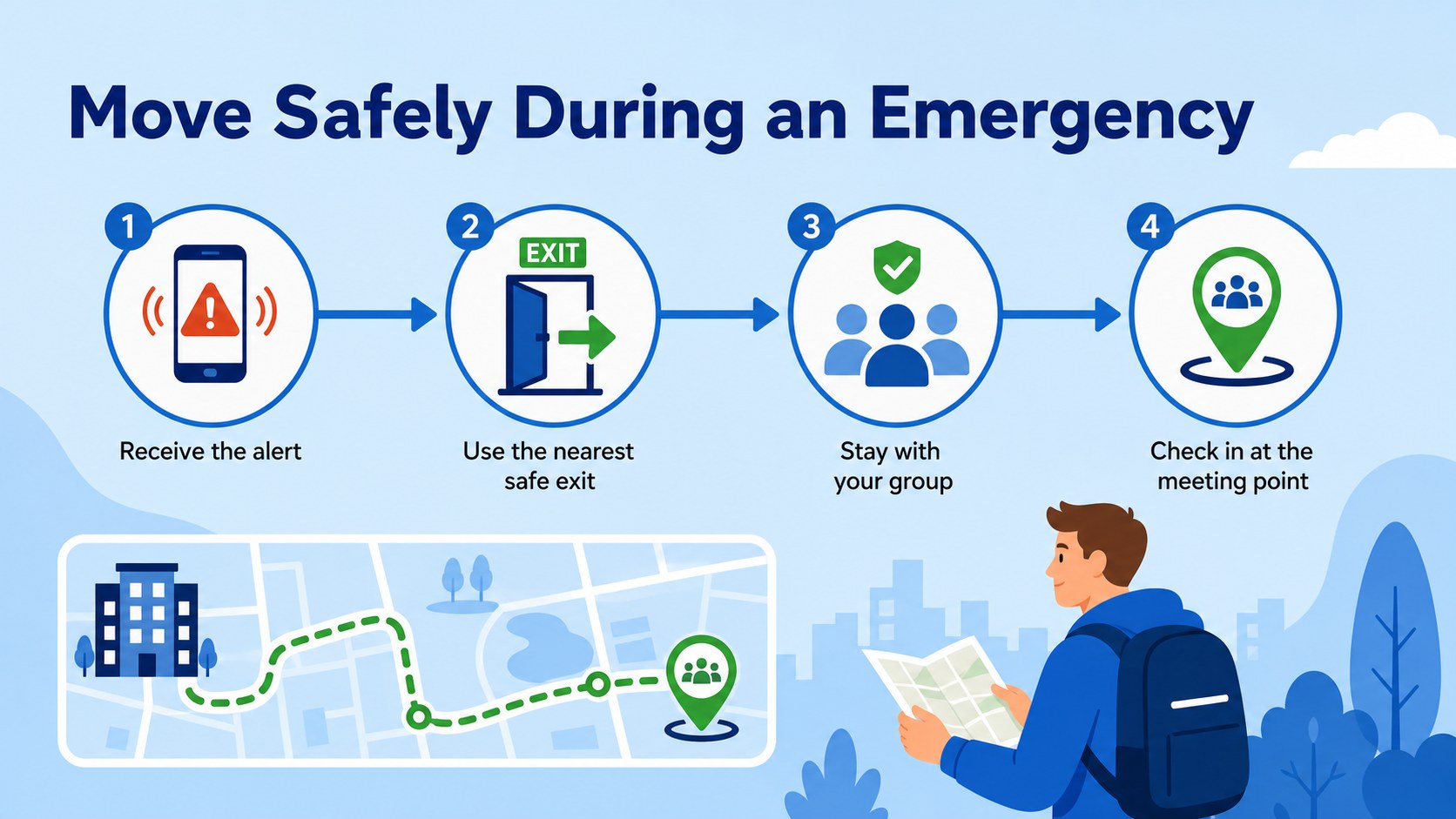
This disaster preparedness infographic deck turns emergency guidance into clear, memorable visual steps. Its calm blue palette, flat illustrated style, and vertical infographic-inspired layouts suit educators, safety coordinators, workplace trainers, and community organizers who need practical information that is easy to scan.
Use the slides to explain common hazards, organize response priorities, map evacuation routes, and display emergency contacts. The deck can support an emergency preparedness presentation for a classroom lesson, staff briefing, neighborhood workshop, or public awareness campaign. Add local procedures, shelter locations, warning signals, and role assignments without rebuilding the visual system.
Inside, you will find editable layouts for hazard comparisons, preparation checklists, response sequences, communication reminders, and a closing action plan. The structure also works well as disaster safety training slides or an evacuation plan presentation, with room for icons, short statements, numbers, and simple diagrams. Every element is easy to adjust in PowerPoint or Google Slides, including text, shapes, illustrations, and color accents. The blue-forward design feels professional and reassuring while remaining approachable for mixed-age audiences. Export the finished deck for workshops, print handouts, digital displays, or online sessions.
Perfect for: school safety lesson; workplace emergency briefing; community preparedness workshop; evacuation drill presentation; public safety campaign.
Frequently asked questions
Can I edit the disaster preparedness infographic deck in PowerPoint? Yes. The deck is designed for PowerPoint editing, with adjustable text, shapes, icons, illustrations, and color accents. Replace the sample guidance with your organization's procedures and emergency contacts.
Practical details
Yes. The deck is designed for PowerPoint editing, with adjustable text, shapes, icons, illustrations, and color accents. Replace the sample guidance with your organization's procedures and emergency contacts.
Yes, it can be used in Google Slides as well as PowerPoint. After importing it, review fonts and spacing, then update routes, phone numbers, shelter details, and local response instructions.
Include emergency phone numbers, evacuation routes, meeting points, shelter locations, warning methods, and assigned responsibilities. Keep each instruction short so the infographic layouts remain easy to scan.
Yes. You can adjust the blue shades and supporting accents to match a school, company, or community brand. Keep strong contrast between headings, body text, and background areas for accessibility.
Keep exploring
15Build an engaging World UFO Day session with this flying saucer history lesson deck, featuring retro green-and-brown slides for PowerPoint and Google Slides.
 15
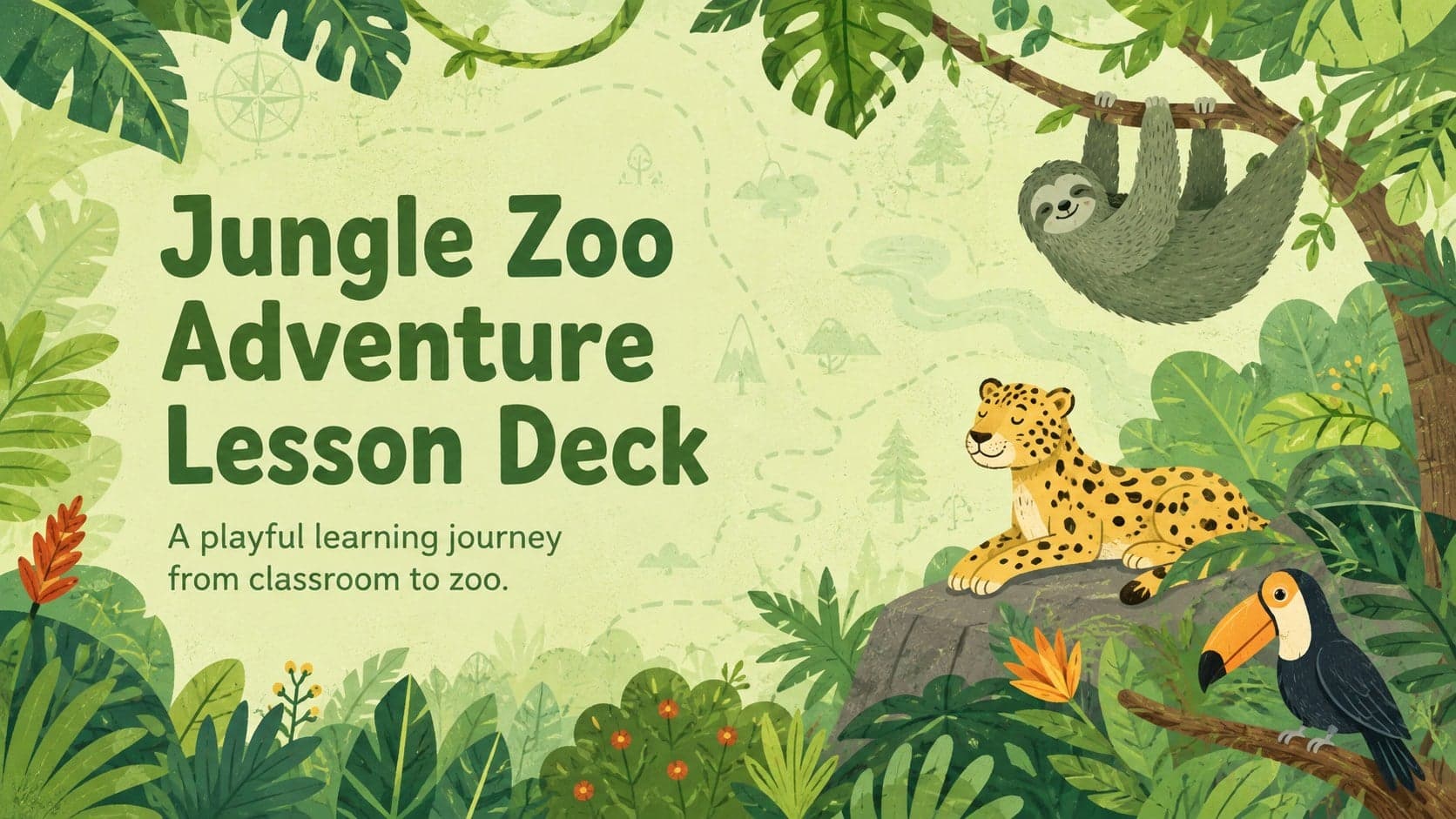
15Plan a lively animal-learning journey with this jungle zoo adventure lesson deck, ready to customize in PowerPoint and Google Slides for young learners.
 16
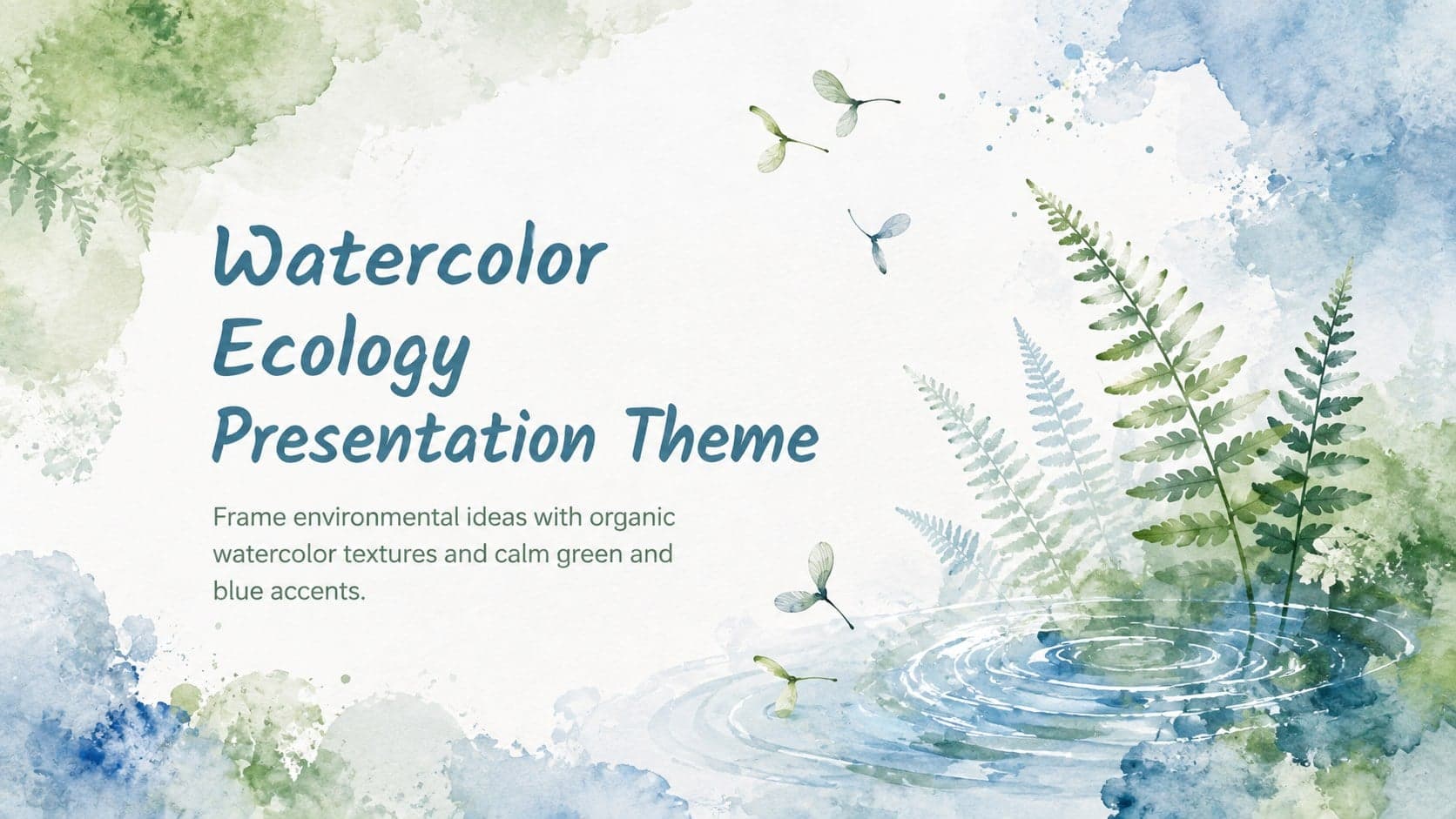
16Turn environmental research into a clear story with a Watercolor Ecology Presentation Theme for PowerPoint and Google Slides in calming green and blue.
 16
16Build focused fashion, literature, and humanities presentations with the Red Triangle Editorial Theme, editable in PowerPoint and Google Slides.
 15
15Turn streaming stats, favorite tracks, and concert highlights into a bold annual listening recap slide deck for PowerPoint and Google Slides.
 15
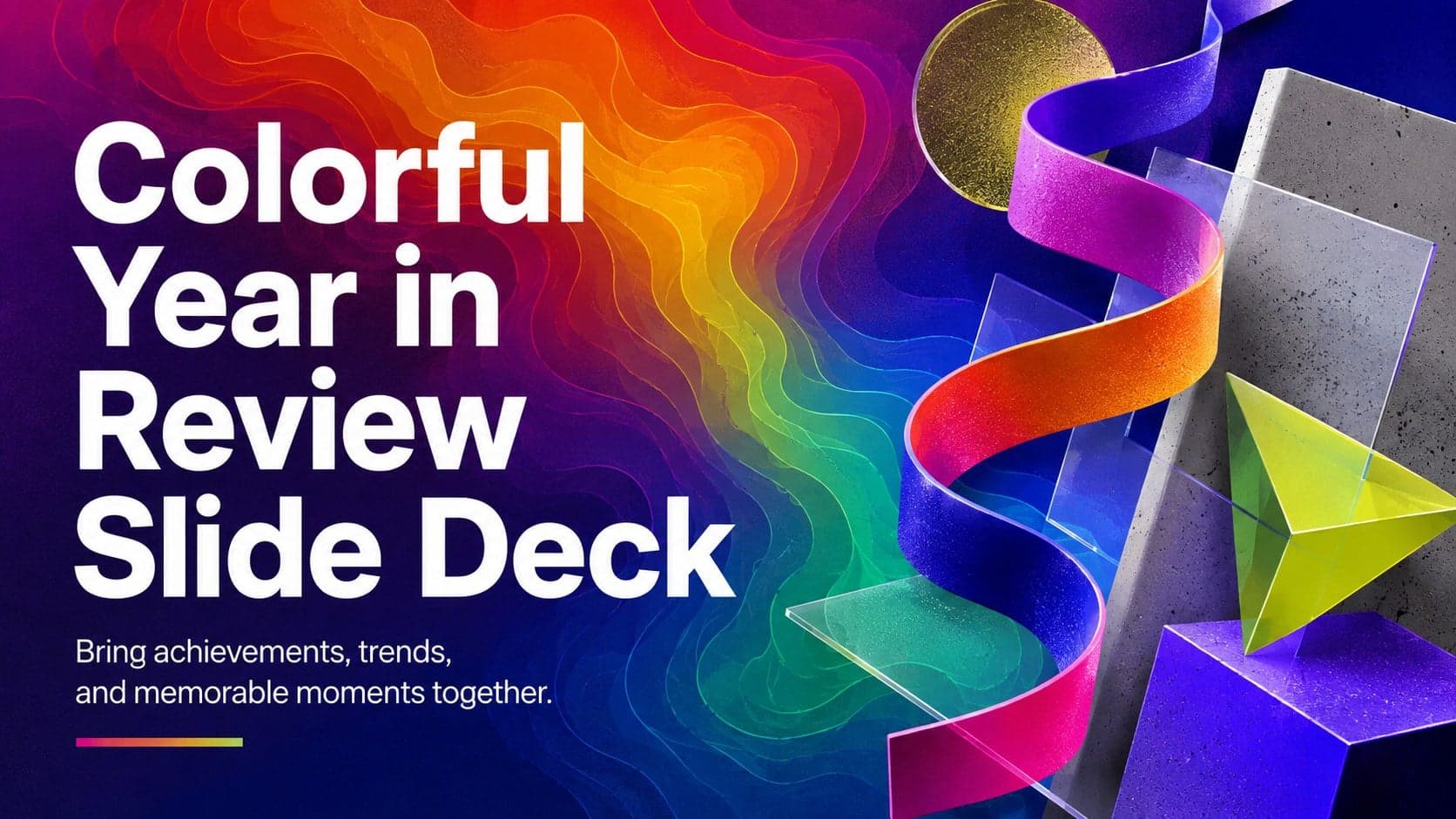
15Turn highlights, milestones, and favorite moments into a colorful year in review slide deck with bold 3D graphics for PowerPoint and Google Slides.
 3
3Build a credible endorsement with Standout Colleague Recommendation Letter Slides, featuring colorful prompts for skills, achievements, and team impact.
 4
4Build clear beginner sessions with an ice hockey fundamentals training deck for coaches, PE teachers, and clubs, ready for PowerPoint and Google Slides.