
 15
15presentation
Flying Saucer History Lesson Deck
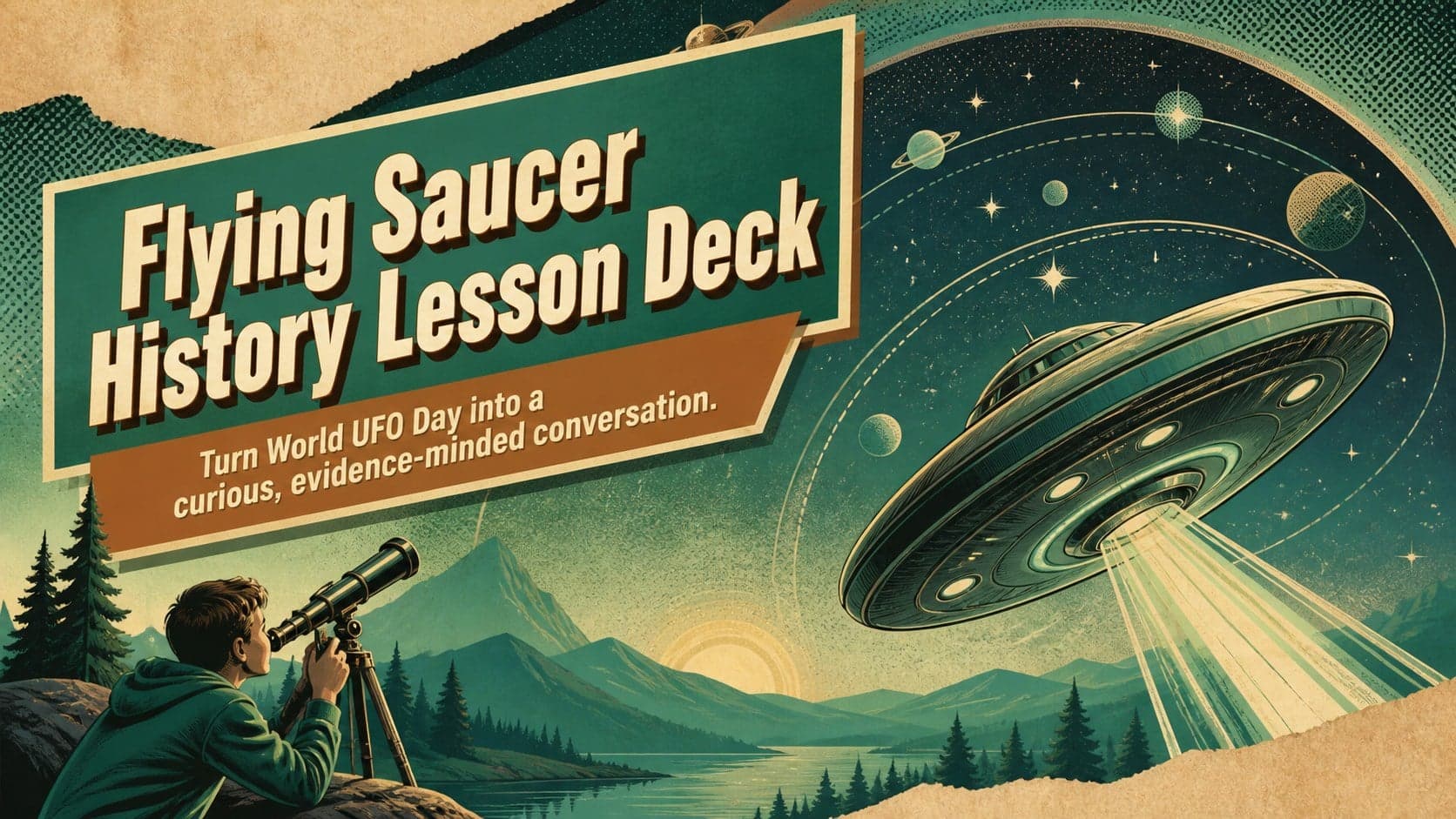
Build an engaging World UFO Day session with this flying saucer history lesson deck, featuring retro green-and-brown slides for PowerPoint and Google Slides.
Google SlidesPowerPoint
presentation · English
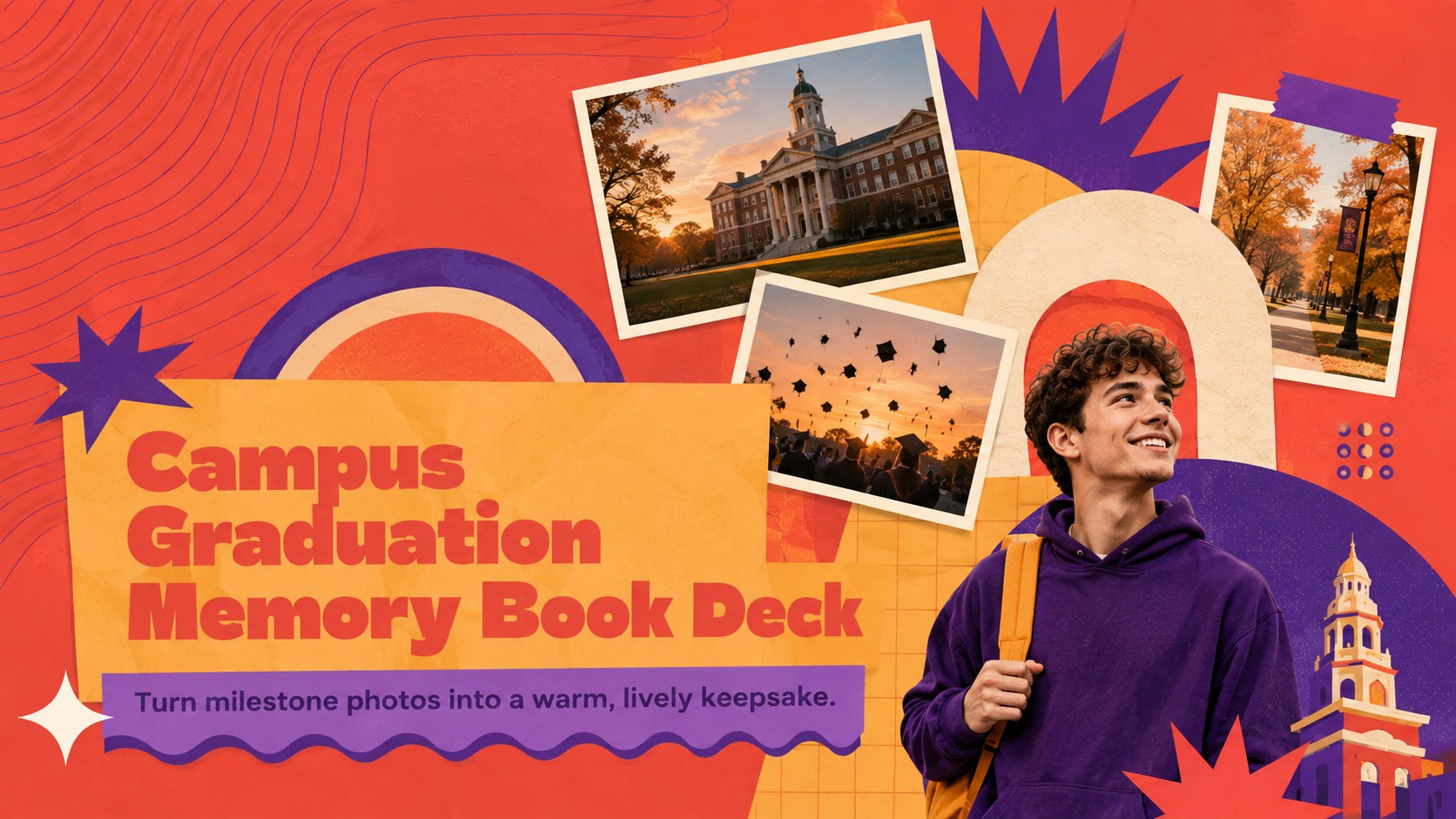
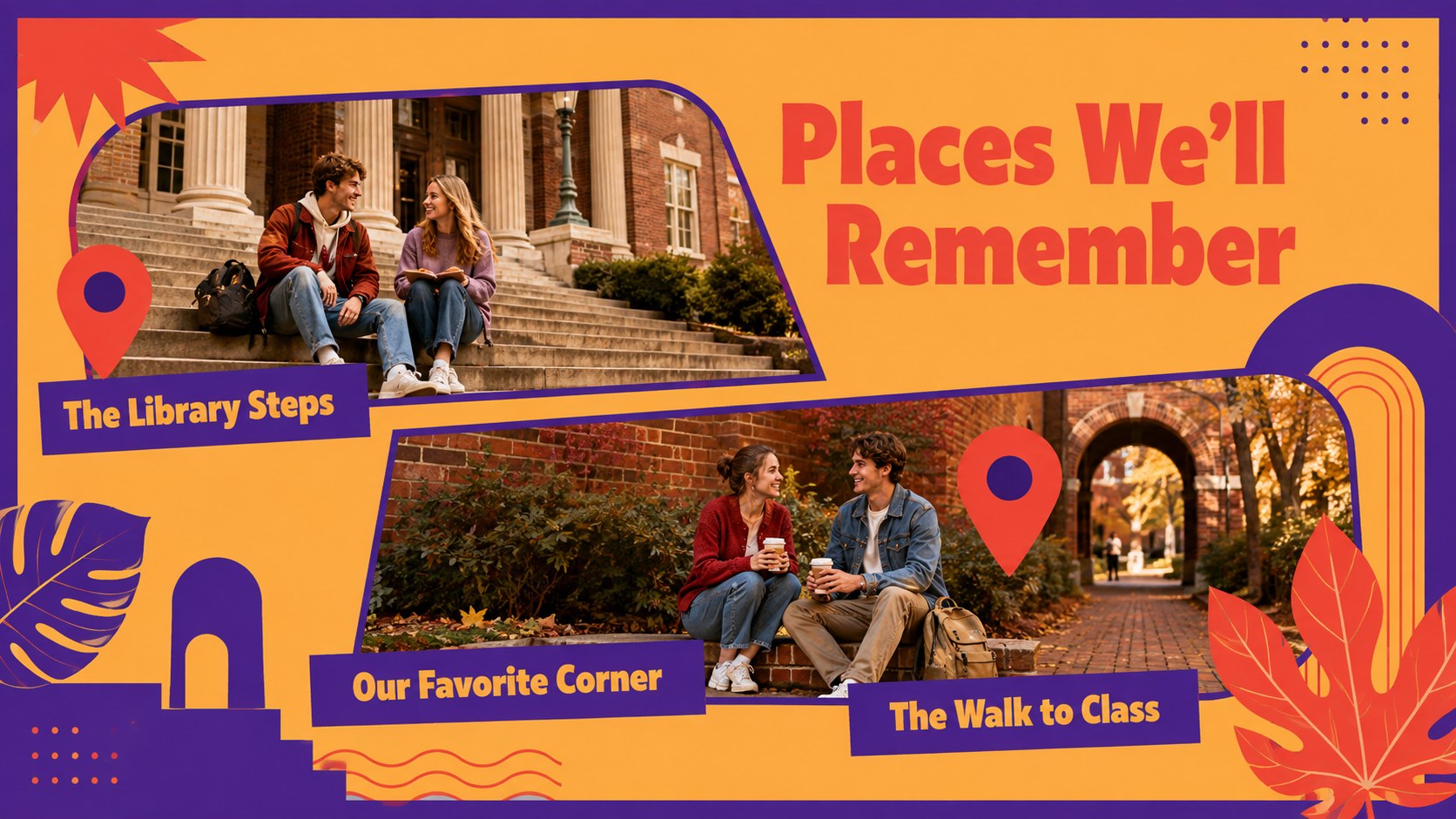
Build a vivid campus graduation memory book with nostalgic red, purple, and orange layouts for PowerPoint or Google Slides, ideal for reunions.

Design notes
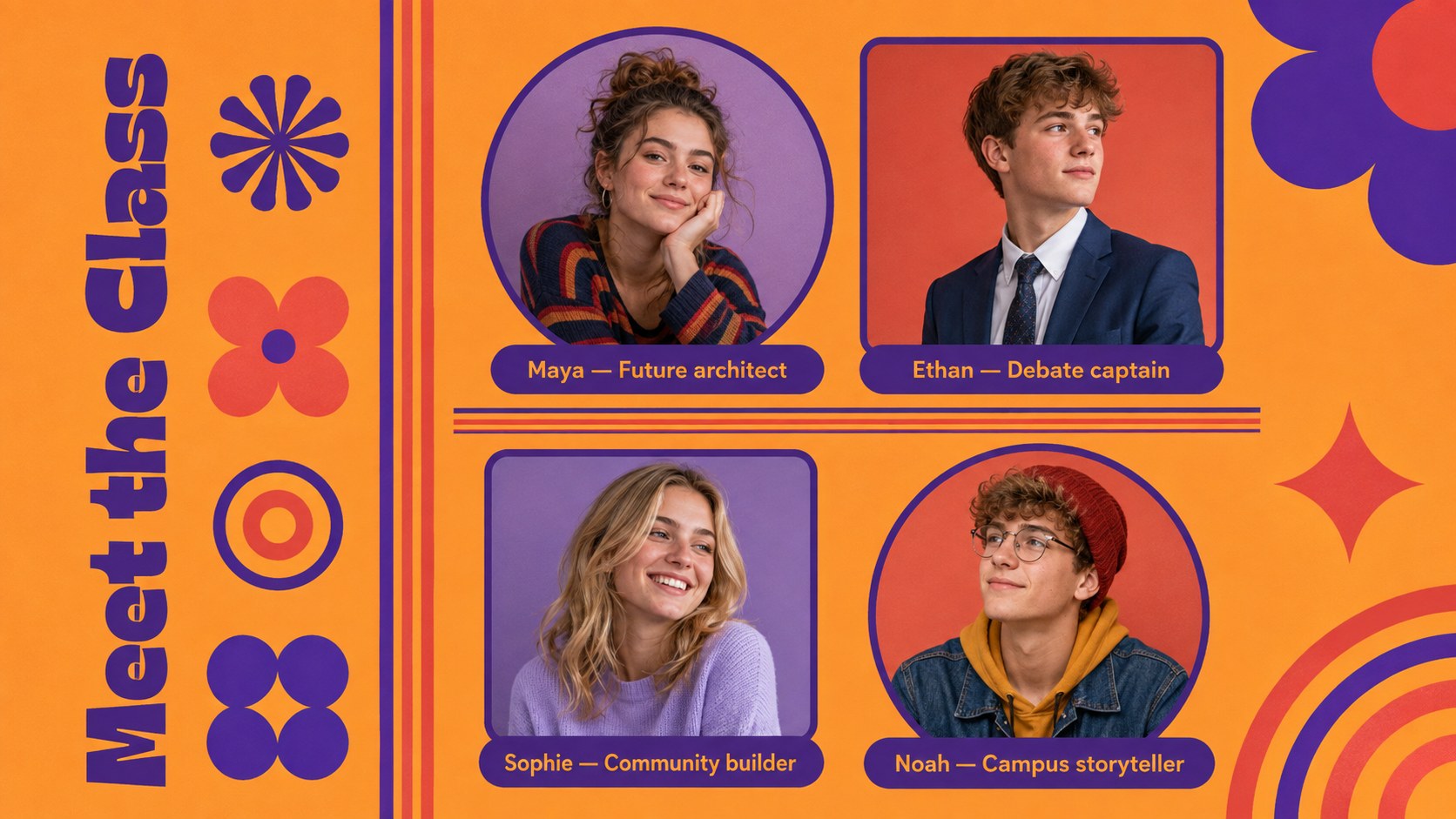
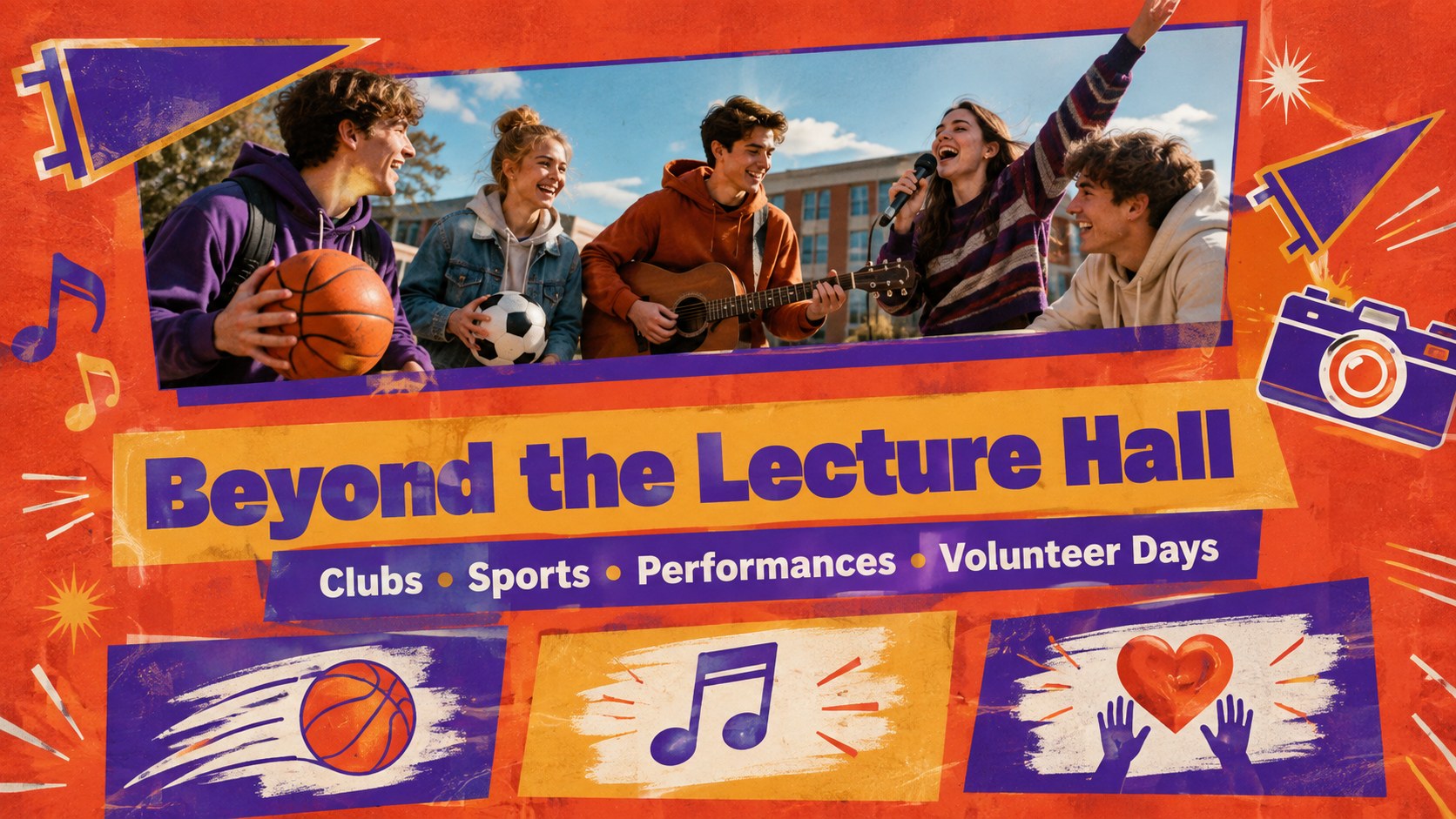
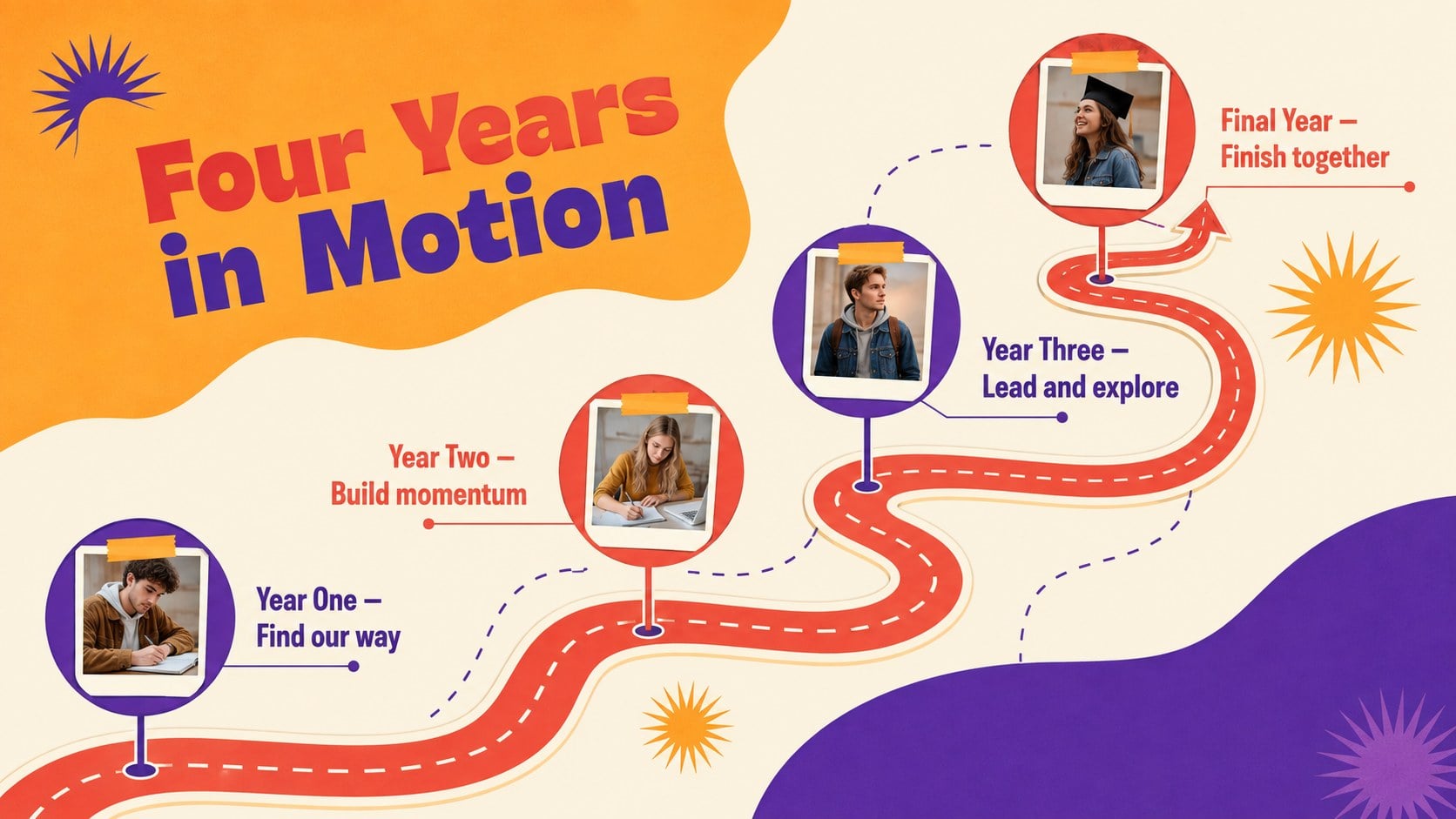
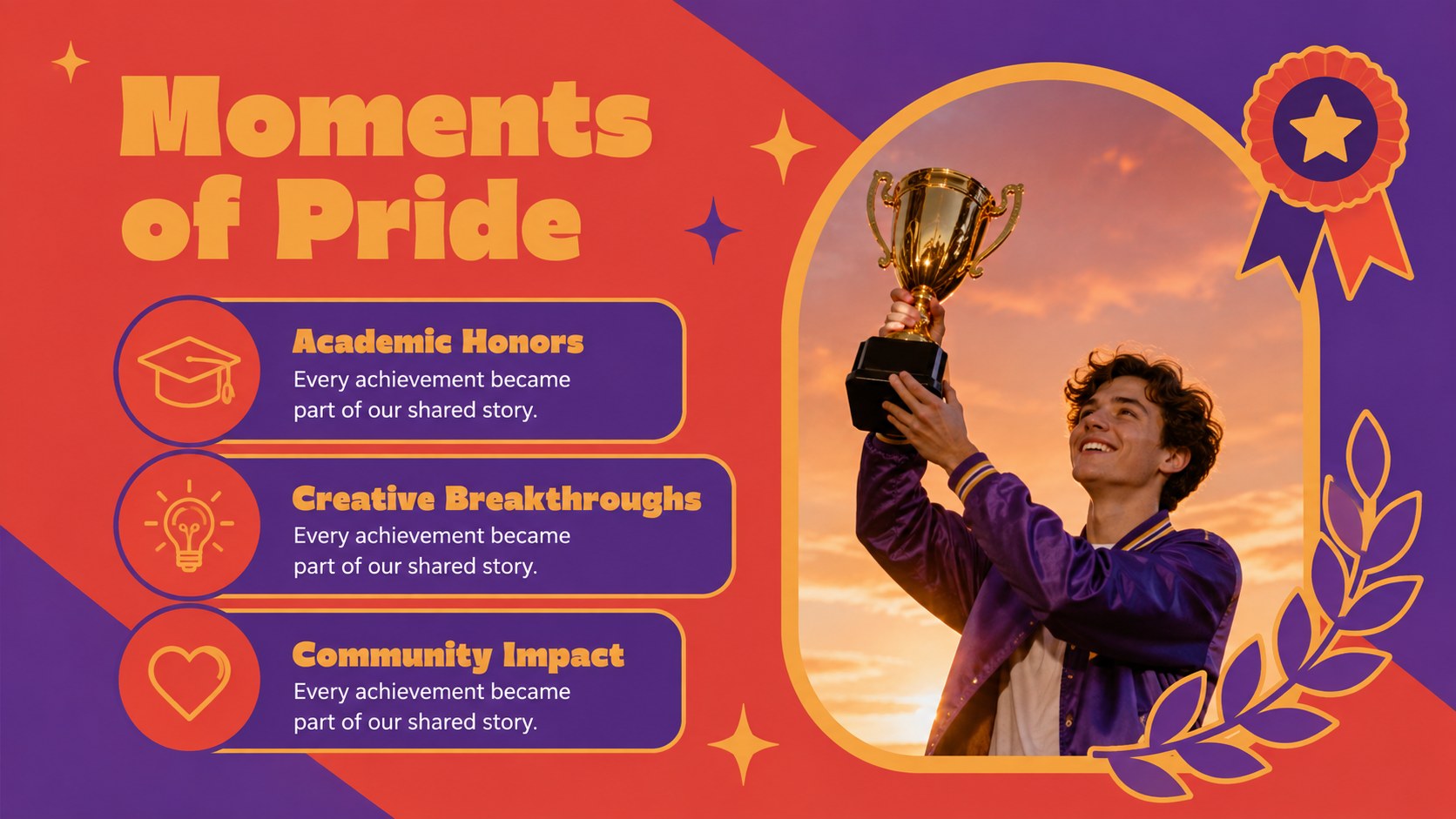
Celebrate the people, places, and achievements that shaped the college experience with this campus graduation memory book. Its nostalgic mix of red, purple, and orange creates an upbeat scrapbook atmosphere while keeping photographs, captions, and class highlights easy to follow. Use the deck for commencement events, senior celebrations, digital keepsakes, or an alumni reunion slideshow template.
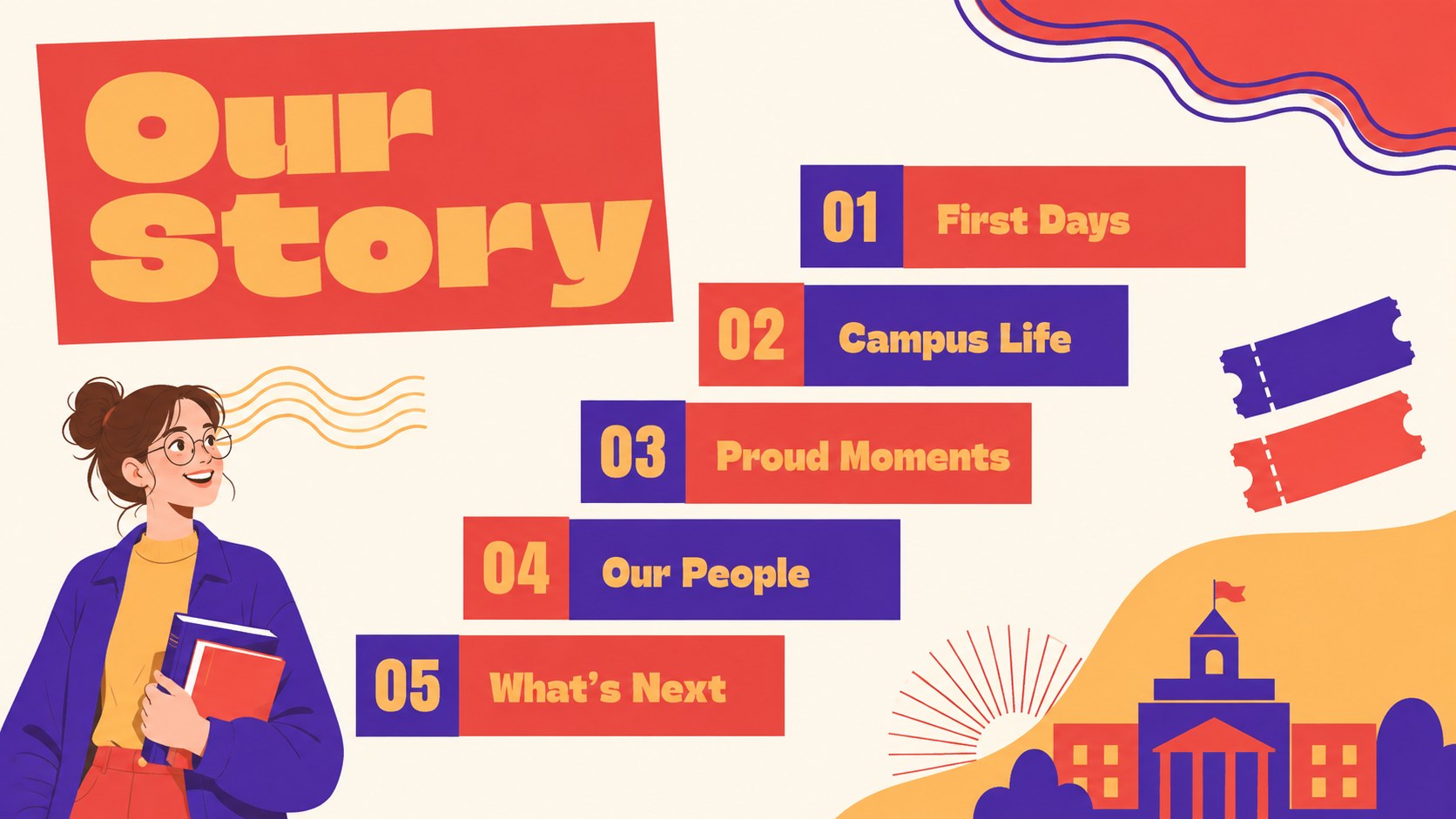
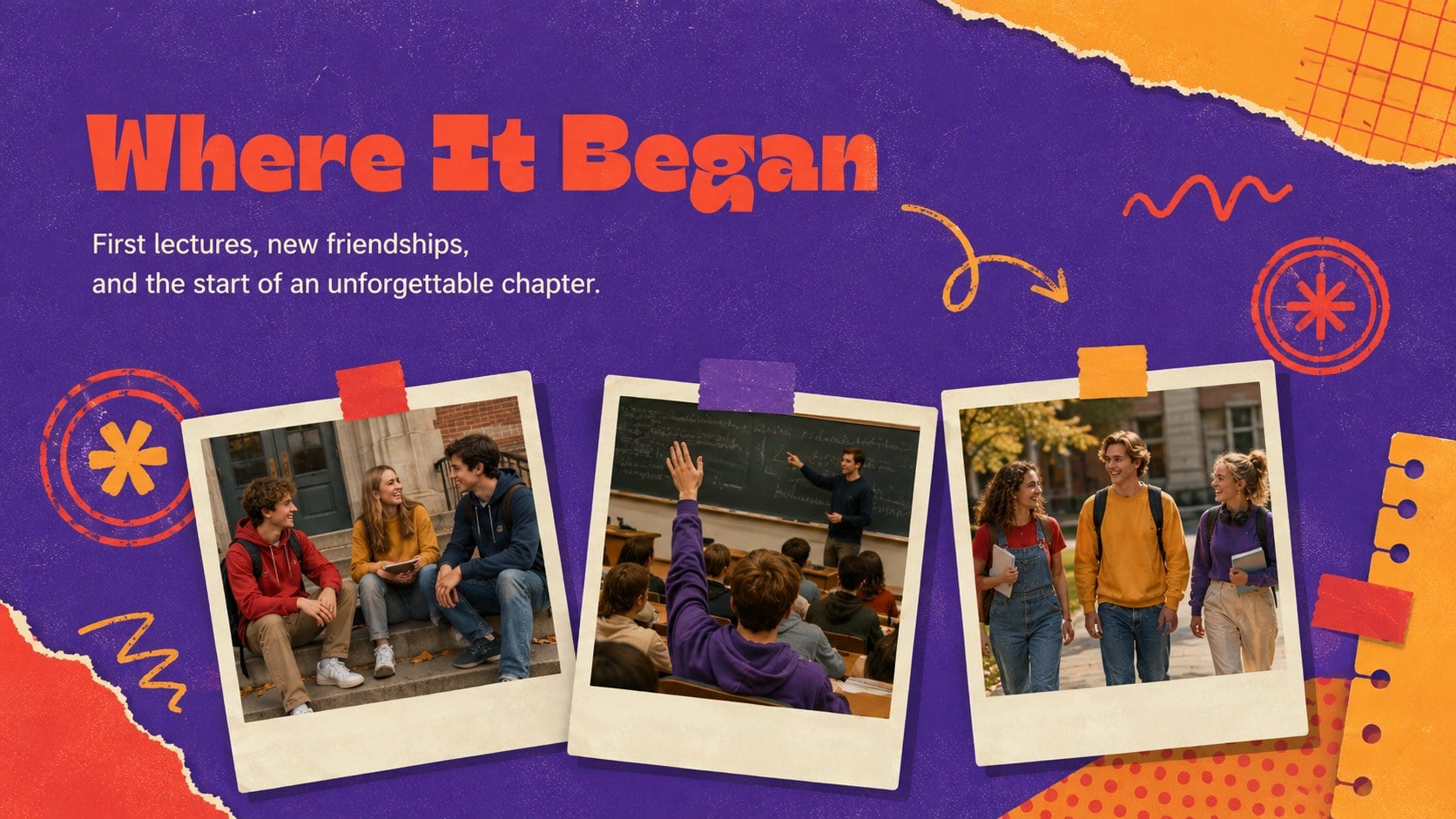
The presentation includes adaptable page styles for student portraits, favorite moments, campus landmarks, club activities, awards, candid snapshots, memorable quotes, and a look back at the academic journey. Timeline, collage, message, and closing layouts help you build a complete story rather than a simple photo collection. Geometric accents and energetic transitions complement the retro direction without distracting from personal images.
Designed for graduating students, class committees, educators, university staff, and alumni organizers, this editable college memory book works in both PowerPoint and Google Slides. Replace the sample wording, add your own photographs, update names and dates, and adjust the palette to match school colors. It is equally useful as a graduating class scrapbook slides collection, a farewell presentation, or a visual recap shared at a reunion. The result is a polished record of campus life that feels personal, celebratory, and ready to present.
Perfect for: graduating class photo recap; commencement ceremony slideshow; senior farewell celebration; alumni reunion presentation; college club memory album.
Frequently asked questions
Can I edit this deck in PowerPoint and Google Slides? Yes. The layouts, text, colors, and image placeholders can be edited in PowerPoint or Google Slides. Some fonts or transitions may appear slightly different between the two platforms.
Practical details
Yes. The layouts, text, colors, and image placeholders can be edited in PowerPoint or Google Slides. Some fonts or transitions may appear slightly different between the two platforms.
Select an image placeholder and replace it with a photo from your device or cloud storage. Crop and reposition each image to keep faces and important details within the frame.
Yes. Replace the red, purple, and orange accents with your institution's official colors using the theme or master-slide controls. Check text contrast after changing darker background shades.
Yes. Duplicate useful layouts for additional students or events, and delete any pages that do not fit your story. You can also reorder the slides to follow your preferred academic timeline.
Keep exploring
15Build an engaging World UFO Day session with this flying saucer history lesson deck, featuring retro green-and-brown slides for PowerPoint and Google Slides.
 15
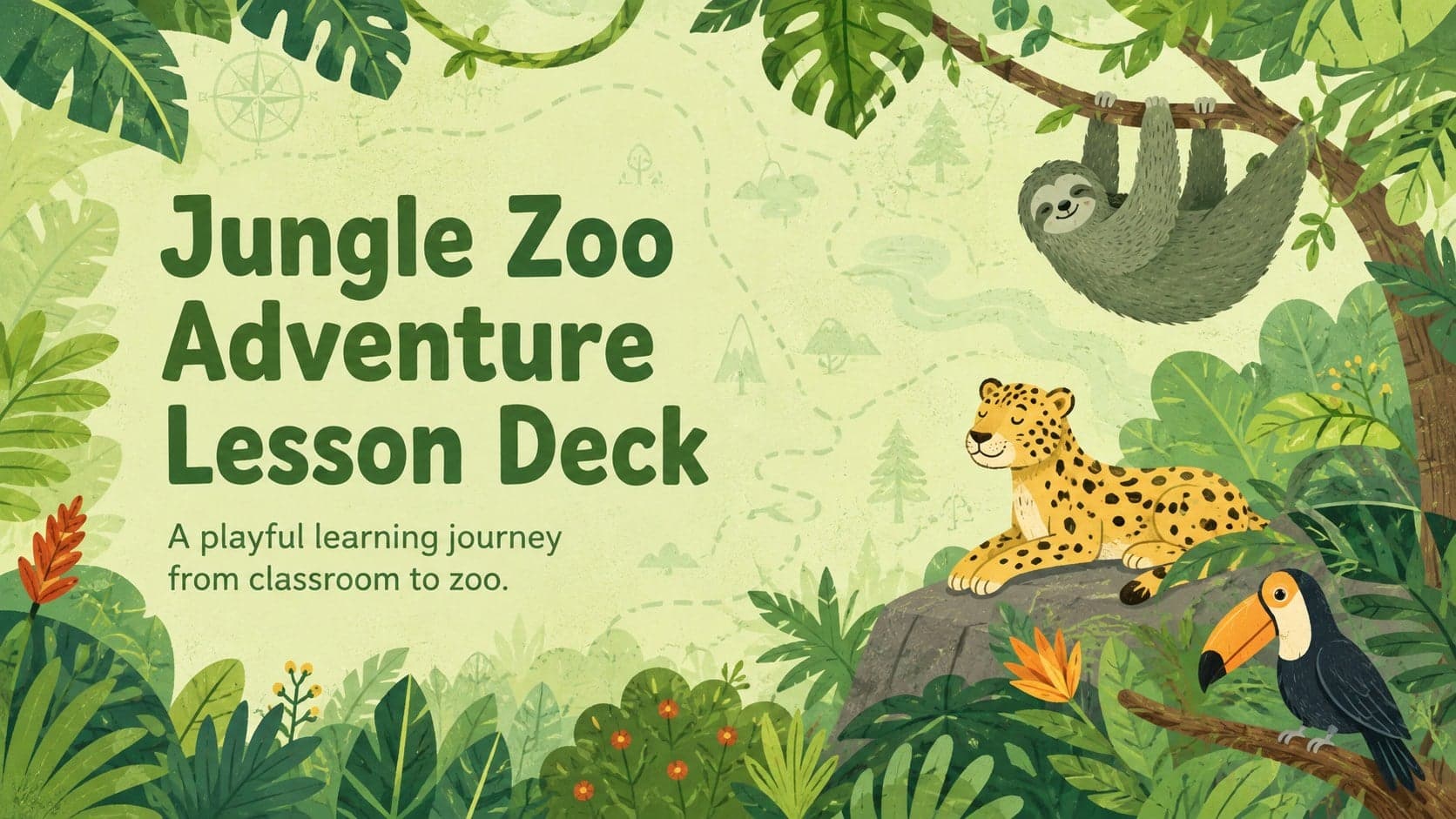
15Plan a lively animal-learning journey with this jungle zoo adventure lesson deck, ready to customize in PowerPoint and Google Slides for young learners.
 16
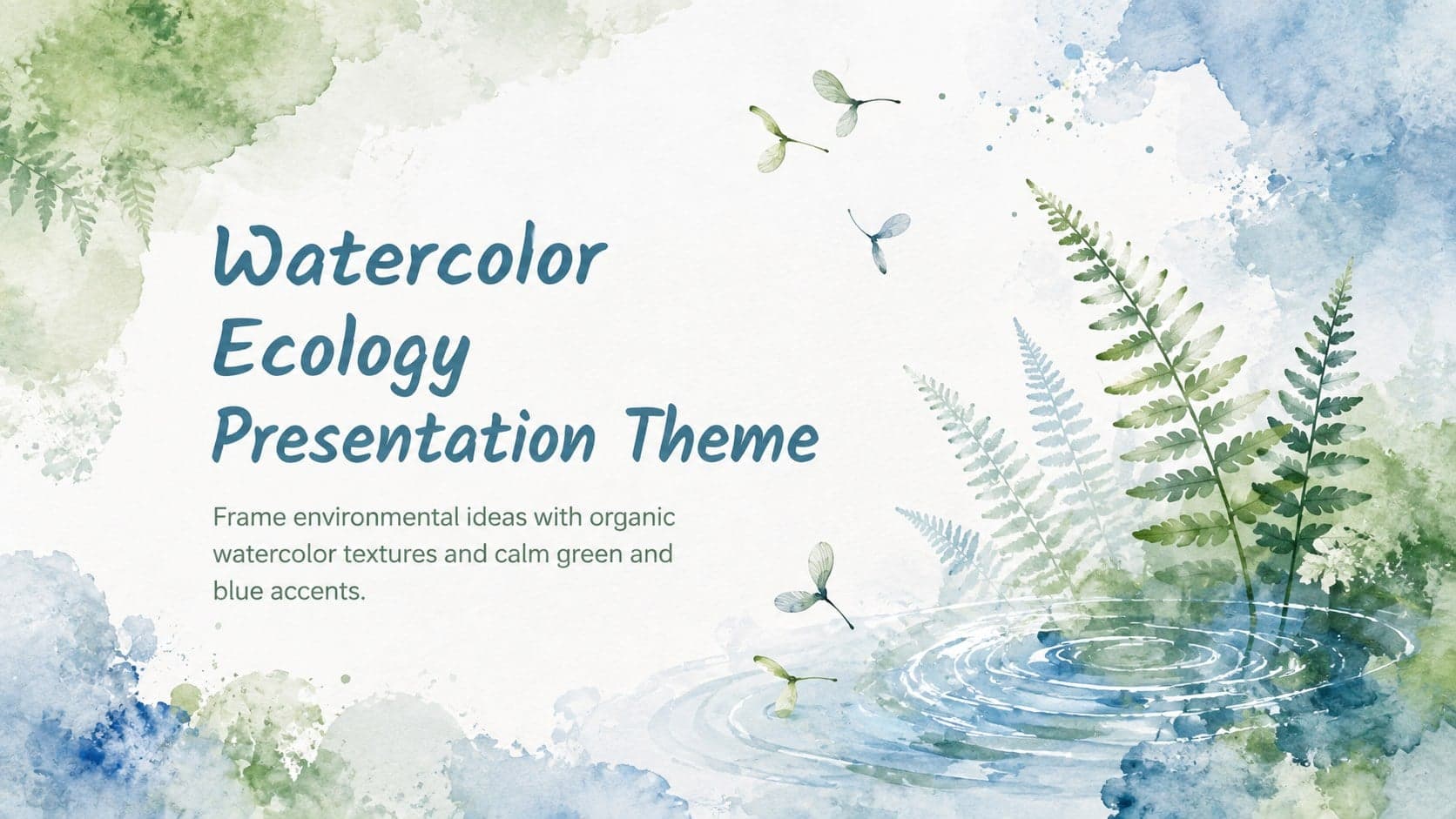
16Turn environmental research into a clear story with a Watercolor Ecology Presentation Theme for PowerPoint and Google Slides in calming green and blue.
 16
16Build focused fashion, literature, and humanities presentations with the Red Triangle Editorial Theme, editable in PowerPoint and Google Slides.
 15
15Turn streaming stats, favorite tracks, and concert highlights into a bold annual listening recap slide deck for PowerPoint and Google Slides.
 15
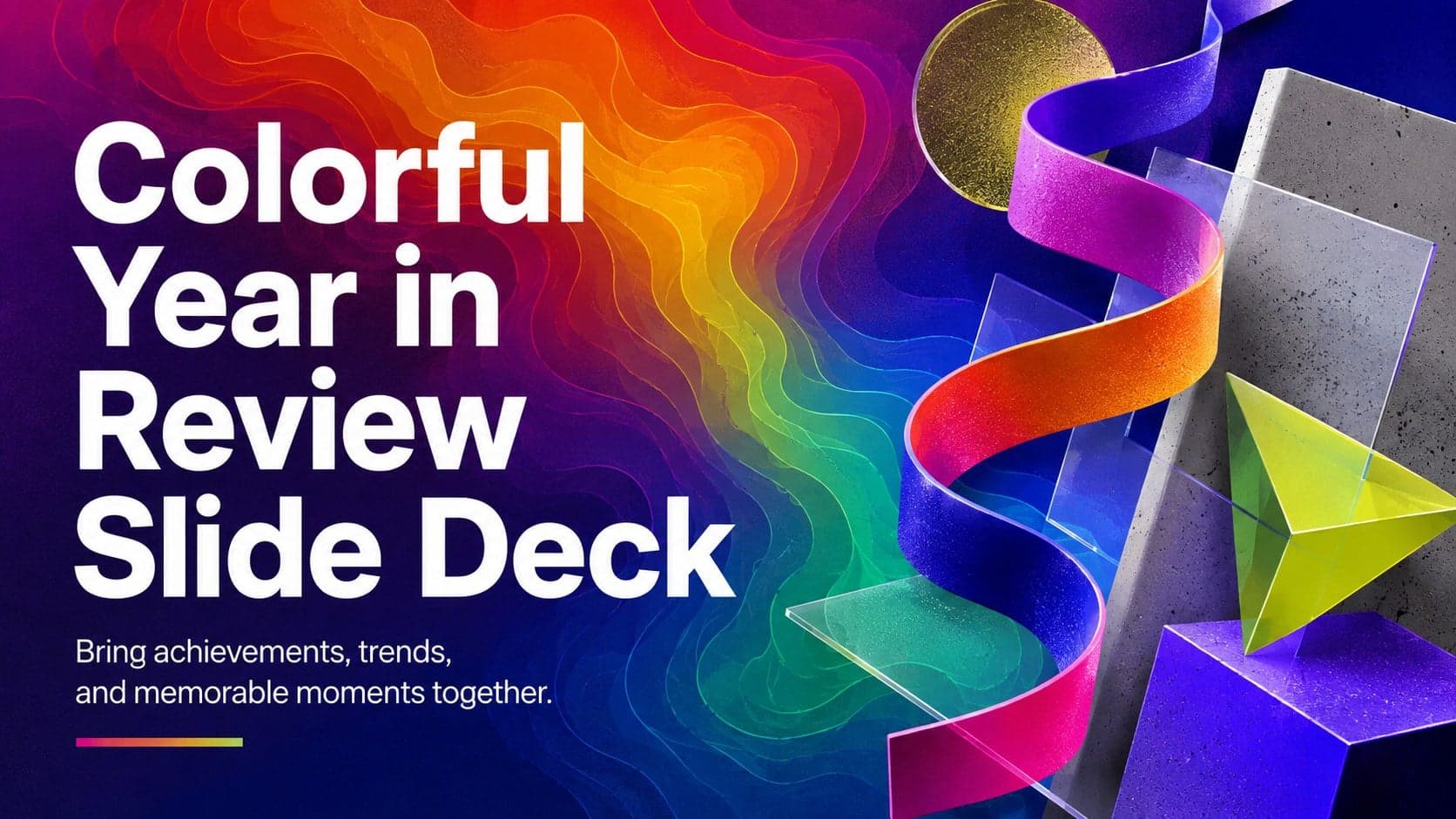
15Turn highlights, milestones, and favorite moments into a colorful year in review slide deck with bold 3D graphics for PowerPoint and Google Slides.
 3
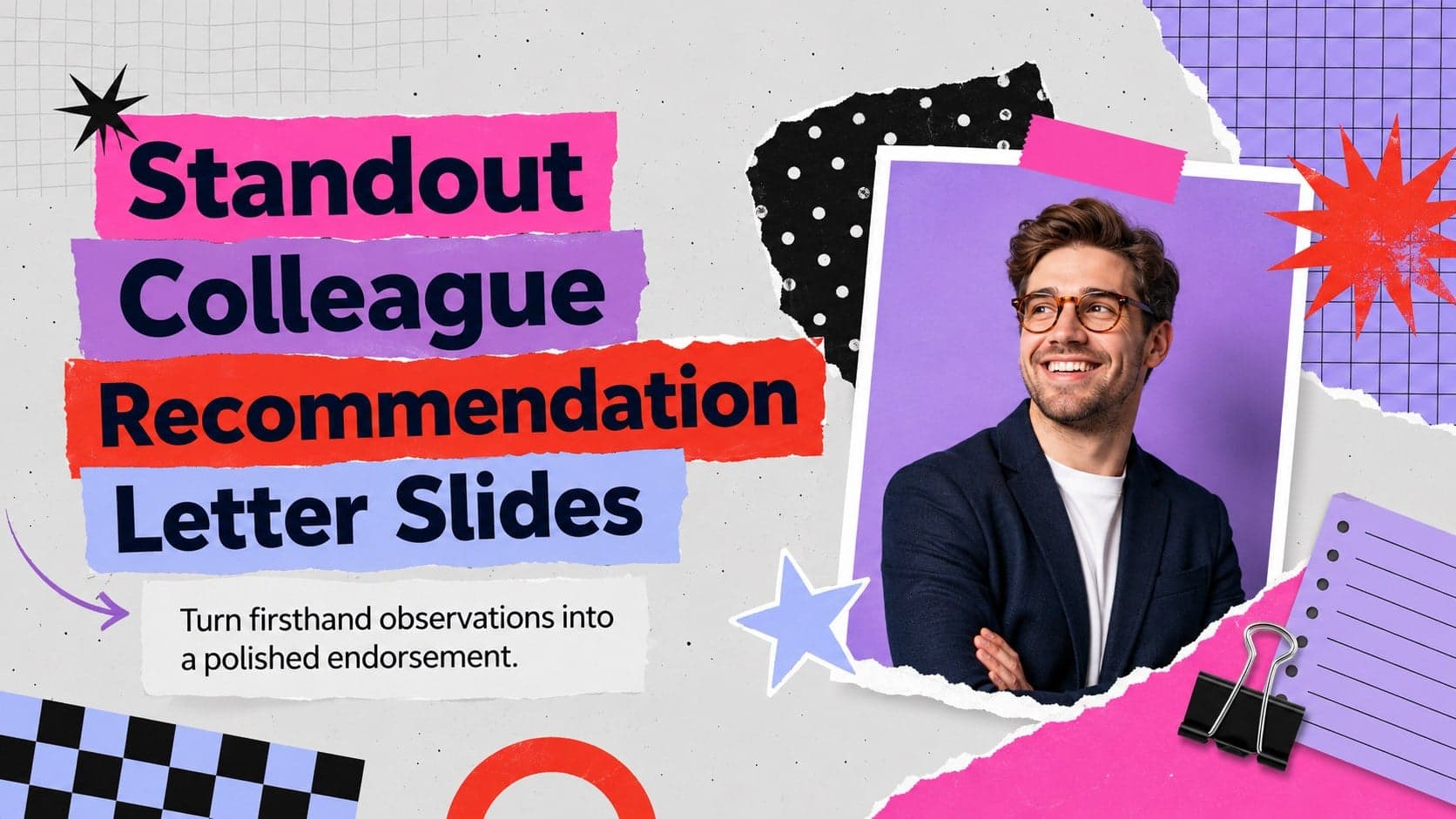
3Build a credible endorsement with Standout Colleague Recommendation Letter Slides, featuring colorful prompts for skills, achievements, and team impact.
 4
4Build clear beginner sessions with an ice hockey fundamentals training deck for coaches, PE teachers, and clubs, ready for PowerPoint and Google Slides.