
 15
15presentation
Flying Saucer History Lesson Deck
Build an engaging World UFO Day session with this flying saucer history lesson deck, featuring retro green-and-brown slides for PowerPoint and Google Slides.
Google SlidesPowerPoint
presentation · English
Turn goals into action with a 3D personal savings planner for PowerPoint and Google Slides, featuring editable budgets, milestones, and progress charts.



Design notes
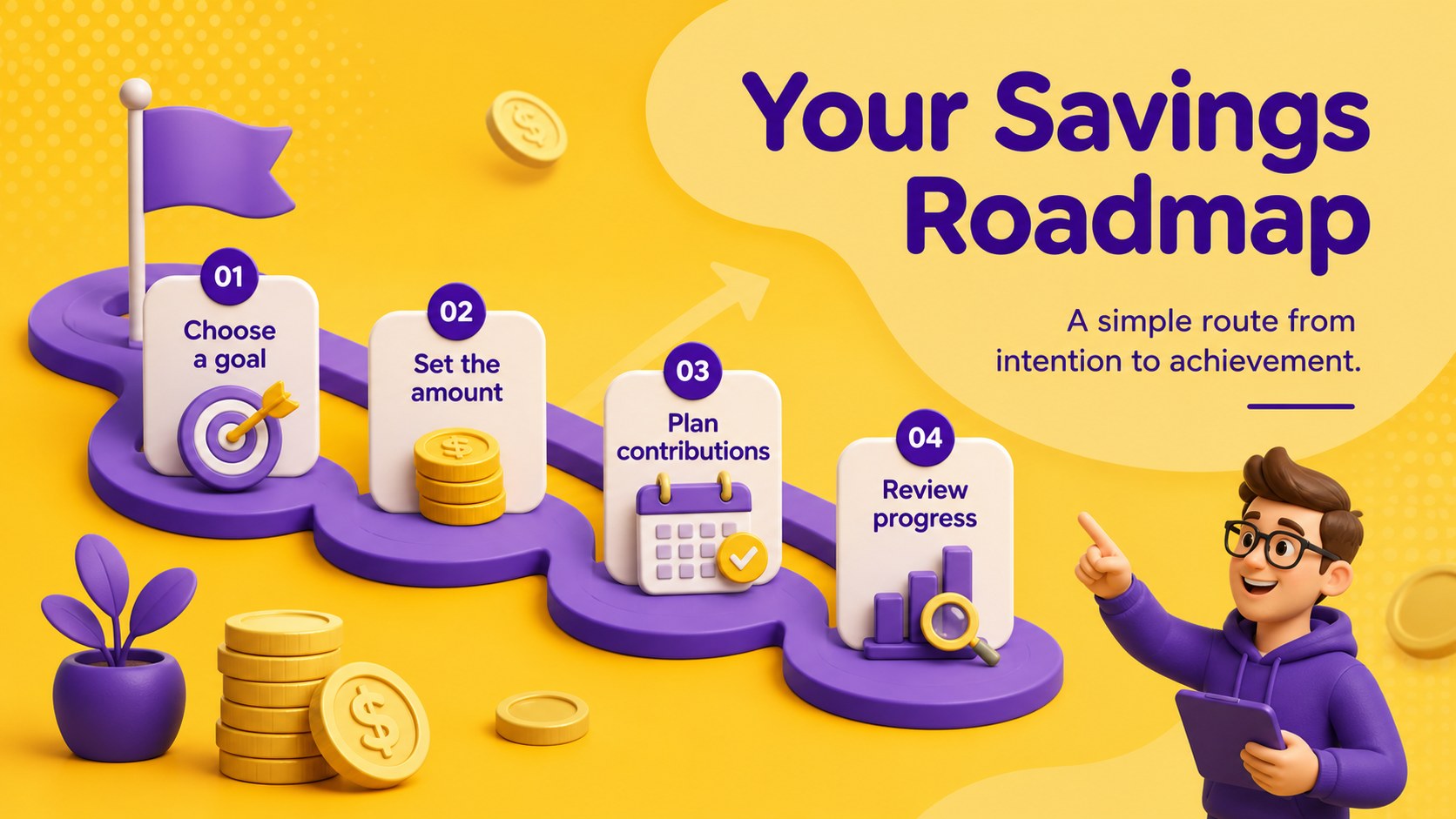
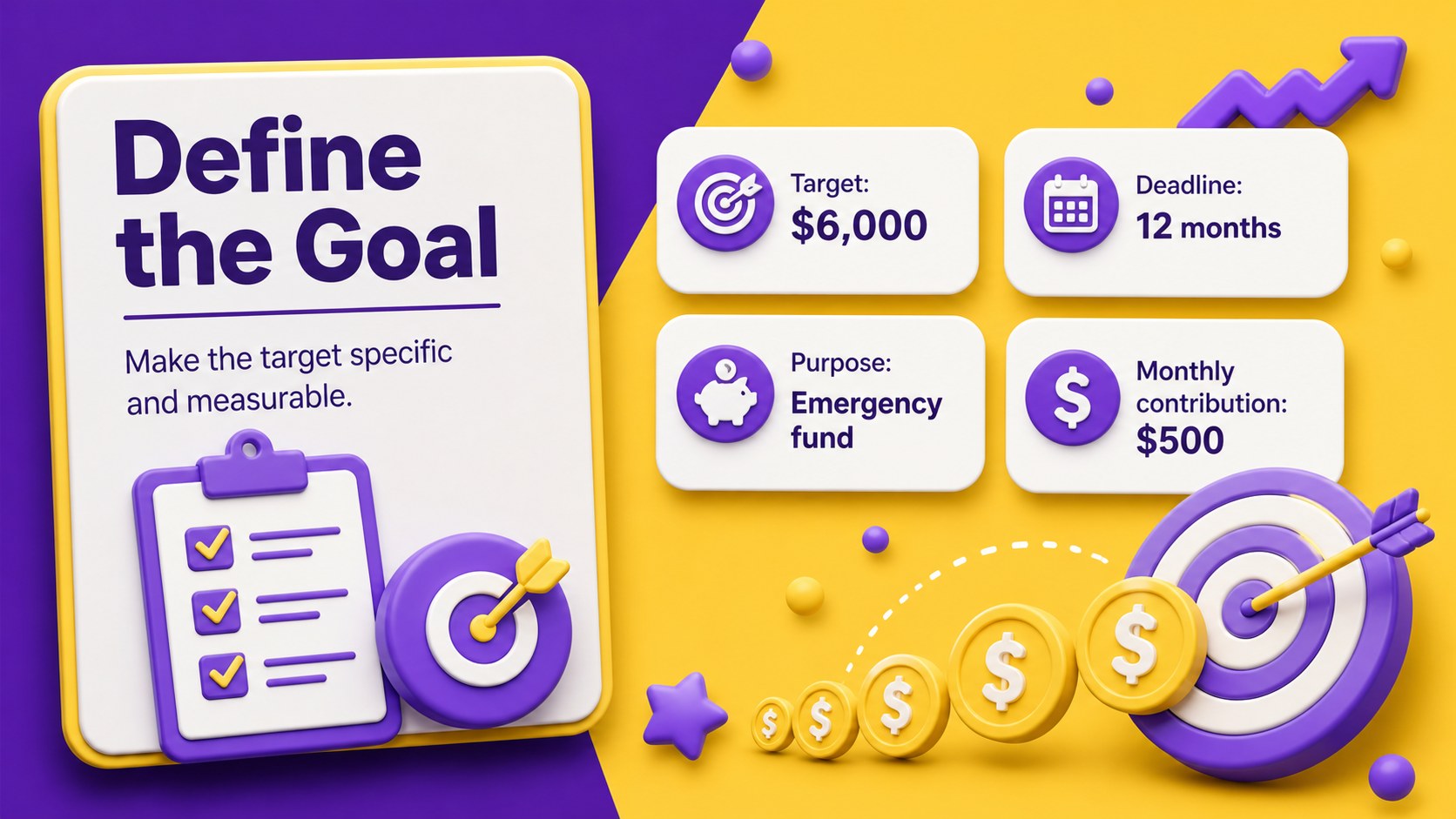
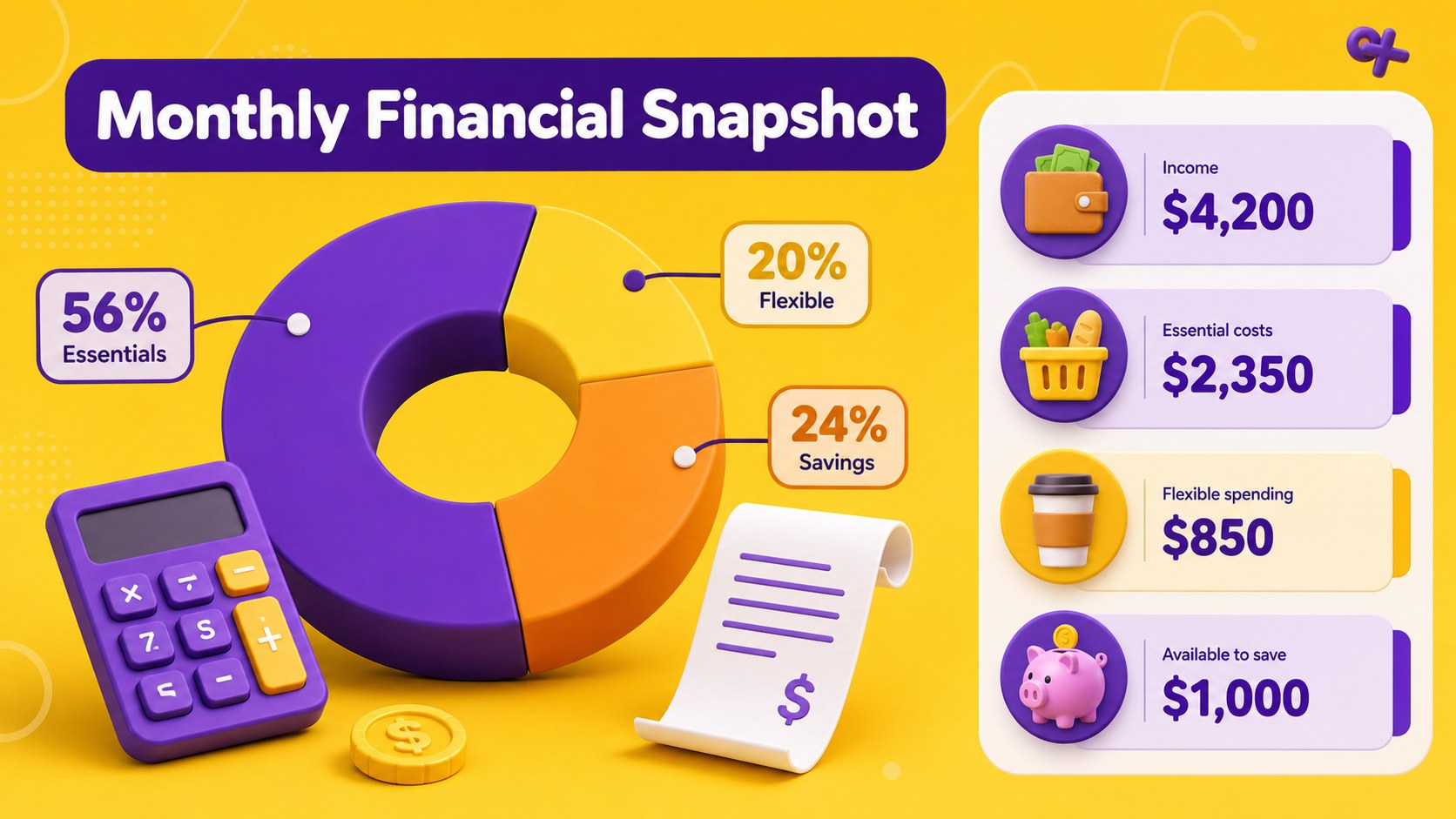
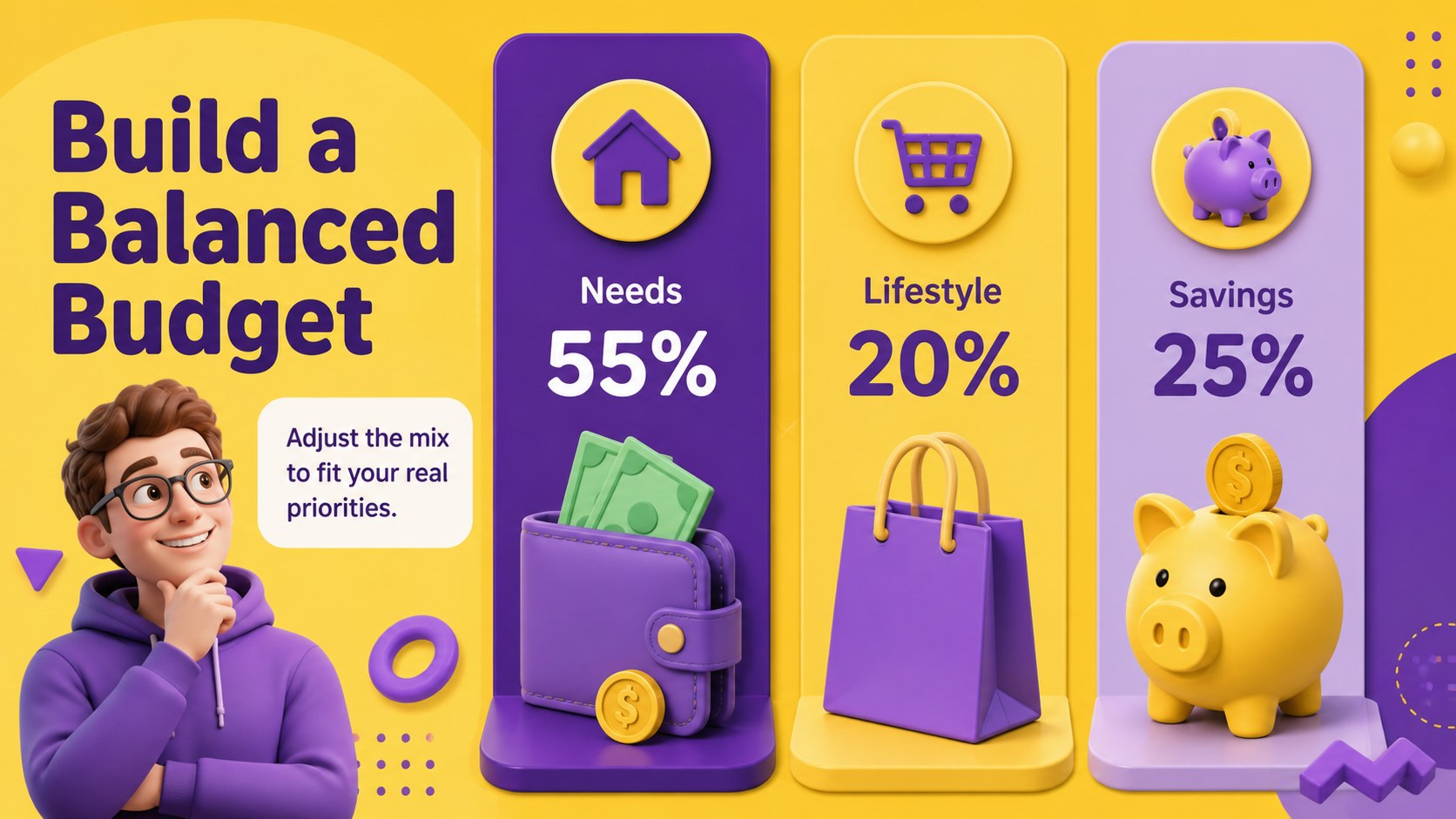
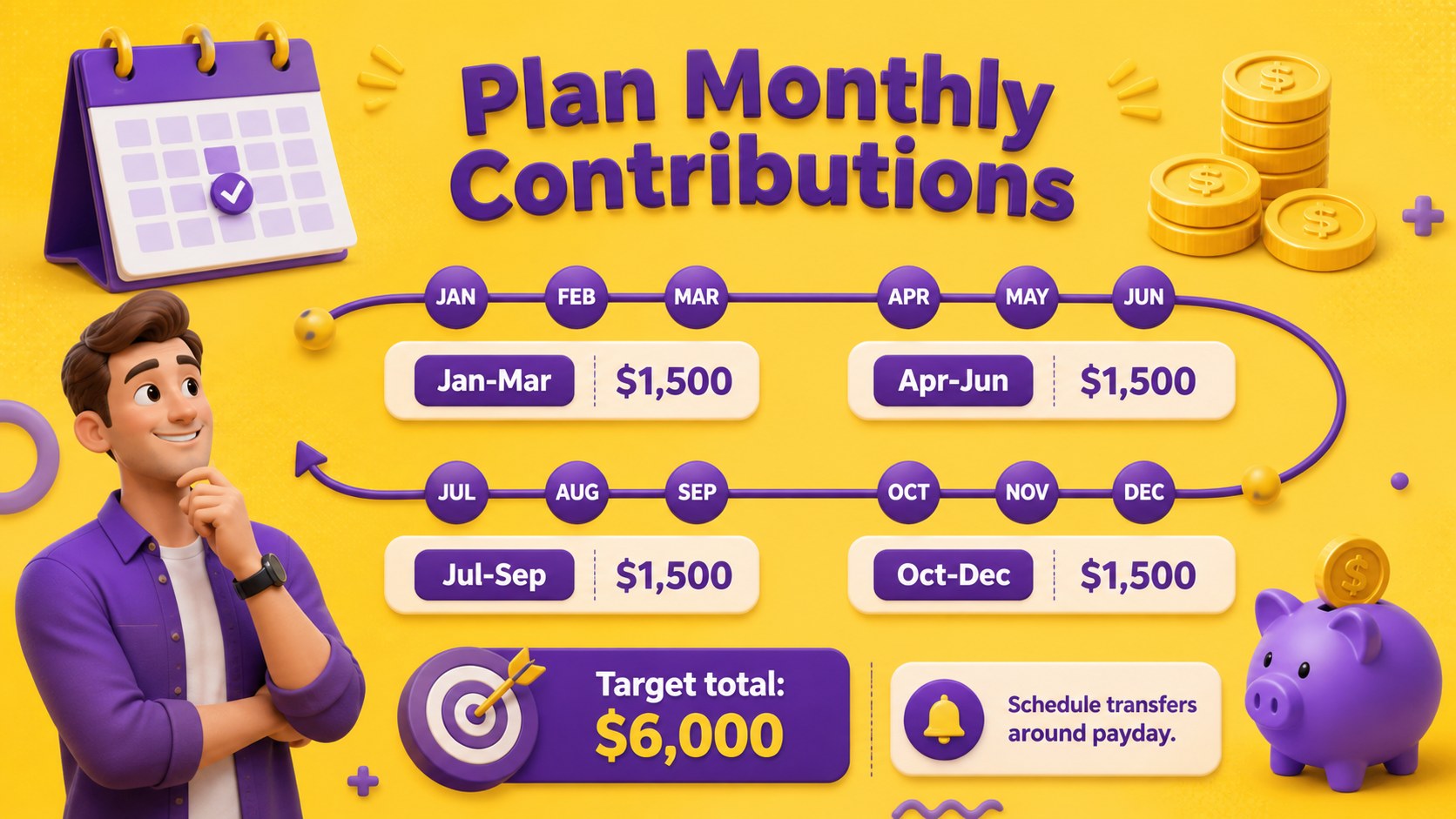
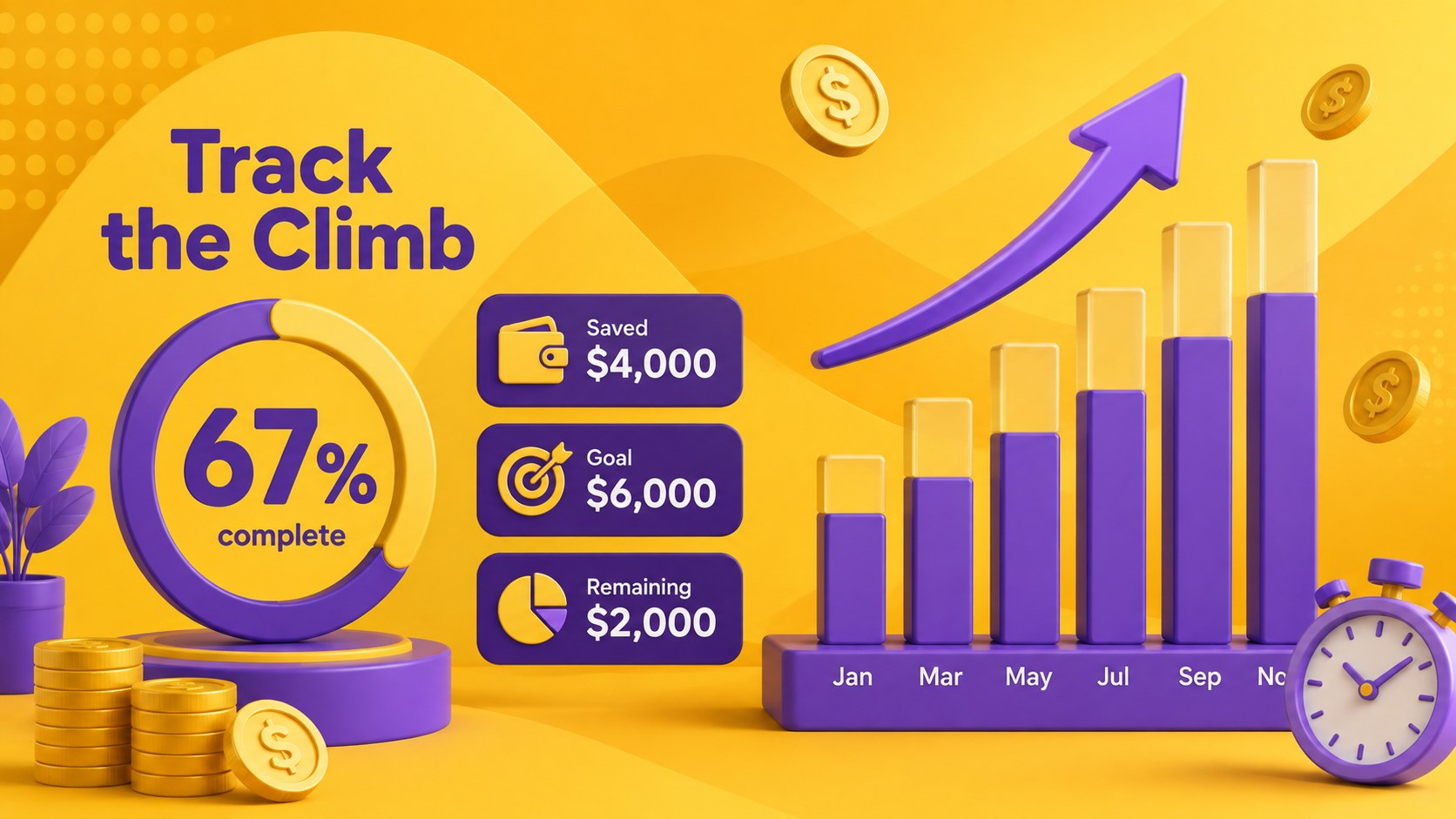
Make financial goals easier to understand and maintain with this 3D personal savings planner. Designed in a lively yellow and purple palette, the deck turns budgets, targets, and monthly contributions into an approachable visual story. Playful dimensional graphics add energy without distracting from the numbers that matter.
The 15-slide presentation includes space for a financial snapshot, goal priorities, an income and expenses overview, a monthly contribution plan, savings categories, milestones, challenges, action steps, and a final progress dashboard. Use it as a personal savings goal tracker, create emergency fund planning slides, or adapt the layouts into a vacation savings presentation template. Charts, timelines, tables, labels, colors, and text can be customized in PowerPoint or Google Slides.
This template suits individuals building a new savings habit, couples coordinating shared targets, financial educators explaining practical budgeting, and coaches helping clients create realistic plans. It also works for classroom activities, community workshops, and workplace financial wellness sessions. Replace the sample figures with your own amounts, adjust the schedule, and highlight the goals that deserve attention. The organized structure helps audiences move from a broad financial objective to specific monthly actions while keeping progress visible and encouraging.
Perfect for: personal monthly savings review; emergency fund planning; vacation fund tracking; financial literacy workshop; couples budget meeting.
Frequently asked questions
Can I edit this savings planner in PowerPoint? Yes. Open the presentation in PowerPoint to change the sample amounts, text, colors, charts, and goal categories. You can also duplicate or remove layouts to match the length of your savings plan.
Practical details
Yes. Open the presentation in PowerPoint to change the sample amounts, text, colors, charts, and goal categories. You can also duplicate or remove layouts to match the length of your savings plan.
Yes. Upload the presentation to Google Drive and open it with Google Slides for browser-based editing. Review font sizing and transitions after import, as minor formatting differences can occur between platforms.
Replace the example figures with your income, expenses, target amount, and preferred deadline. Update the milestone labels and progress values so the charts accurately reflect your plan.
Yes. The layouts can support classroom lessons, coaching sessions, and financial wellness workshops. Use fictional figures when demonstrating budgeting concepts or protect sensitive information before sharing.
Keep exploring
15Build an engaging World UFO Day session with this flying saucer history lesson deck, featuring retro green-and-brown slides for PowerPoint and Google Slides.
 15
15Plan a lively animal-learning journey with this jungle zoo adventure lesson deck, ready to customize in PowerPoint and Google Slides for young learners.
 16
16Turn environmental research into a clear story with a Watercolor Ecology Presentation Theme for PowerPoint and Google Slides in calming green and blue.
 16
16Build focused fashion, literature, and humanities presentations with the Red Triangle Editorial Theme, editable in PowerPoint and Google Slides.
 15
15Turn streaming stats, favorite tracks, and concert highlights into a bold annual listening recap slide deck for PowerPoint and Google Slides.
 15
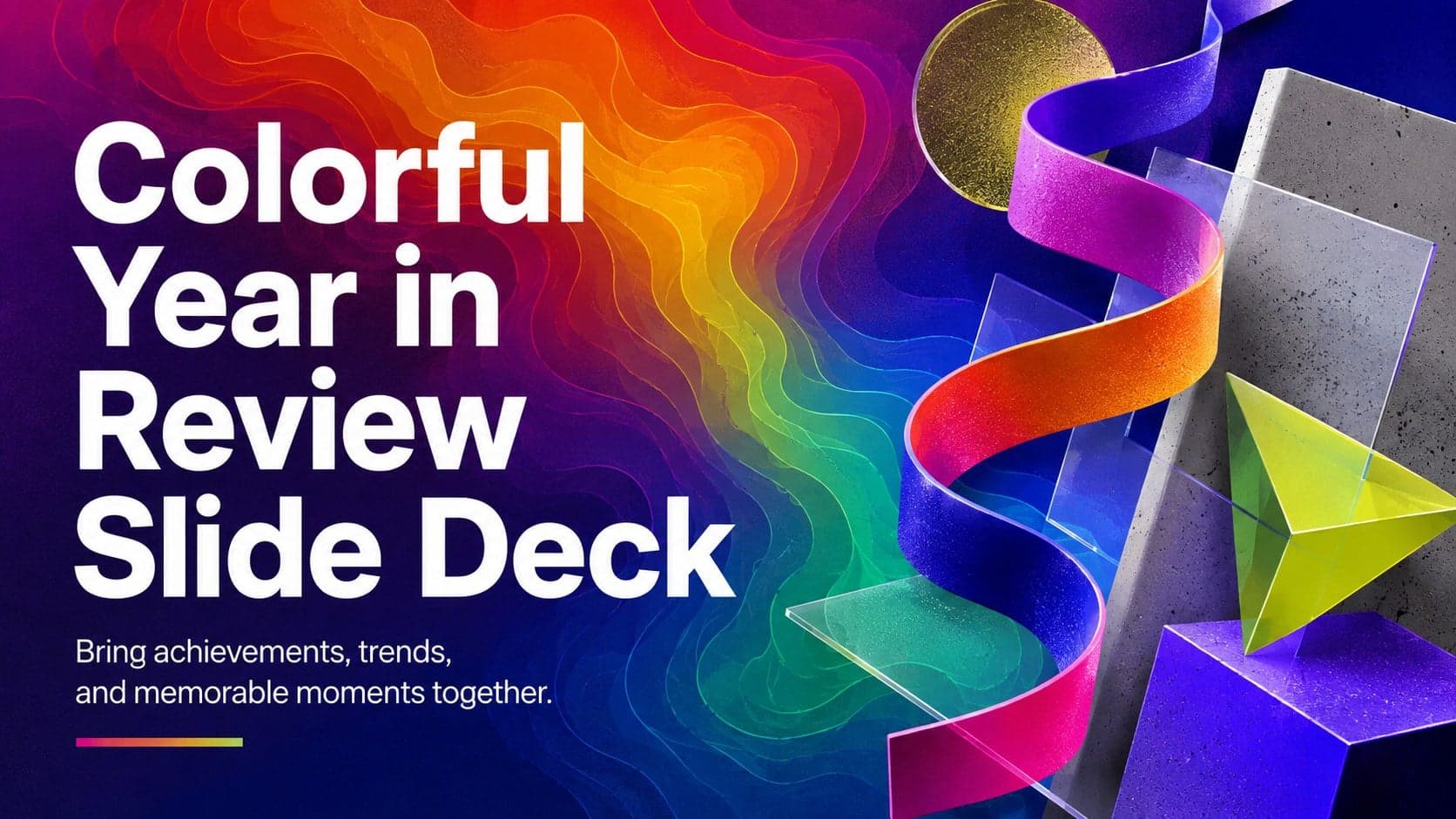
15Turn highlights, milestones, and favorite moments into a colorful year in review slide deck with bold 3D graphics for PowerPoint and Google Slides.
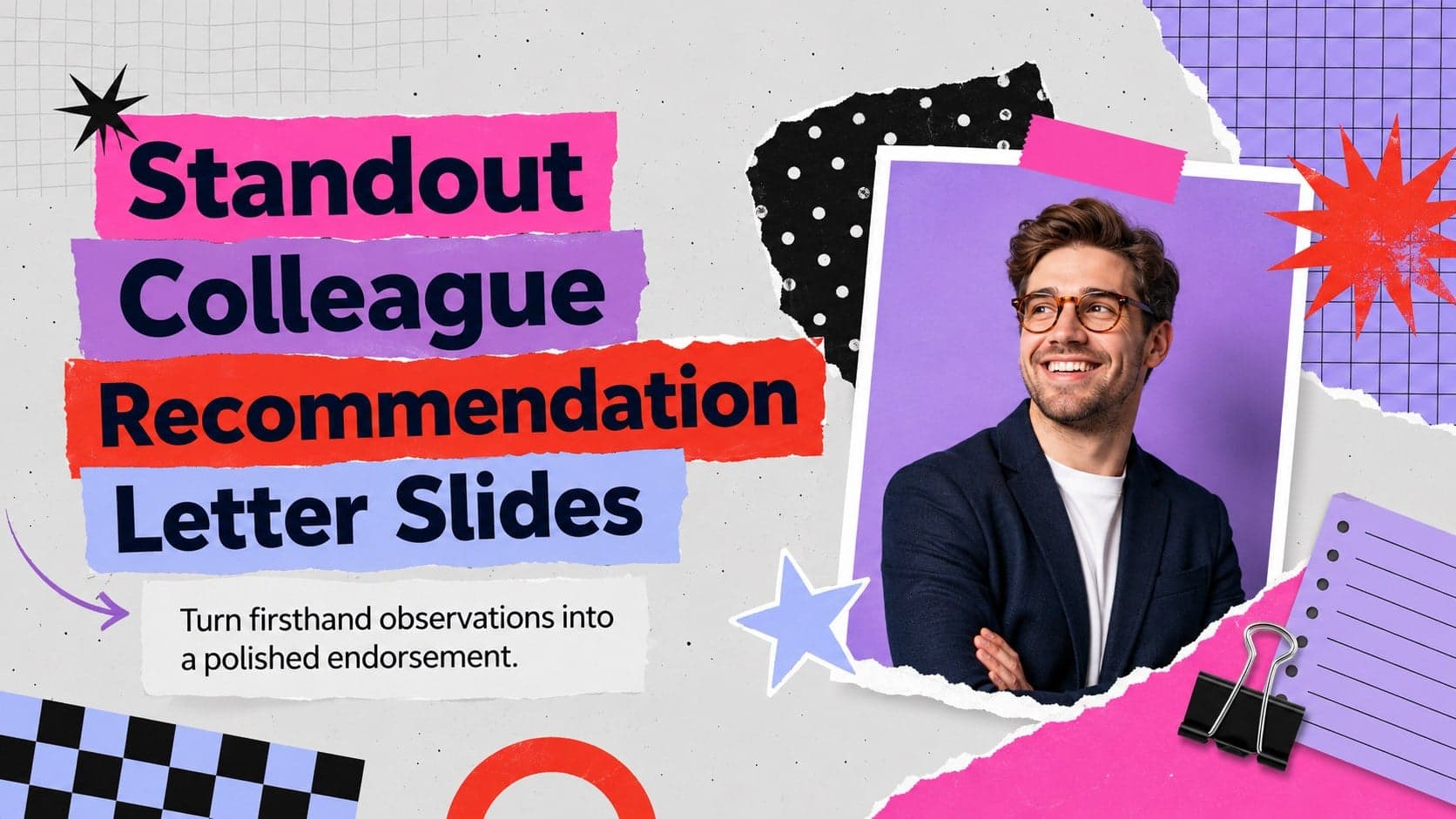 3
3Build a credible endorsement with Standout Colleague Recommendation Letter Slides, featuring colorful prompts for skills, achievements, and team impact.
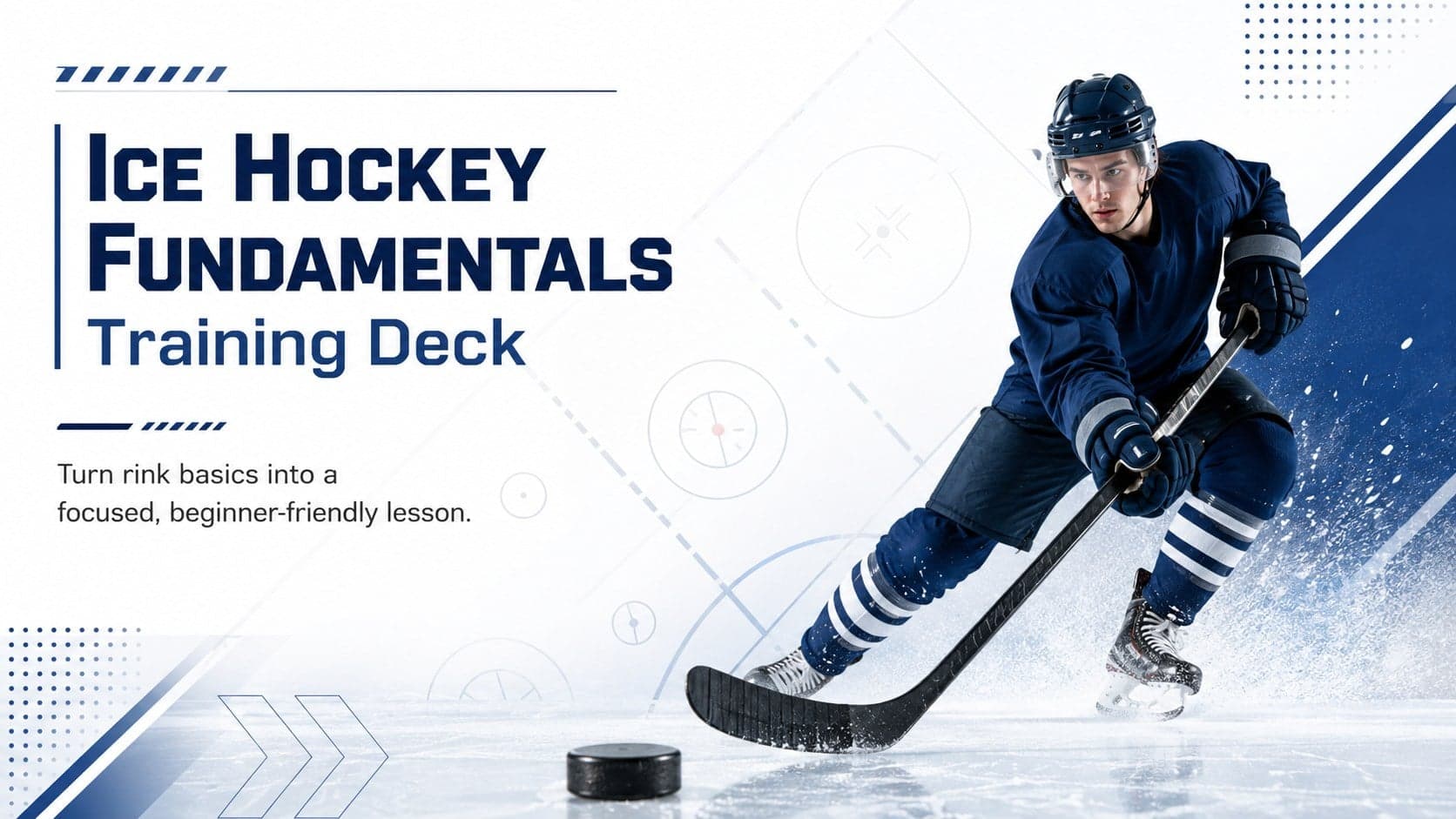 4
4Build clear beginner sessions with an ice hockey fundamentals training deck for coaches, PE teachers, and clubs, ready for PowerPoint and Google Slides.