
 15
15presentation
Yoga Workshop Marketing Presentation
Promote classes with a yoga workshop marketing presentation featuring playful beige, pink, and purple illustrations for PowerPoint and Google Slides.
Google SlidesPowerPoint
presentation · English
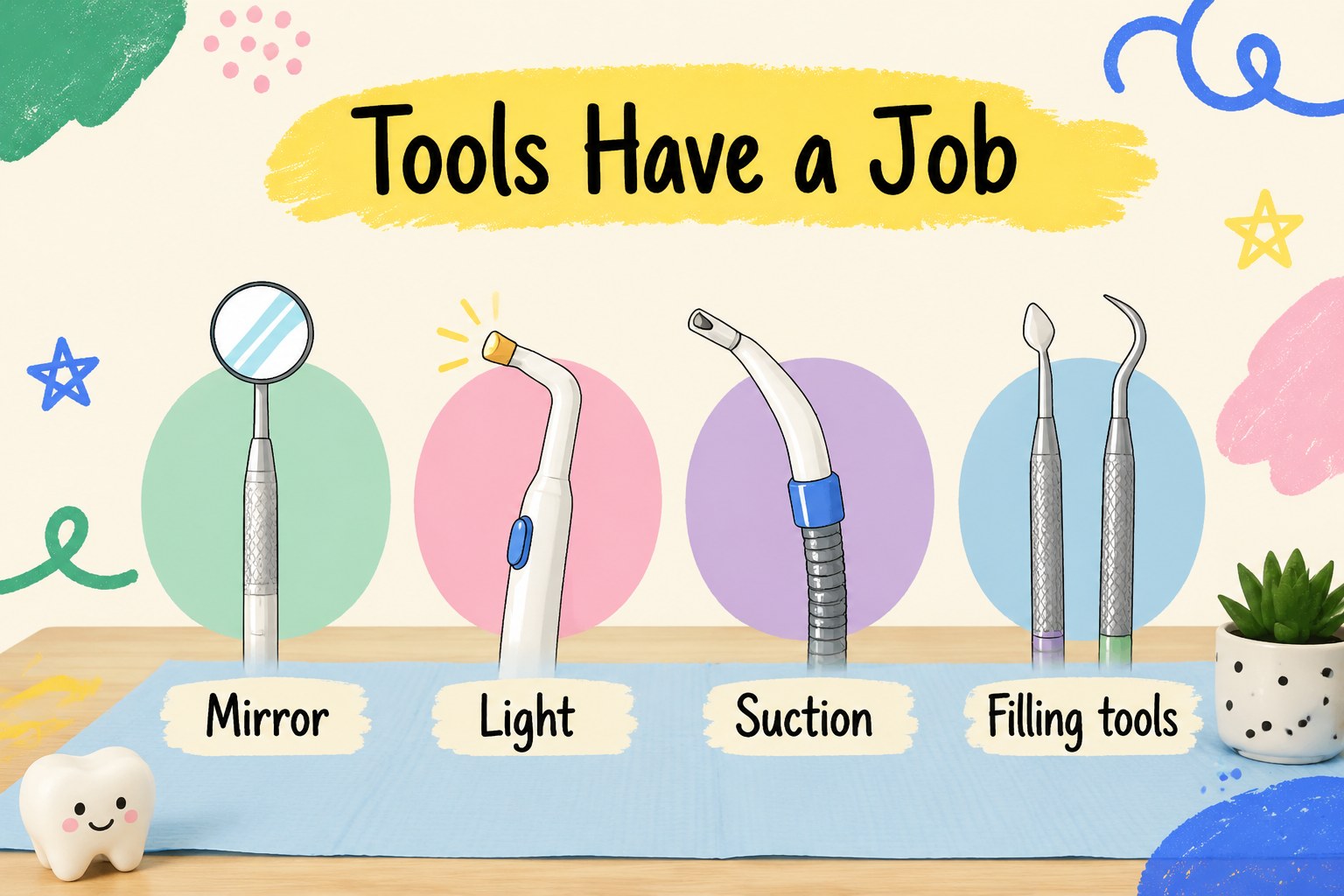
Teach primary teeth cavity prep with a playful beige lesson deck for PowerPoint and Google Slides, featuring clear diagrams, steps, and kid-friendly visuals.
Design notes
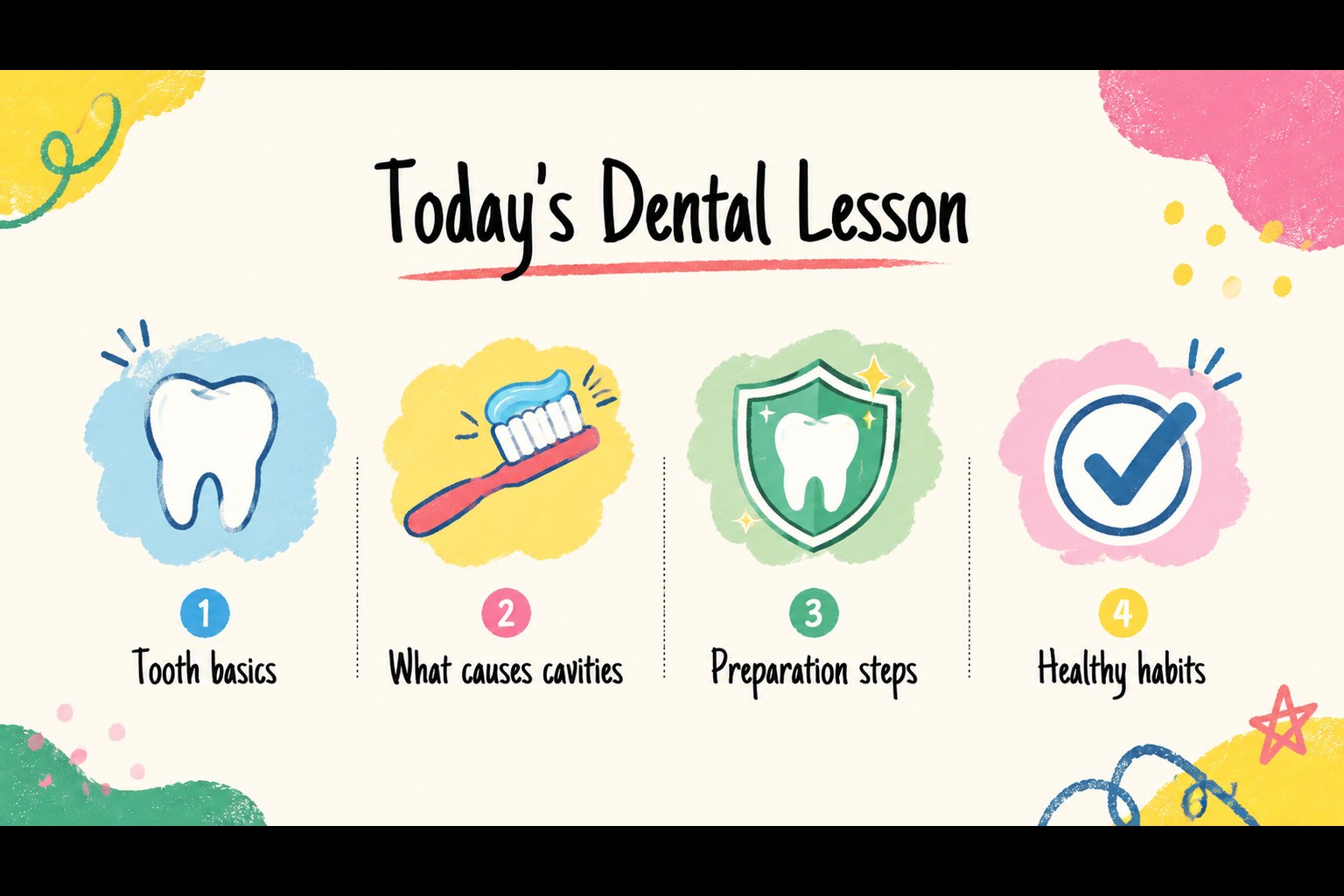
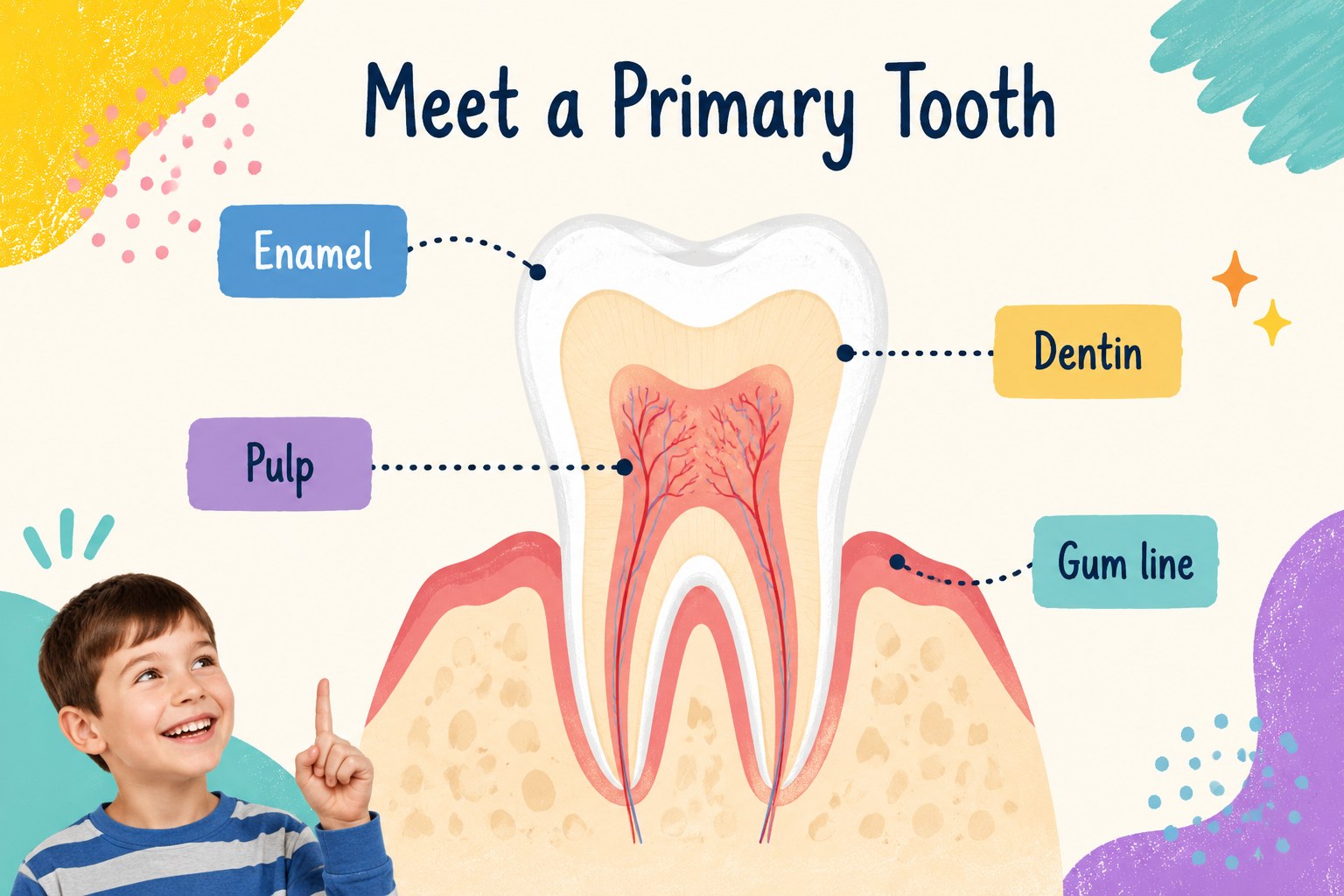
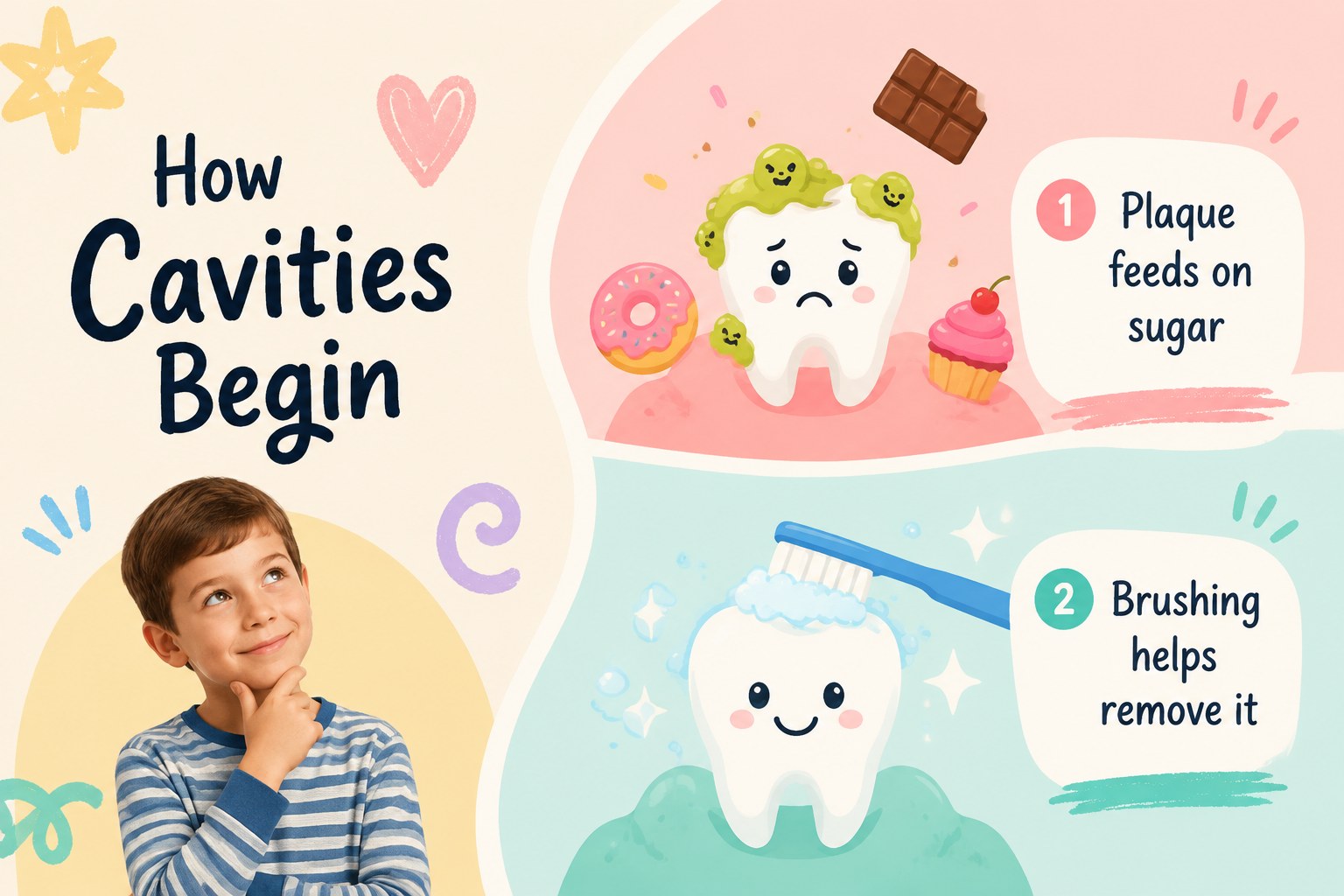
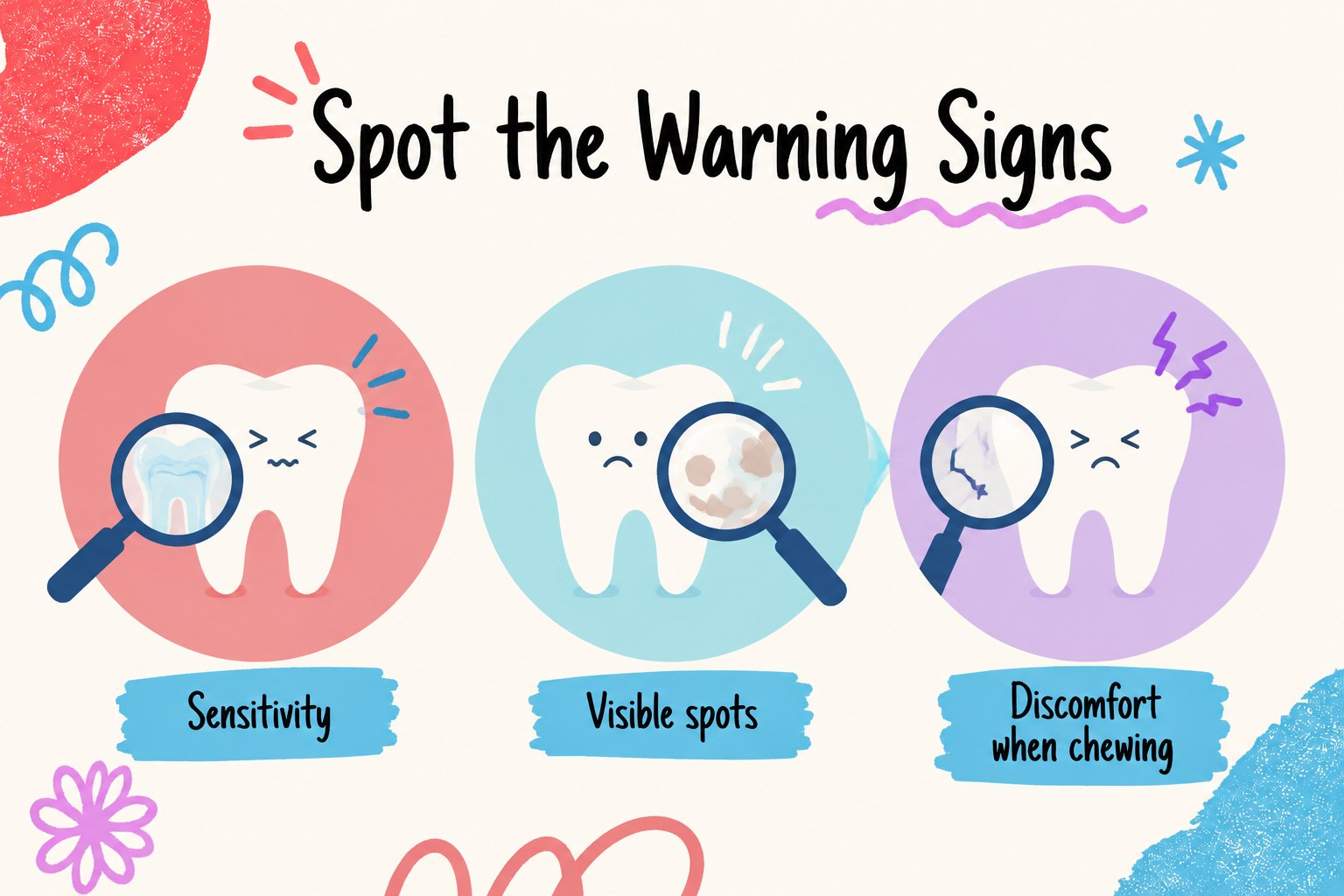
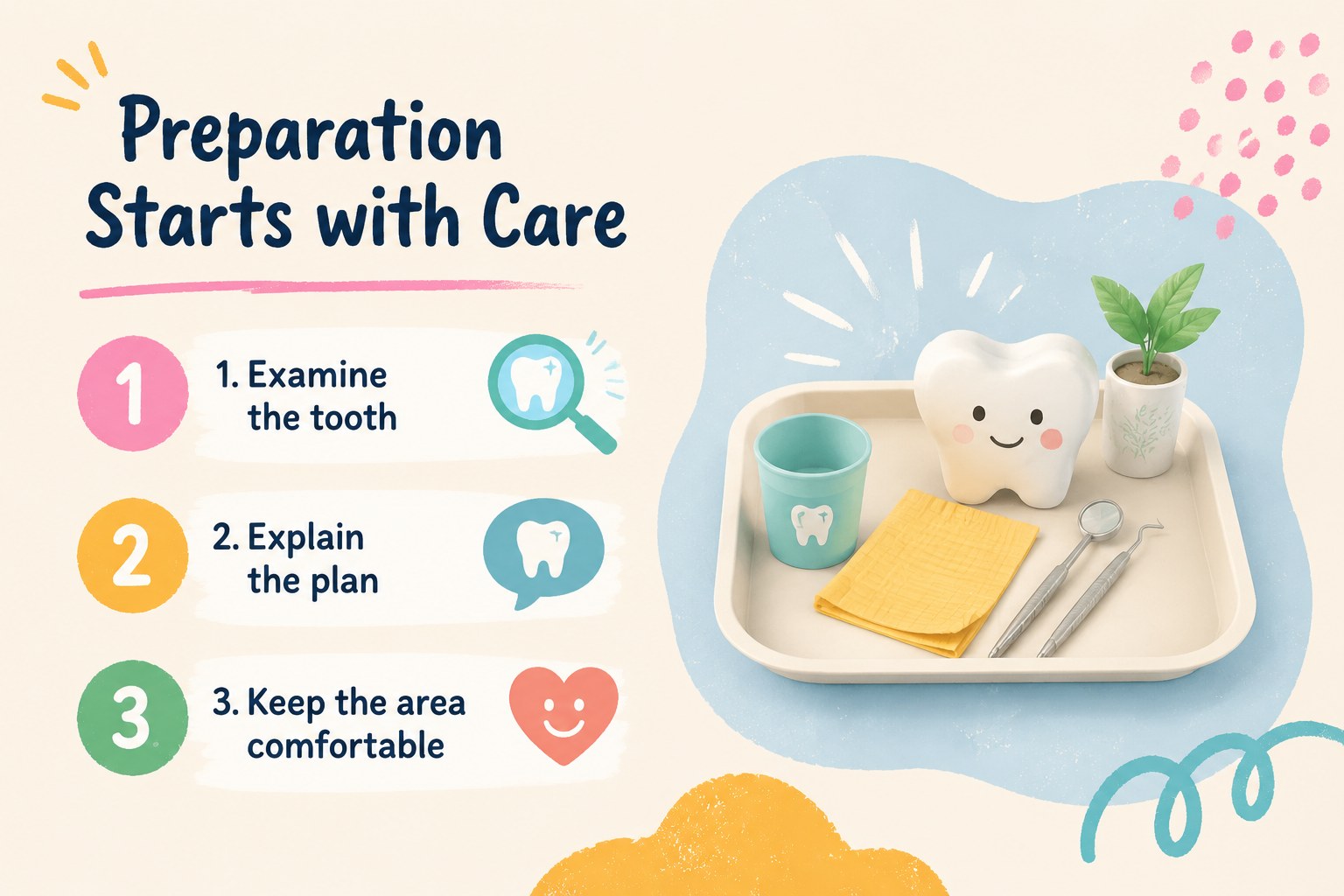
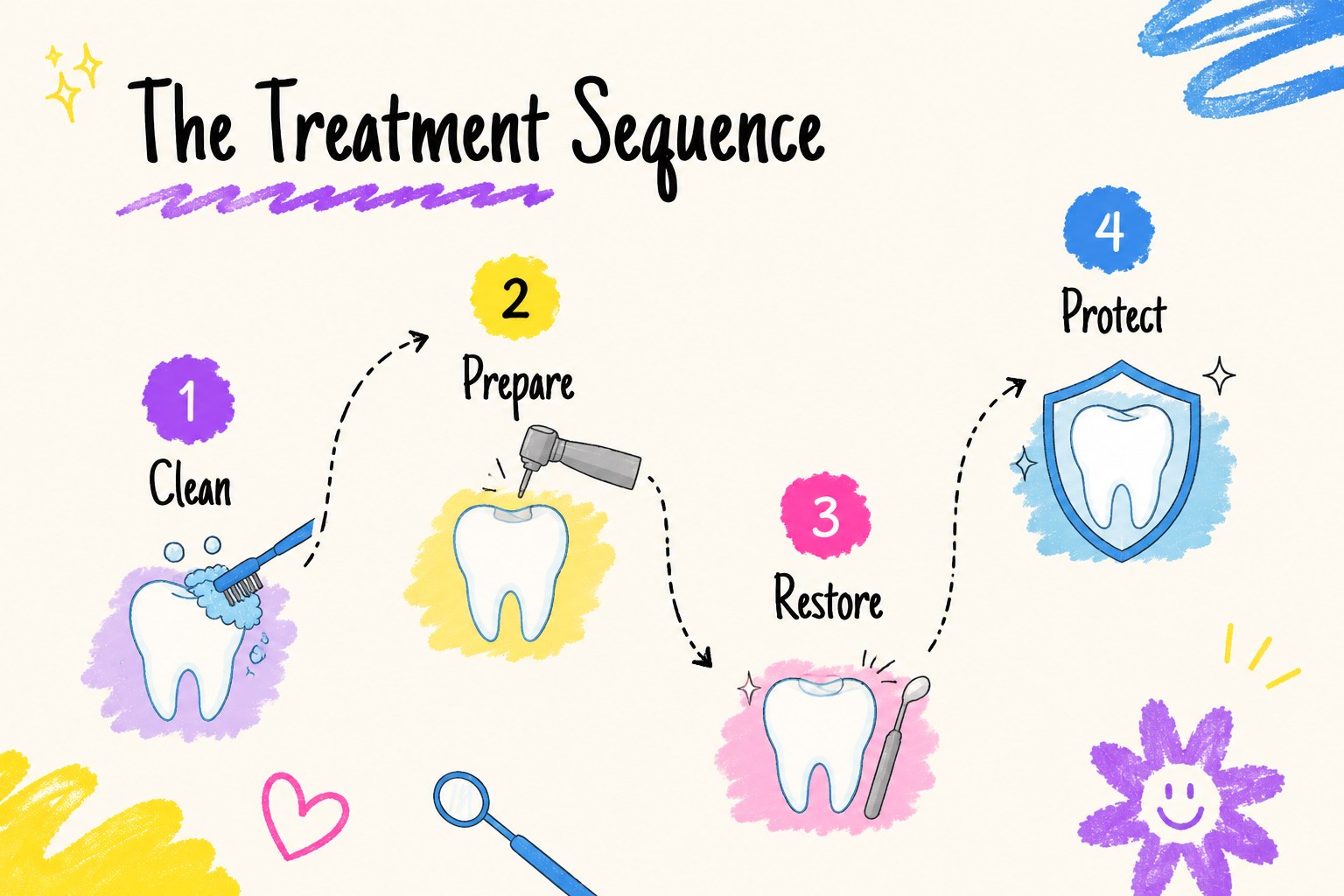
Primary teeth cavity prep lesson materials can be difficult to explain without overwhelming young learners. This playful presentation deck uses a warm beige background, colorful hand-drawn doodles, and approachable dental visuals to make each idea easier to follow. The primary teeth cavity prep lesson layout supports a calm, visual explanation of tooth structure, decay prevention, treatment stages, and healthy habits.
Inside, you’ll find 15 editable 16:9 slides for introducing the topic, reviewing dental vocabulary, comparing healthy and affected teeth, outlining preparation steps, and reinforcing the importance of brushing and dental visits. Simple diagram areas, process layouts, comparison panels, activity prompts, and recap pages help teachers adapt the lesson for different ages and classroom needs. The friendly style works well for elementary health education, dental awareness campaigns, pediatric dentistry talks, and training sessions for families.
Edit the text, colors, illustrations, and diagrams in PowerPoint or Google Slides. Add your own clinical examples, classroom questions, speaker notes, or assessment prompts while keeping the cheerful doodle aesthetic. The result is a flexible pediatric dental education presentation that makes technical information more memorable without losing clarity.
Perfect for: elementary dental health class; pediatric dentistry patient education; school cavity prevention workshop; family oral care seminar; children’s health awareness presentation.
Frequently asked questions
Can I edit this deck in PowerPoint? Yes. The slides are designed for PowerPoint editing, including text, colors, shapes, diagrams, and illustrations. You can also export the finished presentation in common formats for classroom or clinical use.
Practical details
Yes. The slides are designed for PowerPoint editing, including text, colors, shapes, diagrams, and illustrations. You can also export the finished presentation in common formats for classroom or clinical use.
Yes, you can open and customize the presentation in Google Slides. Check the fonts and illustration placement after importing, then adjust any elements needed for your preferred classroom setup.
Yes. Replace the sample wording with simpler explanations for younger children or add more detailed tooth anatomy and procedure notes for older students. The layouts support both short activities and longer teaching sessions.
You can change the headings, body copy, diagrams, activity questions, color accents, and visual examples. Add local dental guidance, clinic information, speaker notes, or assessment questions to match your audience.
Keep exploring
15Promote classes with a yoga workshop marketing presentation featuring playful beige, pink, and purple illustrations for PowerPoint and Google Slides.
 15
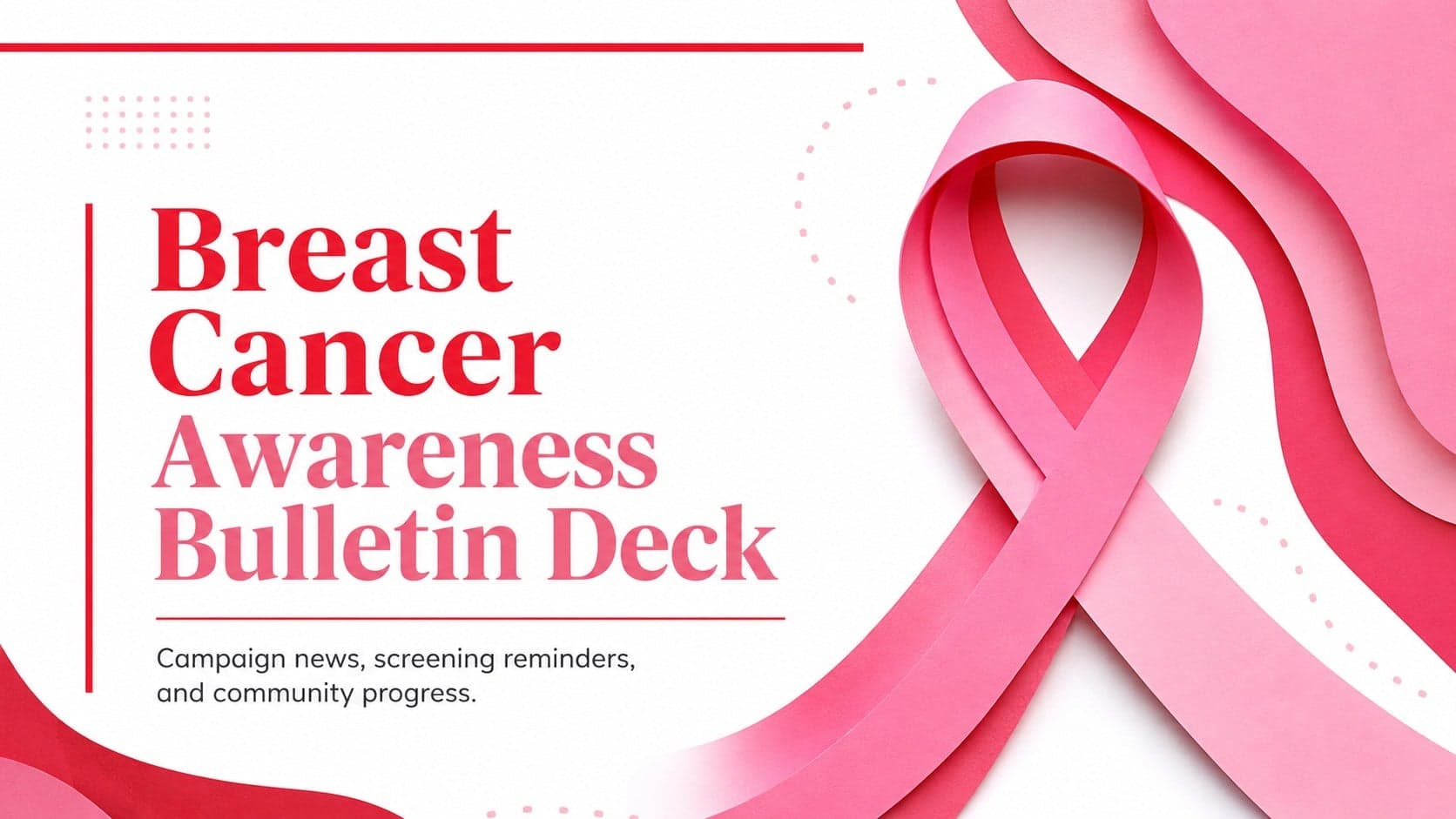
15Build a clear breast cancer awareness bulletin with bold pink-and-red slides for campaign news, screening reminders, impact data, and community updates.
 15
15Build a clear World Cancer Day message with this global cancer awareness campaign deck, featuring editable blue-green layouts for PowerPoint and Google Slides.
 4
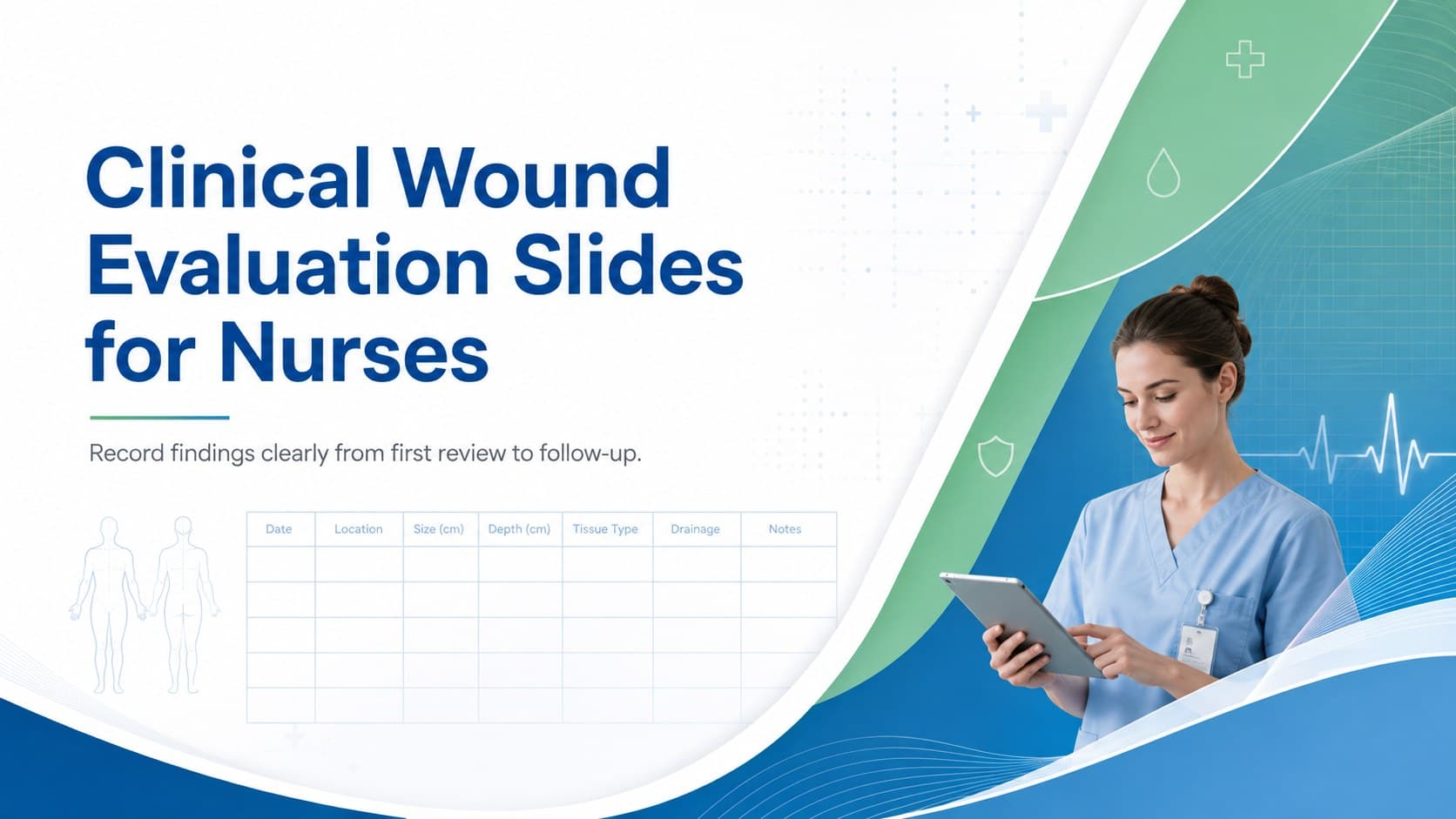
4Document wound findings, treatment decisions, and healing progress with clinical wound evaluation slides for nurses in PowerPoint and Google Slides.
 14
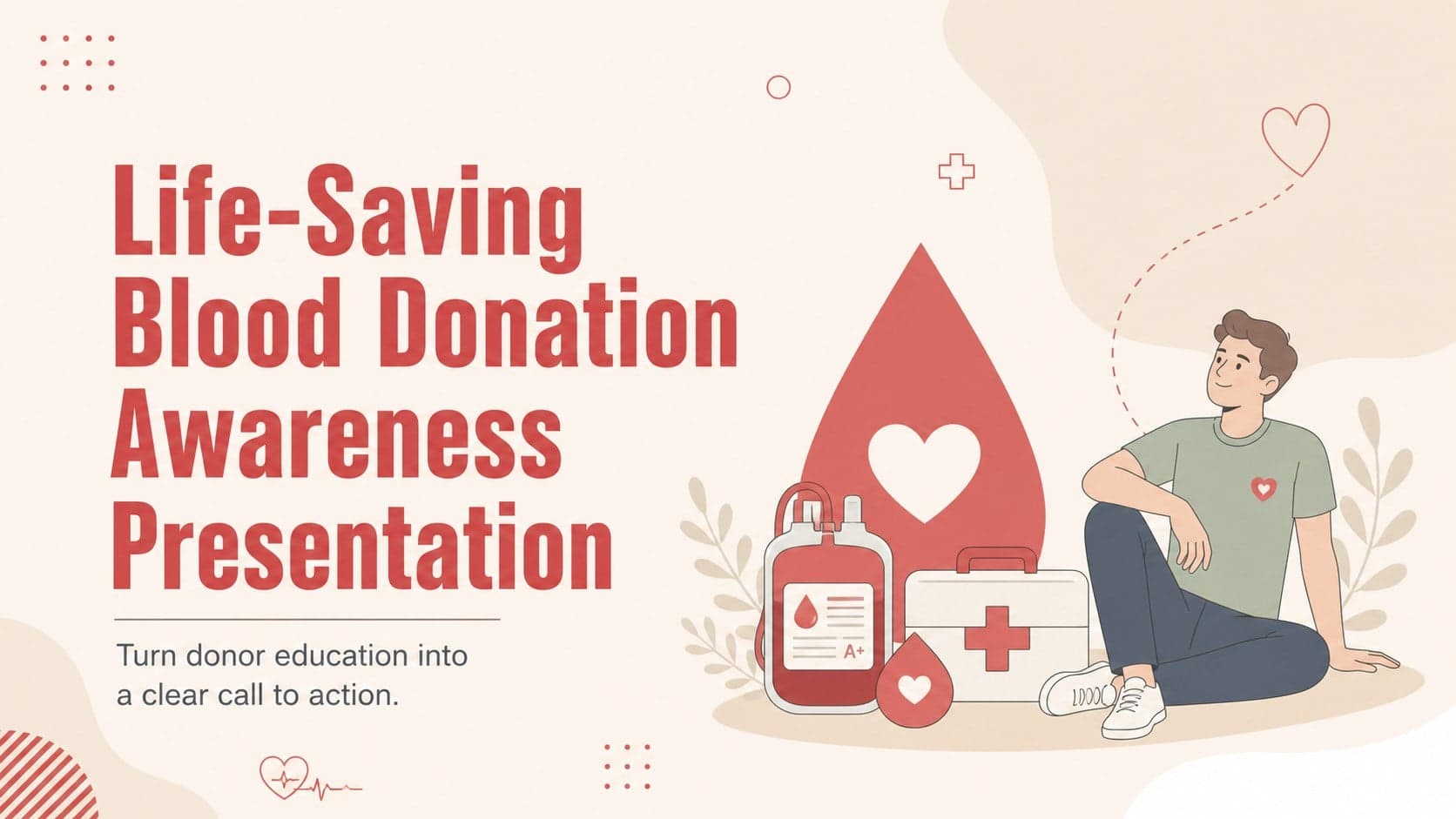
14Plan a clear donor campaign with this blood donation awareness presentation, featuring editable beige-and-red visuals for PowerPoint and Google Slides.
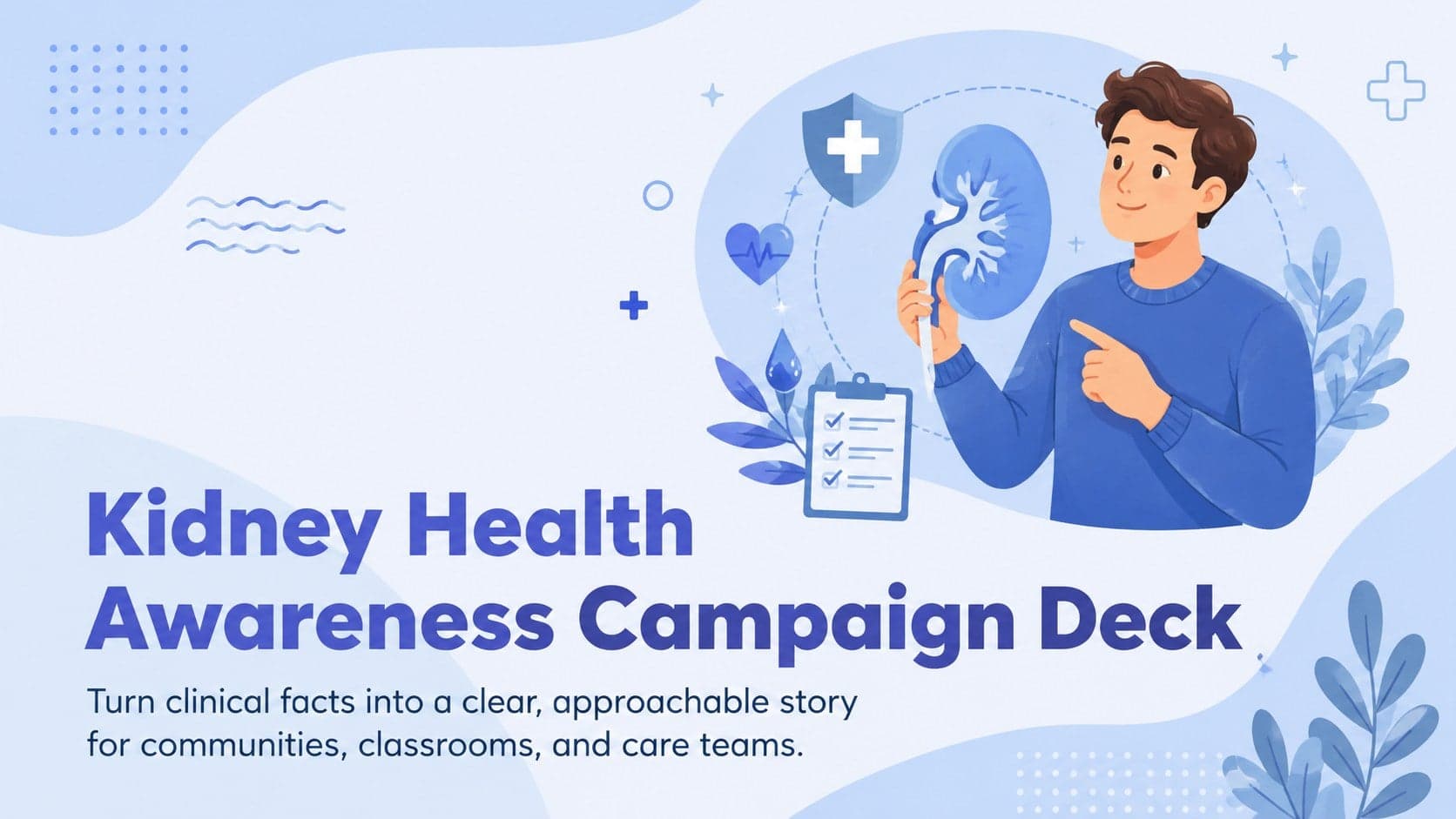 15
15Build a Kidney Health Awareness Campaign Deck with blue illustrated slides for prevention tips, risk education, screening events, and outreach.
 15
15Build an actionable training session with this fitness program workshop deck, using energetic yellow geometry and editable PowerPoint and Google Slides layouts.
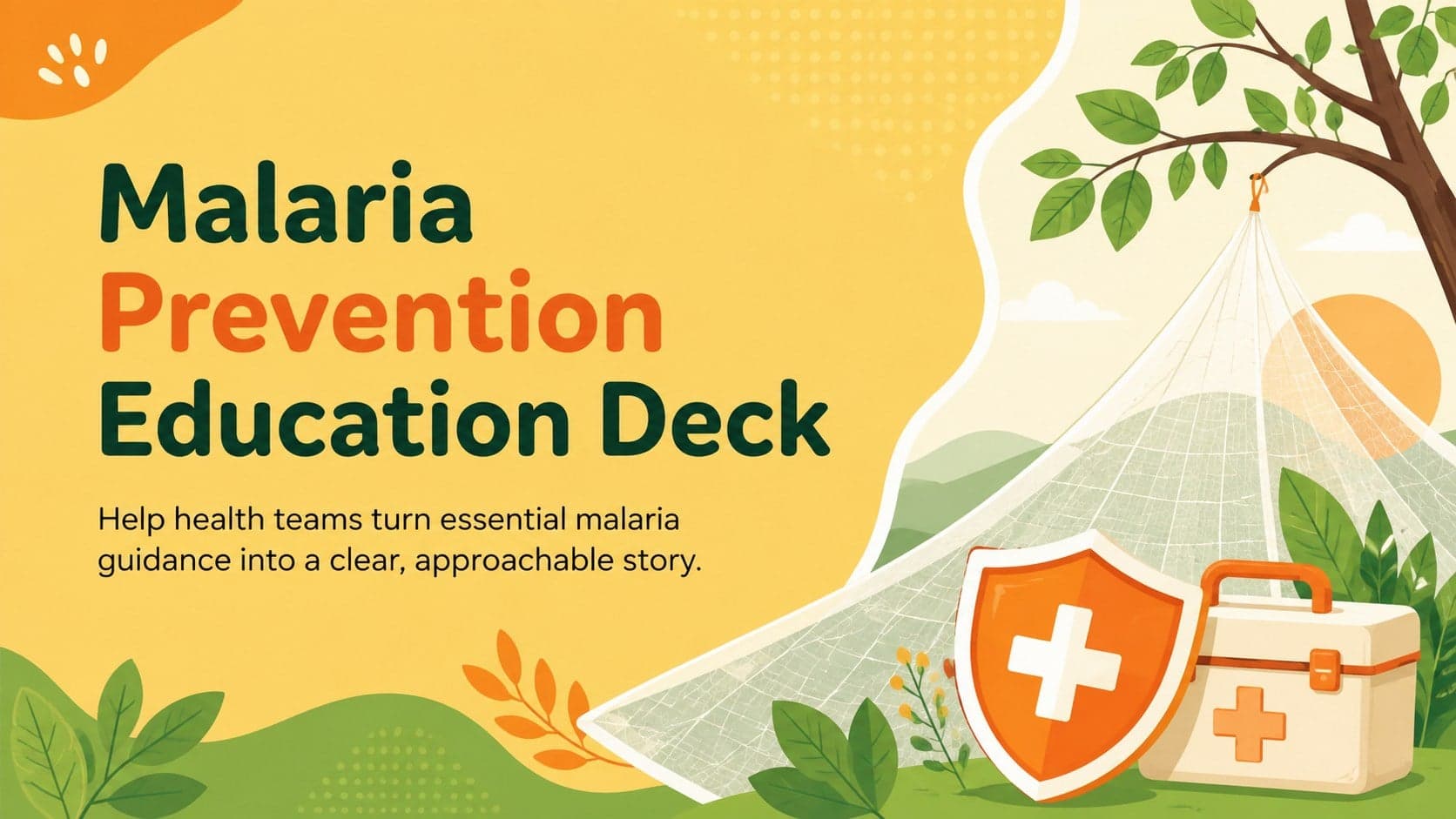 15
15Equip health teams with this malaria prevention education deck for workshops, community outreach, and policy briefings in PowerPoint or Google Slides.